Chapter 6: Passwords, Clickbait, and Staying Safe Online
Summary
Learn how strong passwords work, how clickbait, scams, and trackers try to fool you, and how to stay one step ahead.
This chapter is part of the Grade 5 Digital Citizenship learning progression. After completing it, students will be able to use the vocabulary, recognize the situations, and apply the habits introduced in the concepts listed below.
Concepts Covered
This chapter covers the following 19 concepts from the learning graph, listed in dependency order:
- Data Tracking
- Password
- App Permission
- Cookies
- Email Privacy
- Incognito Mode
- Login
- Password Sharing
- Sign Out Habit
- Strong Password
- Account Security
- Passphrase
- Targeted Ad
- Clickbait
- Screen Lock
- Two Factor Authentication
- Biometric Login
- Online Scam
- Phishing Basics
Prerequisites
This chapter builds on concepts from:
- Chapter 1: Welcome to the Digital World
- Chapter 2: What Is a Digital Citizen?
- Chapter 5: Private vs. Personal Information
Read the Stories
This chapter has two short graphic-novel companions.
Meet Zara — a student who gets a link from a friend's account that looks too good to pass up... until she stops to think about whether her friend would really send that. Her story is about pausing before you tap.
Then meet Marcus — a student who learns the hard way that a weak password is like an unlocked door. His story shows how a passphrase can be both strong and easy to remember.
Diego and the "You Won!" Message
Diego is doing his homework on the family laptop when a colorful box pops up on the screen. YOU WON A FREE TABLET! the box shouts. There is a glittery picture of a brand-new tablet, three exclamation points, and a big yellow button that says CLICK HERE TO CLAIM YOUR PRIZE!!!
Diego's heart speeds up. A free tablet? His old one has a cracked corner. He moves the mouse toward the button. His finger is one click away.
Then he stops. I didn't enter any contest, he thinks. Why would I win something I never signed up for?
This chapter is about the moment Diego is in right now — the moment when something on the screen is trying to fool you, and the tools you can use to stay one step ahead. We'll learn about strong passwords, sneaky tricks, and the quiet ways the internet watches what you do. By the end, you will be a much harder kid to fool.
Hi Friends!
 Hi friends, it's Maka! This is a big chapter, so let's go slow. We're going to talk about passwords, sneaky tricks, and the ways the internet tries to peek at what you do. None of it is scary if you know what to look for. Pause, think, act!
Logging In — Passwords That Actually Work
Most websites and apps have two doors. The front door is open to everyone. The second door leads to your stuff — your saved drawings, your scores, your messages. To get through the second door, you have to prove you are you.
Login is the act of typing your name and a secret word into a website or app to get into your account. The secret word has its own name.
Password is the secret string of letters, numbers, and symbols that proves you are the owner of an account. A good password is hard for anyone else to guess and easy for you to remember.
Some passwords are weak. password, 12345, abc123, and yourname2014 are all so common that bad guys try them first. Strong passwords are different.
Strong password is a password that is long, hard to guess, and not used anywhere else. A strong password has at least 12 characters, mixes letters and numbers, and is not based on an easy-to-guess fact about you, like your birthday or your dog's name.
The easiest way to make a strong password is to use a passphrase.
Passphrase is a strong password made out of three or four random words strung together. PurpleOtterToastBicycle is a passphrase. It has 21 letters, it isn't a real phrase you would find anywhere, and it is much easier to remember than xK7$pQ9w!2. Passphrases are the secret weapon of smart digital citizens.
There are three more habits that go with passwords. They sound small, but they make a huge difference.
Password sharing is telling your password to another person. The rule is simple: never share your password with anyone except a trusted adult in your home. Not your best friend. Not the cool kid at school who promises not to tell. Not a stranger online who says they need it. The only person who should know your password besides you is the trusted adult who helped you make it.
Sign out habit is the habit of clicking sign out or log out when you finish using an account, especially on a shared device. If you don't sign out, the next person who uses that device walks straight into your account. A sign out habit is one of the easiest safety tools there is.
Screen lock is a setting that makes your tablet, phone, or laptop demand a code, password, or fingerprint before it will show what's on the screen. A screen lock is what protects your stuff if someone picks up your device while you are not looking. Every device you use should have a screen lock turned on, and your trusted adult can help you set one up.
| Habit | What it is | Why it matters |
|---|---|---|
| Strong password | 12+ characters, hard to guess | Stops people from guessing in |
| Passphrase | 3–4 random words mashed together | Strong and easy to remember |
| Sign out habit | Click sign out when you're done | Stops walk-in account hijacks |
| Screen lock | Code or print to unlock the device | Protects you when the device leaves your hand |
Locking Down Accounts
Even a strong password is not the only thing protecting an account. There is a whole bigger idea that wraps around it.
Account security is the full set of habits and settings that keep your accounts safe — your password, your screen lock, your sign out habit, and a few extra tools we are about to meet. A great digital citizen thinks about all of them, not just the password.
The two extra tools both add a second check before anybody can get into your account.
Two factor authentication is a setting that asks for two things to log you in: your password, plus a short code sent to your phone or your trusted adult's phone. Even if a bad guy guesses your password, they still cannot get in without that second code. The short name for it is 2FA. Turn it on for any account that lets you, with help from a trusted adult.
Biometric login is a way to log into a device by showing a part of your body — usually a fingerprint or a face scan. The device matches what it sees against the picture it stored when you set it up. Biometric login is fast, and it cannot be guessed, because nobody has your exact fingerprint.
Biometric login on a shared family device should always be set up with a trusted adult, so they know which fingerprints can unlock what.
Maka's Tip
 Try the passphrase game tonight. Pick three random things from around your room — say, lamp, blanket, window — and mash them together with no spaces. LampBlanketWindow. Add a number you'll remember. That's a passphrase! Just don't use that exact one for a real account — make your own.
Sneaky Tricks Online
Strong passwords protect you from people guessing their way in. But some bad actors don't bother guessing — they try to fool you into handing the password over yourself. Their tricks have names, and once you can name them, you can spot them a mile away.
Clickbait is a headline, picture, or button designed to make you click before you stop to think. Clickbait usually uses one of three flavors: amazing ("You won't believe what happened next!"), scary ("Doctors HATE this trick!"), or too-good-to-be-true ("Get a free tablet — just click here!"). Diego's pop-up is pure clickbait.
The trick with clickbait is not that it's wrong — it's that it doesn't want you to think. The cure is simple: pause. Read the words slowly. Ask, "What is this trying to make me do?" If the answer is "click really fast without thinking," the answer is to not click.
Online scam is a trick that uses the internet to fool people into giving up money, private information, or control of an account. Diego's "free tablet" pop-up is an online scam. So is a message that says you have to pay a fee to claim a prize. So is a stranger who says they need your password "just to fix a problem." Real helpers never need your password.
Phishing basics is the simple version of a sneaky kind of scam called phishing. Phishing is when a bad guy sends a message that pretends to be from a trusted place — your school, your family, or a kid website you use — and tries to trick you into typing your password into a fake page. The message might look perfect. The web page might look perfect. But the address bar will not match. The padlock from Chapter 5 might be missing. And the message will usually try to scare you or rush you into clicking.
You can spot phishing with three quick checks:
- Does the address bar match the place you expected? If not, don't type.
- Is the message rushing you or scaring you? Real helpers don't rush kids.
- Is the message asking for your password? Real helpers never need it.
If a message passes all three checks, it is probably fine. If it fails even one, stop and tell a trusted adult. They will help you figure out whether it is real. You will not be in trouble for asking — even if it turns out to be nothing.
There is one more form of communication that can carry sneaky tricks, and it deserves its own habit.
Email privacy is the set of choices that keep your email account safe and your messages from being read by people they were not meant for. The big email privacy habits are: never type your email address into forms without a trusted adult's help, never open an attachment from a stranger, and never click a link in a message that feels rushed, weird, or too good to be true.
Watch Out for Tricks!
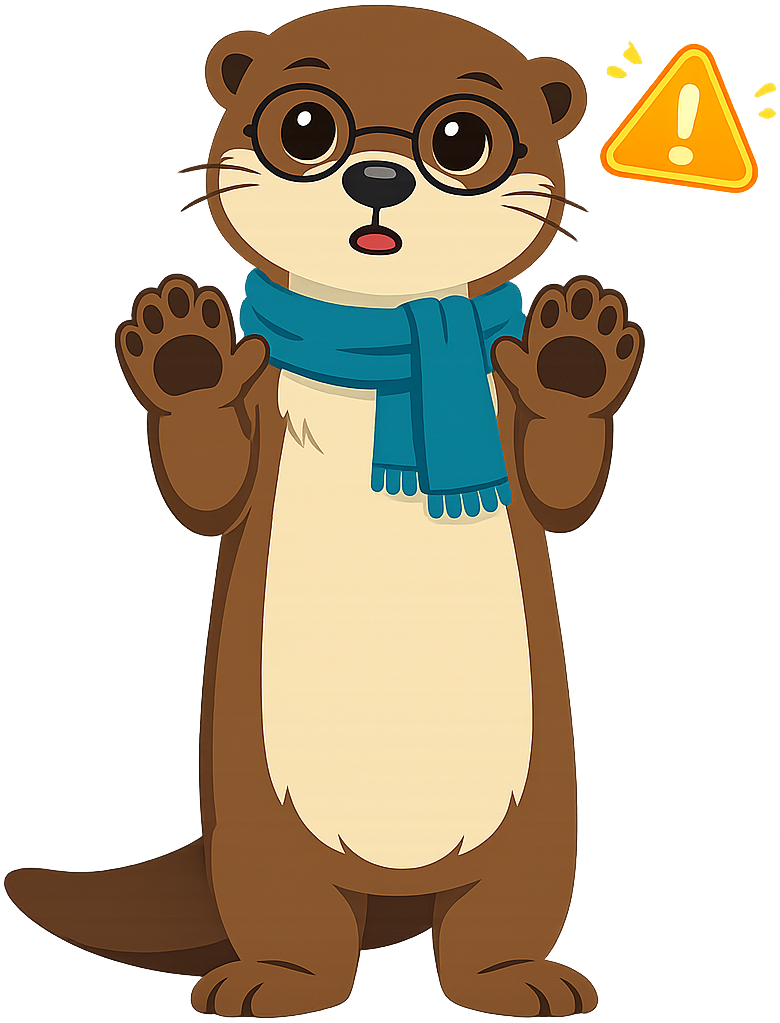 The biggest sign of a trick is the feeling of hurry. If a message or pop-up wants you to click RIGHT NOW or you'll miss out, that is your warning bell. Real grown-ups, real schools, and real friends will give you time to think. Pause, think, act!
Who Is Watching You?
Sneaky tricks try to fool you on purpose. There is also a quieter kind of watching that happens on almost every website you visit. It isn't always bad, but you should know it is there.
Data tracking is the way websites and apps quietly write down information about what you do — the videos you watched, the pages you visited, the things you clicked on. Some data tracking helps the website remember you, like keeping you signed in. Other data tracking is used to build a picture of you for advertisers.
A lot of data tracking happens through small files called cookies.
Cookies are tiny text files that websites store on your device to remember things about you. A friendly cookie remembers that you are signed in, so you don't have to type your password every time. A less-friendly cookie remembers everything you click so it can be sold to advertisers. Most web browsers let you clear cookies anytime, and a trusted adult can show you how on the device you use.
Apps do something similar with permissions.
App permission is a yes-or-no setting that decides whether an app can use a part of your device — your camera, your microphone, your location, your photos, your contacts. When you install a new app, it usually asks for permissions right away. Many apps ask for more than they actually need. A drawing app does not need your location. A flashlight app does not need your contact list. The safe answer to any permission you don't understand is no, and the safe time to set up permissions is with a trusted adult.
All of this watching adds up to one of the most common things you'll see on the internet.
Targeted ad is an ad that has been picked just for you, based on the data trackers and cookies that have been watching what you do. If you searched for "best soccer shoes" on Tuesday, you may see an ad for soccer shoes on a totally different website on Wednesday. That is a targeted ad. It is not magic — it is data tracking turned into a sales pitch. Targeted ads are not always dangerous, but knowing how they work helps you spot them and not feel pushed by them.
There is one tool that can hide a little of your activity from data tracking.
Incognito mode is a setting in most web browsers that opens a special window that does not save your browsing history or cookies after you close it. Incognito mode is helpful when you are using a shared device and don't want the next person to see what you looked at. It does not make you invisible to the websites themselves — they can still see what you do while you are visiting. Think of incognito mode as cleaning up after yourself, not as wearing a costume.
MicroSim: The Trick Spotter
Trick Spotter — interactive p5.js MicroSim
Type: microsim
sim-id: trick-spotter
Library: p5.js
Status: Specified
Learning objective (Bloom: Apply): Given a short, age-appropriate online message or pop-up, the student can identify whether it is real, clickbait, an online scam, or a phishing attempt, and pick the safest action.
Visual elements:
- A responsive canvas (default 720 × 480, resizes with container width via
updateCanvasSize()called first insetup()). - A pretend pop-up or message card in the center of the canvas, drawn in a simple kid-friendly style. Each card shows a fake message — for example, "You won a free tablet — click here!" or "Your library books are due Friday." or "Your account will be locked unless you type your password now."
- Four large action buttons below the message: Click it, Ignore it, Tell a trusted adult, Pause and read again.
- A label area that explains, after each answer, why the message is real, clickbait, a scam, or phishing — in one short sentence.
- A score area at the top right showing how many messages the student has handled correctly.
Controls (built-in p5.js controls per project rules, placed at the bottom of the canvas):
createButton('Next message')to load the next pretend message from a bank of twelve.createButton('Reset')to clear the score and start fresh.createSelect()to filter the bank by message type: All, Clickbait, Scam, Phishing, Real.
Behavior:
- Each message is shown in random order, and each one has exactly one correct safest action.
- Choosing the right action gets a soft green check and a one-sentence explanation of the trick used (or, if it was real, why it was safe).
- Choosing the wrong action gets a kind "let's look again together" message and a hint to read the address bar or check who sent it.
- All messages are platform-agnostic and never name a real website, app, or company.
Implementation notes:
- File location:
docs/sims/trick-spotter/withmain.html,main.js, andindex.md. main.htmluses a plain<main></main>tag with noidattribute, so teachers can copymain.jsdirectly into the p5.js editor.- In
setup(), callupdateCanvasSize()first, thencanvas.parent(document.querySelector('main')). - Embedded into the chapter via an iframe in the chapter page once the sim files are built. The actual sim files are not part of this chapter task — only the spec lives here.
Implementation: p5.js sketch deployed at docs/sims/trick-spotter/.
Diego's Smart Move
Back to Diego and the "You Won a Free Tablet!" pop-up. Diego's finger is hovering over the yellow button. Then he remembers what he learned. He didn't enter a contest. The message is rushing him. The button is too good to be true.
He moves his mouse away from the button. He closes the pop-up window. He walks into the kitchen and tells his mom what happened. Together they check the laptop, clear the cookies, and turn on a setting that will block the same kind of pop-up the next time it tries.
Diego didn't get a free tablet. But he also didn't get tricked into typing his password into a fake page, or downloading something that would mess up the family laptop, or handing over private information to a stranger. That is a much better win.
You can do exactly what Diego did. Pause. Read the words slowly. Ask, "What is this trying to make me do?" Then choose on purpose.
Quick Recap
Here are the 19 new words you just learned in this chapter.
- Data tracking — websites quietly writing down what you do
- Password — the secret word that proves an account is yours
- App permission — yes/no settings for what an app can use
- Cookies — tiny files websites use to remember things about you
- Email privacy — habits that keep your email account safe
- Incognito mode — a browser window that doesn't save history
- Login — typing your name and password to enter an account
- Password sharing — telling your password to someone else (don't!)
- Sign out habit — clicking sign out when you finish on a device
- Strong password — long, hard to guess, used in only one place
- Account security — all the habits that protect an account
- Passphrase — a strong password made of random words
- Targeted ad — an ad picked just for you from tracker data
- Clickbait — a headline or button built to make you click fast
- Screen lock — the code, print, or face needed to unlock a device
- Two factor authentication — needing two checks to log in
- Biometric login — unlocking with a fingerprint or face scan
- Online scam — a trick to take money or private info
- Phishing basics — fake messages that try to steal your password
High-Five, Friends!
 That was a big chapter — 19 new words! You now know how to build strong passwords, lock down your accounts, and spot the most common tricks people try online. You are getting really good at this digital-citizen thing. I'll see you in Chapter 7, where we'll learn how to be kind in the digital world. Until then — high-five!