title: E-Paper and Weather Displays description: E-paper displays: bistable technology, full and partial refresh, ghosting, and a weather station showing time, temperature, humidity, and forecast. generated_by: claude skill chapter-content-generator date: 2026-09-28 14:52:51 version: 1.10
E-Paper and Weather Displays
Summary
Students learn why e-paper holds an image without power, how full and partial refreshes differ, and how to avoid ghosting. They build a weather display. After this chapter they can choose between e-paper and other displays for a project.
Concepts Covered
This chapter covers the following 9 concepts from the learning graph:
| Concept | Concept Impact Score |
|---|---|
| Bistable Display | 3 |
| E-Paper Display | 5 |
| Waveshare Display | 1 |
| E-Paper Refresh | 3 |
| E-Paper Ghosting | 1 |
| Partial E-Paper Refresh | 1 |
| Temperature Display | 4 |
| Humidity Display | 2 |
| Weather Station Display | 1 |
Prerequisites
This chapter builds on concepts from:
- Chapter 1: Computational Thinking and Physical Computing
- Chapter 6: Getting the Time in MicroPython
- Chapter 8: Communication Buses: I2C, SPI, and UART
- Chapter 9: LED Displays and the First Digital Clock
- Chapter 11: OLED Displays and Framebuffers
- Chapter 12: Drawing Shapes, Text, and Animation
- Chapter 13: Real-Time Clocks and the DS3231
- Chapter 14: WiFi, NTP, and Time Accuracy
The Clock That Sips Power
 An e-paper display keeps its picture even with the power off, so a clock can update once a minute and barely use any energy. In this chapter you'll learn how it works, avoid its quirks, and build a weather display. Let's make time tick!
A Display That Remembers
Every display so far needs constant power to show something. If you cut the power to an OLED or an LED, the picture disappears at once. E-paper (also called e-ink) is different: it behaves like printed paper, and the image stays put with no power at all. That property makes it a natural fit for clocks and weather displays that change slowly and must run for a long time on a small battery. The trade-off is that e-paper is slow to update, and it has a few quirks you need to understand. This chapter covers those quirks and ends with a weather station display.
E-Paper Display
An e-paper display creates its picture using tiny capsules filled with a clear liquid and two kinds of charged particles: black particles with a negative charge and white particles with a positive charge. An electric field applied to a pixel pushes one color to the surface, where it becomes visible. To change a pixel from white to black, the display reverses the field, and the particles swap places.
Because it reflects room light rather than making its own, e-paper has some useful properties:
| Property | E-paper | OLED or TFT |
|---|---|---|
| Backlight | None | Own light or backlight |
| Readable in bright sun | Excellent | Poor to fair |
| Viewing angle | Almost 180 degrees | Good to fair |
| Power to hold an image | Zero | Continuous |
| Refresh speed | Slow (about a second or two) | Fast |
| Color | Black and white (some add red or yellow) | Full color |
Most e-paper modules connect over SPI (Chapter 8) with one extra signal, a BUSY pin. Refreshing takes a while, and the display raises BUSY to say "wait, I'm still updating." Your program should wait for BUSY to clear before sending more data.
Bistable Display
A bistable display is one with two stable states that it stays in without any power, like a light switch that stays wherever you flip it. E-paper is bistable: the particles stay where the field left them. Power is needed only to change a pixel, never to hold it.
This gives e-paper its most striking ability. A clock that updates once a minute spends nearly all its time drawing zero power, so a small battery can last for months.
Power to Change, Not to Hold
 An OLED pays for every second it shows something. E-paper pays only when the picture changes. For a display that changes once a minute, that difference is more than a thousand times fewer refreshes than an animation, and that is why it's a champion of battery life.
There is a flip side. If the power fails, an e-paper clock still shows the last time it drew, looking perfectly normal but wrong. A clock that cannot show that it has stopped is confusing, so a robust design also shows when it last synced or displays a small warning if the time source fails.
Waveshare Display
Waveshare is a company that sells a wide range of e-paper modules, from about 1.5 inches to over 7 inches, along with Python driver libraries. The kit in this course uses a 1.54 inch, 152 by 152 black-and-white module. Its eight pins are power, ground, and the SPI signals plus BUSY:
| Module pin | Job |
|---|---|
| VDD, VSS | Power (3.3 V or 5 V) and ground |
| SDA | SPI data (MOSI) |
| SCL | SPI clock |
| /CS | Chip select |
| D/C | Data or command |
| /RST | Reset |
| BUSY | Display is busy refreshing |
You copy the driver file for your exact panel model to the Pico (the file name includes the size, such as epd1in54b.py), create the EPD object with the pin numbers, draw into a memory frame buffer, and then send it to the panel. The Waveshare E-Paper kit page has the pin diagram and starter code.
A 152 by 152 frame needs \( 152 \times 152 / 8 = 2{,}888 \) bytes per color layer, a small buffer, because each pixel is 1 bit.
E-Paper Refresh
A refresh is the process of updating the display to a new image. For e-paper, a normal full refresh flashes the screen between black and white a few times before settling on the new picture, which clears every pixel and gives the cleanest result. It typically takes one to two seconds on a black-and-white panel. Three-color panels (with red or yellow) are much slower and can take 15 seconds or more.
A refresh uses energy, and it also wears the panel slightly, since panels are rated for a very large but finite number of updates (often about a million). That leads to simple rules for a clock:
- Refresh only when the picture changes, never on a fixed fast schedule.
- A clock showing minutes needs 1,440 refreshes a day, which is well within panel life.
- Refresh the panel at least once every 24 hours, and clear it to white before long storage, as makers recommend, so no image is left sitting for long periods.
1 2 3 4 5 6 7 8 9 10 11 12 13 14 15 | |
The if m != last_minute test is the essential habit: it turns a per-second loop into a once-a-minute refresh.
E-Paper Ghosting
Ghosting is a faint shadow of the previous image left behind after a refresh. It happens because the particles do not move all the way each time, especially after quick updates, and a little of the old picture remains visible. It is most noticeable in a large dark area that was replaced with white.
Ghosting is not permanent. A full refresh clears it. The best defense is a schedule that mixes cheap updates with an occasional thorough one, as the next section shows.
Partial E-Paper Refresh
A partial refresh updates only a chosen rectangle, without flashing the whole screen. It is faster (often a fraction of a second) and less distracting, so it suits a clock that only needs to change the digits. It uses the same partial-update idea from Chapter 12, but this time it saves real time on the panel.
The catch is that partial updates leave more ghosting, and not every panel or driver supports them. A good strategy for a clock:
| Event | Refresh type |
|---|---|
| Each minute | Partial (just the digits) |
| Every 30 partial updates, or hourly | Full refresh to clear ghosts |
| Once a day | Full refresh (also to meet the 24-hour recommendation) |
1 2 3 4 5 6 7 8 9 | |
Here full_refresh and partial_refresh stand for the driver calls of your particular panel.
Count Your Partials
 Keep a counter of partial refreshes and force a full refresh every 30 or so. It is two lines of code, and it keeps the picture crisp instead of slowly fading into a smear of old digits.
Diagram: E-Paper Refresh Lab
E-Paper Refresh Lab
Type: MicroSim
sim-id: epaper-refresh-lab
Library: p5.js
Status: Specified
Learning objective: Students will analyze how full and partial refresh strategies trade speed against ghosting (Bloom: Analyzing, Evaluating).
Visual elements: A 152 by 152 e-paper panel preview showing a clock time. Under it, a running ghost meter (0 to 100 percent) and a timeline of refresh events.
Controls: A "Advance one minute" button and a "Run a day" fast-forward. A refresh-mode selector: always full, always partial, and mixed (full every N) with a slider for N. Readouts show refresh count, total refresh time, and ghost level. Ghost level rises with each partial update, is drawn as faint old digits on the panel, and resets after a full refresh.
Responsive design: The panel and timeline stack below 600 px.
Implementation: p5.js with a simple ghost accumulator model.
Temperature Display
A temperature display shows the current temperature, and it turns a clock into a small weather station. There are three common sources:
| Source | Accuracy | Notes |
|---|---|---|
| DS3231 built-in sensor (Chapter 13) | About ±3 °C | Free, but reads warm from the board |
| DHT22 sensor | About ±0.5 °C | One wire; also gives humidity |
| Internet forecast | Depends on the service | Needs WiFi; shows outdoor conditions |
MicroPython includes a dht module for the DHT22, which reads temperature and humidity:
1 2 3 4 5 6 7 8 9 10 11 12 13 14 15 16 | |
Celsius converts to Fahrenheit with \( F = C \times \frac{9}{5} + 32 \). For display, round to a whole number: round(f). The 8 by 8 built-in font has no degree symbol, so draw a small circle (ellipse with radius 2) next to the number, or use a custom font (Chapter 12).
Humidity Display
Relative humidity is the amount of water vapor in the air compared with the most the air could hold at that temperature, given as a percentage. Indoors, about 30 to 50 percent feels comfortable, while very dry or very damp air feels unpleasant. The DHT22 reports humidity with sensor.humidity(), accurate to a few percent.
1 2 | |
A horizontal bar makes a good humidity display. Draw an outline rectangle, then fill a proportion of it with fill_rect() (Chapter 12), for example a width of int(h * 0.6) pixels for a 60-pixel bar.
Weather Station Display
A weather station display combines the time, indoor sensor readings, and the outdoor forecast on one screen. It is a good capstone project because it uses almost every skill so far: WiFi (Chapter 14), fetching data, drawing (Chapters 12 and 15), and refresh discipline (this chapter).
The forecast comes from a web service. The Chrono Smart Clock Kit uses Open-Meteo, a free service that needs no account or key. Your program requests a small block of data describing the coming days as JSON, a plain text format of names and values, and the response.json() call turns it into ordinary Python dictionaries and lists. The kit's forecast.py returns a list of (high, low, weather code) for today and tomorrow. The weather code is a number defined by the World Meteorological Organization, and a function maps it to an icon name and a short word such as "Sunny" or "Rain."
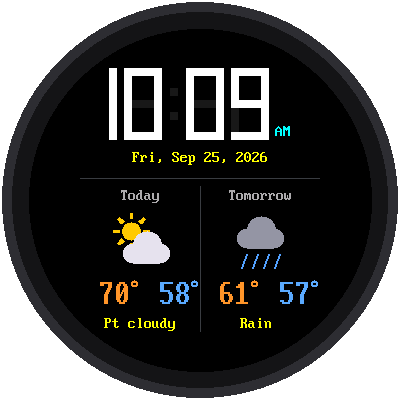
See the kit's weather clock lab for the full program. The most important design idea is that each piece of data has its own update schedule, matched to how fast it changes:
| Item | How often | Why |
|---|---|---|
| Time | Every minute (every second on a bright display) | It changes constantly |
| Indoor temperature and humidity | Every 5 to 10 minutes | Room conditions change slowly |
| Outdoor forecast | Every 1 to 3 hours | Forecasts change slowly; each fetch needs WiFi power |
Turn WiFi on only for the brief moment of a fetch, then turn it off, as in Chapter 18. Also plan for failure: if the network or service does not answer, keep showing the last good value, or dashes such as --, instead of crashing.
1 2 3 4 5 6 7 8 9 10 11 12 13 14 15 16 17 18 19 20 21 | |
The due() function is the non-blocking timer pattern from Chapter 6, one instance per data source.
Diagram: Weather Station Layout
Weather Station Layout
Type: interactive infographic
sim-id: weather-station-layout
Library: p5.js
Status: Specified
Learning objective: Students will design a weather display layout and evaluate the update schedule of each element (Bloom: Creating, Evaluating).
Visual elements: A mock 152 by 152 e-paper screen with draggable panels: time, indoor temperature and humidity, today's forecast icon and high and low.
Interactions: Students can drag panels around and resize them; hovering a panel shows its data source (DS3231, DHT22, Open-Meteo) and update interval. A "Simulate day" button runs a 24-hour timeline and counts the refreshes and WiFi connections each layout needs, showing an estimated battery life for a 500 mAh cell.
Responsive design: The mock screen scales to container width.
Implementation: p5.js with draggable rectangles and a simple energy model.
Choosing a Display
You have now met nearly every display in this course. The right one depends on what your clock must do.
| Need | Best choice | Why |
|---|---|---|
| Cheapest working clock | TM1637 LED | Four wires, about $2 |
| Simple graphics on a budget | SSD1306 OLED | Sharp, fast, 1,024-byte buffer |
| Color and a big canvas | ILI9341 or round TFT | Full color; needs a backlight |
| A watch to wear | Round GC9A01 or GC9B72 | Round, IPS, viewable at an angle |
| Creative art | NeoPixels | Any arrangement, any color |
| Weeks on a battery, or sunlight | E-paper | No power to hold an image; sun-readable |
Key Takeaways
- E-paper is bistable: it holds its image with no power and uses energy only when changing.
- It reflects light, so it is sunlight-readable, but it refreshes slowly and needs a BUSY-pin wait.
- A full refresh is clean but flashes; a partial refresh is quick but builds up ghosting.
- Mix them: partial each minute, full every 30 or so, and at least once a day.
- Read indoor temperature and humidity from a DHT22; fetch the outdoor forecast from a web service as JSON.
- Give each data source its own update schedule, use WiFi briefly, and keep last good values when a fetch fails.
Weather Station Ready
 You can now explain why e-paper holds a picture without power, plan full and partial refreshes to avoid ghosting, and combine time, temperature, humidity, and a forecast on one display. Every second counts!
Practice Questions
- Explain what "bistable" means and why it saves power in a clock.
- A clock refreshes every minute using partial updates and a full refresh every 30 updates. How many full refreshes happen in a day (24 hours)?
- What is ghosting, and what fixes it?
- Convert 22 °C to Fahrenheit.
- A weather display fetches the forecast every hour but reads the indoor sensor every 5 minutes. Why are the two intervals different?