Maze Solver
Copy this iframe to your website:
1 | |
Run the Maze Solver MicroSim Fullscreen
Edit the Maze Solver MicroSim in the p5.js Editor
About This MicroSim
The Maze Solver MicroSim is an interactive tool that helps you visualize two fundamental computer science algorithms. It creates a random maze using Depth-First Search (DFS) and then solves it, one step at a time, using Breadth-First Search (BFS).
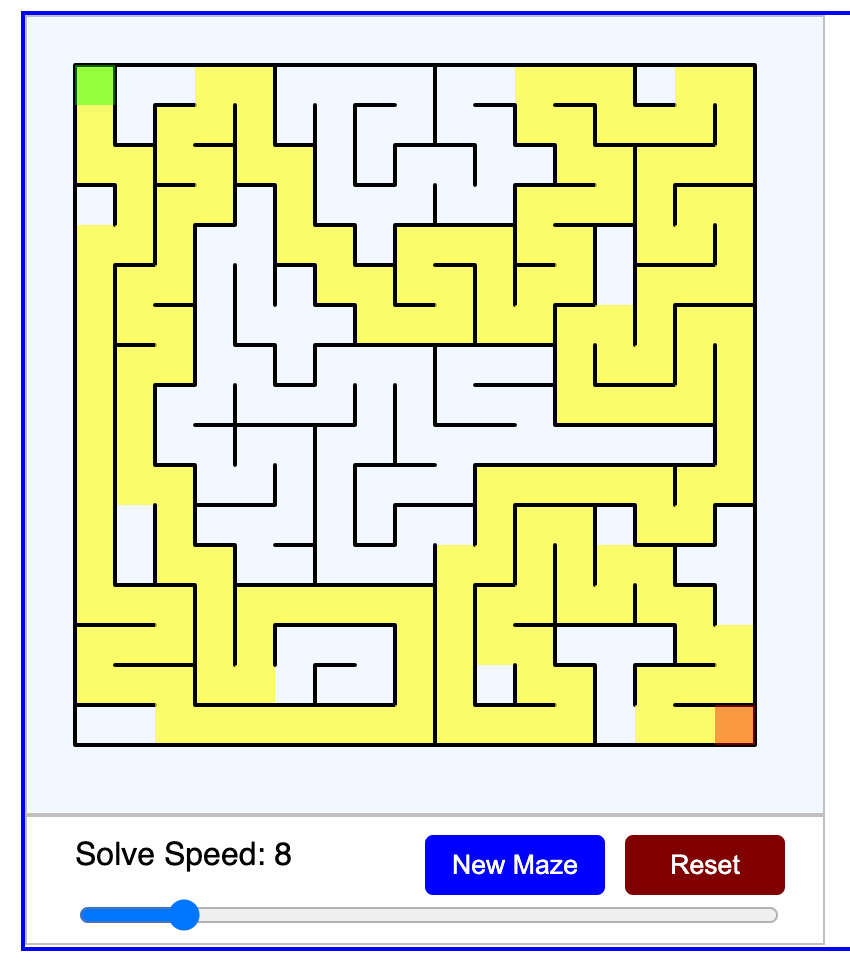
The start cell is the green cell marked S in the upper left corner. The end cell is
the red cell marked E in the lower right corner. The maze is 17 cells tall and as wide as the
page allows: one column for every 20 pixels of width. A wider page gets a wider maze.
How the Maze is Generated: Depth-First Search (DFS)
The maze is created using a technique called "Depth-First Search with backtracking", which works like this:
- Start at the top-left cell and mark it as visited
- The algorithm then:
- Looks for unvisited neighboring cells
- Randomly chooses one of these neighbors
- Removes the wall between the current cell and the chosen neighbor
- Moves to that neighbor and marks it as visited
- Adds the previous cell to a "stack" (like a trail of breadcrumbs)
- If there are no unvisited neighbors:
- The algorithm "backtracks" by popping a cell from the stack
- Continues the process from this new position
- The algorithm completes when every cell has been visited
This creates a "perfect maze": one with no loops and exactly one path between any two cells. The maze is generated instantly, so you see only the finished maze.
How the Maze is Solved: Breadth-First Search (BFS)
Once you press the Solve button, the simulation uses Breadth-First Search to find the shortest path from start to end:
- The solver starts at the top-left cell (green) and puts it in a queue
- On each step, the cell that has waited longest in the queue takes its turn. The solver:
- Checks all four directions (right, down, left, up)
- Only moves through openings, never through walls
- Adds each newly reached cell to the back of the queue and colors it pink
- BFS explores cells in "waves" moving outward from the start
- Every cell remembers which cell it was reached from. When the search reaches the end cell (red), it follows those links back to the start
- The final solution path is highlighted in yellow. The other cells that the search reached stay pink
Search in Layers
 Think of the pink area as a ripple spreading out from S. The queue makes every cell that is one step away take its turn before any cell that is two steps away. So the first time the ripple touches E, it got there in the fewest steps possible.
BFS guarantees finding the shortest possible path through the maze. In a perfect maze there
is only one path from S to E, so the guarantee matters most in a maze with loops, where
several paths compete. What BFS shows clearly here is the cost of the search: it must
often explore many dead ends before it reaches the end cell.
The Status Line
The line under the maze reports what the search has done so far.
| Text | Meaning |
|---|---|
| Press Solve to start the search | The maze is ready and no search is running |
| Explored: 57 of 289 cells | The search has reached 57 of the 289 cells in the maze. S and every pink or yellow cell count as explored |
| Paused | The search is running, but the speed is 0 |
| Path: 135 cells | The search is finished. The yellow path is 135 cells long, counting S and E |
Controls
- Solve Button (Green): Begins the solving process
- Changes to a Reset button (Dark Red) while solving or after the solution is found
- Reset clears the pink and yellow cells and keeps the same maze
- New Maze Button (Blue): Generates a completely new random maze
- Solve Speed Slider: Sets the number of search steps per second, from 0 to 60
- Move it to the right for faster solving
- Move it all the way to the left (0) to pause the solving process
- Move it right again to continue from where you paused
How to Use
- Look at the maze before you press anything. Trace a path from
StoEwith your finger or your eyes. - Press Solve. At the starting speed of 8 steps per second you can follow each cell as it turns pink.
- Move the Solve Speed slider to 0 to pause the search. Look at the shape of the pink area, then move the slider to the right to continue.
- When the yellow path appears, read the status line. Compare the number of cells explored with the number of cells on the path.
- Press Reset to run the search again on the same maze, or New Maze for a different maze.
- Make the browser window wider or narrower. When the number of columns that fit changes, the MicroSim makes a new maze.
Lesson Plan
Title: Maze Solver MicroSim: DFS Maze Generation and BFS Solving
Learning Objectives
After using this MicroSim, students will be able to:
- Explain (Understand) how breadth-first search explores a maze in layers and why the first path it finds to the end cell is the shortest path.
- Describe (Understand) how depth-first search with backtracking builds a maze that has exactly one path between any two cells.
- Compare (Analyze) the number of cells a search explores with the number of cells on the path it finds.
Audience
High school students in a computer science course, and college students in an introductory algorithms or data structures course.
Duration
30 minutes
Prerequisites
- A grid of cells, with rows and columns
- The idea of an algorithm as a list of steps
- Helpful, but not required: lists or arrays in any programming language
Key Computer Science Concepts
- Graph Traversal: Both DFS and BFS are fundamental ways to explore connected structures (graphs)
- Randomized Algorithms: The maze generator uses randomness to create unique mazes each time
- Backtracking: The DFS algorithm uses backtracking to explore all possible paths
- Queue vs. Stack: The maze generator uses a stack (Last-In-First-Out) while the solver uses a queue (First-In-First-Out)
- Path Finding: BFS is optimal for finding the shortest path in an unweighted graph
Activities
- Predict (5 min): Before you press Solve, trace the path from
StoEyourself and estimate how many cells it has. Then estimate how many of the cells the search will have to explore. Write down both numbers. - Observe (5 min): Press Solve at a speed of 8. Pause the search (speed = 0) midway to analyze the BFS search pattern. Which pink cells were reached most recently? How can you tell?
- Measure (10 min): Generate several different mazes and solve each one at a speed of 60. For each maze, record the cells explored and the path length from the status line. Look for the areas that the algorithm explores but that don't become part of the final path.
- Compare (5 min): Compare how quickly different mazes can be solved. Which mazes need
the fewest steps: the ones with a short path, or the ones with few dead ends near
S? - Explain (5 min): Press Reset and solve the same maze again. In pairs, decide whether the search reached the cells in the same order as before, and explain why. (Hint: the solver always checks the four directions in the same order.)
Assessment
- The learner states that BFS takes cells from the front of a queue and adds newly reached
cells to the back, so cells are explored in order of their distance from
S. - The learner explains that the yellow path is found by following each cell's link back to the cell it was reached from.
- The learner uses the status line to state what share of the maze the search explored, and explains why that share changes from maze to maze.
Challenge
- Why does BFS guarantee the shortest path while DFS doesn't?
- What changes would you make to use DFS instead of BFS for solving?
- How might you modify the code to create mazes with multiple possible solutions?
- Can you think of real-world applications that use these same algorithms?
Understanding these maze algorithms provides excellent preparation for studying more advanced topics in computer science, including artificial intelligence, network routing, and game development.
Sample Prompt
This is the prompt that generated the first version of the lesson plan above. The solver in this MicroSim uses breadth-first search. Depth-first search is used only to generate the maze.
Prompt
Based on the maze-solver-sketch.js file in this project, please generate a lesson plan for a high school student. Describe how the maze is generated and solved using a depth-first-search algorithm. Give pointers at using the MicroSim including how to move the speed to 0 to stop the solving process.
The current version adds the "Maze Solver" title, the width-responsive maze, the status line
and the S and E labels. It also keeps the explored cells pink after the path is found.
An image of the first version is in solution-example.png.
References
- Breadth-first search - Wikipedia - The algorithm this MicroSim uses to solve the maze, with pseudocode that uses a queue and a parent link for each node, as the sketch does.
- Maze generation algorithm - Wikipedia - The randomized depth-first search section describes the generator used here, including the version with an explicit stack.
- Depth-first search - Wikipedia - Background for the maze generator and for Challenge questions 1 and 2.
- Maze-solving algorithm - Wikipedia - Other ways to solve a maze, such as wall following and dead-end filling, to compare with the shortest-path search shown here.
- Maze Generation: Recursive Backtracking - 2010-12-27 - Jamis Buck, The Buckblog - A step-by-step walk through the depth-first maze generator, with animations.
- p5.js createSlider() reference - p5.js - The built-in slider control used for the solve speed.