Python Development Tools
By the end of this lesson you'll be able to:
- Describe the key Python development environments and when to use each one
- Install Python locally and run scripts from the terminal
- Use the Python REPL (interactive shell) for quick experiments
- Install packages with
piporuvand understand virtual environments - Explain when a slow Python task might be a good candidate for Rust
Skulpt is great for learning — you don't need to install anything. But real Python projects use richer tools. This chapter is your map to the Python ecosystem.
Welcome to Chapter 28!
 You're ready to step off the Skulpt training wheels and into the real Python world!
There are many great tools to choose from — let's find the right one for you.
Let's code it together!
You're ready to step off the Skulpt training wheels and into the real Python world!
There are many great tools to choose from — let's find the right one for you.
Let's code it together!
Python 2 vs Python 3
You may occasionally see Python code written for Python 2 — an older version that reached its end of life in 2020. Python 3 is what everyone uses today.
Key differences you might encounter in old Python 2 code:
| Feature | Python 2 | Python 3 |
|---|---|---|
print "hello" |
print("hello") |
|
| Integer division | 5/2 = 2 |
5/2 = 2.5 |
| String type | ASCII by default | Unicode by default |
If you ever see code that uses print without parentheses, it was written for Python 2.
Avoid it — install Python 3.
Development Environments
A development environment (also called an IDE — Integrated Development Environment) is where you write, run, and debug Python code. Here's a comparison of the most popular options for beginners and beyond.
Thonny — Best for Beginners
Thonny (thonny.org) is designed specifically for learning Python. It has a simple interface and a built-in debugger that shows you exactly how variables change as each line runs.
Best for: absolute beginners, ages 10–15, learning control flow and debugging
Repl.it — Browser-Based Collaboration
Repl.it (replit.com) lets you write and run Python in a browser with zero installation. It supports multiple files and collaborative editing.
Best for: sharing projects, working from any computer, coding club use
VS Code — Professional Choice
VS Code (Visual Studio Code) is one of the most popular code editors in the world. With the Python extension installed, it provides autocomplete, debugging, a built-in terminal, Git integration, and hundreds of extensions.
Best for: serious projects, multiple languages, professional workflows
Spyder — Scientific Python
Spyder is designed for data science and scientific computing. It has a variable explorer that shows your NumPy arrays and DataFrames visually.
Best for: data analysis, scientific computing, users coming from MATLAB
Jupyter Notebooks — Interactive Data Science
A Jupyter Notebook is a document that mixes text (Markdown), code cells you can run individually, and output (charts, tables, results) all in one file.
1 2 3 4 5 6 7 8 | |
Best for: data analysis, machine learning, reports that mix code and explanation
Google Colab — Free Cloud Jupyter
Google Colab (colab.research.google.com) is a free cloud-hosted Jupyter Notebook environment. It comes with NumPy, pandas, TensorFlow, and GPU access pre-installed — no setup needed.
Best for: machine learning, free GPU access, sharing notebooks
JupyterLab
JupyterLab is the next-generation Jupyter interface — a full browser-based IDE with file browser, terminals, notebooks, and text editors in one.
Installing Python Locally
To run Python on your own computer:
- Visit python.org and download the latest Python 3 installer for your operating system.
- Run the installer — on Windows, check "Add Python to PATH" before clicking Install.
- Open a terminal (Command Prompt on Windows, Terminal on Mac/Linux).
- Type
python3 --versionto verify the installation.
Running Scripts from the Terminal
Once Python is installed, you can run any .py file from the terminal:
1 | |
On Windows, you may use python instead of python3.
The Python REPL Shell
The REPL (Read-Eval-Print Loop) is Python's interactive shell.
Type python3 (or just python) in the terminal to start it.
Then type any Python expression and press Enter — Python evaluates it immediately.
1 2 3 4 5 6 7 | |
The REPL is perfect for quick experiments: testing a function, checking a formula, exploring a module.
pip — The Package Installer
Python's standard library is large, but thousands more packages are available at PyPI (Python Package Index).
pip is the tool that installs them.
To install a package, run this in your terminal:
1 2 3 | |
To see what's installed: pip list
To install a specific version: pip install requests==2.31.0
uv — A Fast, All-in-One Python Tool
As projects grow, you may need several tools to install Python, create a virtual environment,
add packages, record exact package versions, run scripts, build a package, and publish it.
uv combines many of those jobs in one tool. It is a Python package and project manager
written in Rust, and it includes a familiar, pip-compatible interface.
The uv team reports that it can be 10–100 times faster than pip in its benchmarks.
The exact speedup depends on the project, computer, network, and whether packages are already
in uv's cache. A cache keeps downloaded files so the tool can reuse them instead of
downloading the same files again.
Once uv is installed, these commands create a project, add the requests package, run its
Python program, and build files that could be published as a package:
1 2 3 4 5 | |
For an existing project that already uses pip, uv also offers similar commands:
1 2 3 | |
uv can take the place of several separate tools, but its commands are not identical to every
tool it replaces. Start with uv pip when you want a familiar workflow. Try the higher-level
uv add, uv lock, uv sync, and uv run commands when you want uv to manage the whole
project. See the official uv documentation for installation
instructions for your operating system.
Python vs. Rust
Python normally runs your source code through a Python interpreter. This makes Python quick to learn, change, and test. Rust is a compiled language: a compiler checks Rust source code and turns it into a machine-code program before you run it. Compiled Rust programs can be much faster for some kinds of work, but Rust usually takes more time to learn and write.
Modern computers have several processor cores, like several workers that can do separate jobs at the same time. Rust has threads, message-passing channels, shared-state tools, and a type system that catches many unsafe concurrency mistakes while compiling. These features can help a carefully designed program spread CPU-heavy work across multiple cores. Rust does not make every program parallel automatically—the problem must contain work that can safely be split into independent parts.
The comparison below summarizes when each language often fits best.
| Choose Python when... | Consider Rust when... |
|---|---|
| You are learning, experimenting, or building a first version | A measured slow section performs a huge amount of repeated computation |
| Clear code and fast development matter most | Runtime speed or low memory use is a major requirement |
| Python libraries already solve the hard parts | Work can be divided safely across several CPU cores |
| The program spends most of its time waiting for files or the network | The code must become a fast command-line tool or reusable Python extension |
An AI coding tool can help create a first Rust version of a small, well-tested Python function. This may be worth trying for image filters, simulations, data conversion, compression, or other CPU-heavy loops that run millions of times. First, profile the Python program—measure where it actually spends its time. Converting code that is not a real bottleneck adds complexity without making the program noticeably faster.
AI conversion is a draft, not proof that the new program is correct. Python and Rust handle types, memory, errors, and parallel work differently, so a line-for-line translation may be wrong or slower than expected. Keep tests with known answers, compare the Python and Rust results, measure both versions, and have a person review the Rust code. Often the best design keeps most of the project in friendly, flexible Python and moves only one proven bottleneck into Rust.
Virtual Environments
A virtual environment is an isolated Python installation for a specific project. It lets each project have its own set of packages without interfering with other projects.
To create and use a virtual environment:
1 2 3 4 5 6 7 8 9 10 11 12 13 14 | |
Why bother? Imagine two projects — one needs requests 2.28, another needs requests 2.31.
Without virtual environments, installing one breaks the other. With them, each project is isolated.
What Do You Think Will Happen?
 The code below prints information about the Python environment.
What Python version do you think is running in this Skulpt environment?
Make your guess — then run it!
The code below prints information about the Python environment.
What Python version do you think is running in this Skulpt environment?
Make your guess — then run it!
Python's Module Search Path
When you import a module, Python has to know where to look for it. It checks a list of folders called the module search path, stored in sys.path.
1 2 3 4 | |
Python checks these folders in order and uses the first matching module it finds. That's why two different modules with the same name, sitting in two different folders, can cause confusing bugs — Python only ever sees the first one.
Dealing with Python Environments
If you've wrestled with installs, conflicting package versions, or "it works on my machine" bugs, you're in good company — even professional developers find Python's environment setup confusing. The webcomic XKCD captured the feeling perfectly:
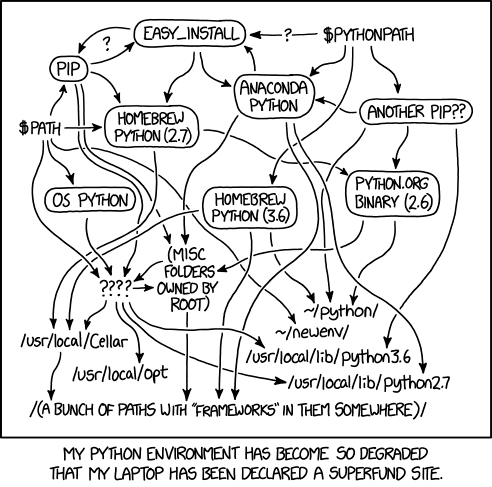
The Python community is huge and moves fast. Everyone updates their own libraries on their own schedule, and older projects can depend on versions that clash with newer ones. A few habits keep the chaos manageable:
- Always know which Python version you're running (
python3 --version). - Use a separate virtual environment (or
condaenvironment) for each project. - Know how to check
sys.pathwhen an import doesn't behave the way you expect. - Be cautious with your computer's default/global Python environment — it's often out of date.
You Don't Need to Master This Today
 Environment headaches happen to everyone — even senior developers joke about it.
Stick to the habits above and you'll avoid most of the pain.
Environment headaches happen to everyone — even senior developers joke about it.
Stick to the habits above and you'll avoid most of the pain.
The Conda Package Manager
Conda (from Anaconda) is an alternative package manager popular in data science. It manages both Python packages and non-Python dependencies (like C libraries needed by NumPy).
1 2 3 | |
Anaconda (the full distribution) includes Python, conda, Jupyter, and 200+ data science packages pre-installed.
Raspberry Pi Python Platform
The Raspberry Pi is a tiny, affordable computer (about the size of a credit card) that runs full Python. It's popular for hardware projects — controlling LEDs, reading sensors, building robots.
Python comes pre-installed on Raspberry Pi OS.
Libraries like RPi.GPIO let Python programs control physical pins.
1 2 3 | |
Choosing the Right Tool
| Situation | Recommended tool |
|---|---|
| Just learning Python | Skulpt (this course) or Thonny |
| Sharing code online | Repl.it or Google Colab |
| Professional projects | VS Code |
| Fast package and project management | uv |
| Data science / ML | Jupyter Notebook or JupyterLab |
| Hardware projects | Raspberry Pi + Thonny |
| Scientific computing | Spyder + Anaconda |
Start Simple
You don't need to pick the "perfect" tool right away.
Thonny is a great first step after Skulpt — it's free, runs offline, and shows you exactly what Python is doing.
Once you outgrow Thonny, VS Code is the natural next step for most programmers.
Learning Check
Your Turn — Match the Tool
Read each scenario below and decide which tool fits best.
Write your answers — there's no code to run, just reasoning to do!
Use this Skulpt window to record your answers:
Experiments
Try these changes. Predict what will happen first, then run it to check!
-
In the sys info lab, also print
sys.executableto see the full path to the Python interpreter. You'll know it worked when you see a path ending inpythonorpython3. -
Use
sys.getsizeof([])andsys.getsizeof([1,2,3])to compare list memory sizes. You'll know it worked when you see that the list with 3 items takes more bytes. -
Try
sys.maxsize— the maximum integer Python can store efficiently. You'll know it worked when you see a very large number (9,223,372,036,854,775,807 on 64-bit systems). -
Compare
pip show numpywithuv pip show numpyin a real terminal. Write a comment explaining what both commands display. You'll know it worked when your comment describes the package version, author, and install location. -
Write a comment block listing three packages from PyPI you'd like to explore next and why. You'll know it worked when you have a mini "wish list" for your Python learning journey.
Python World Explorer!
 You now have a map of the entire Python ecosystem — from beginner tools to professional environments!
Choosing the right tool for the job is a real developer skill.
When you're ready, pick one environment and start building something real. Let's keep coding!
You now have a map of the entire Python ecosystem — from beginner tools to professional environments!
Choosing the right tool for the job is a real developer skill.
When you're ready, pick one environment and start building something real. Let's keep coding!