Technology, Community, and Emergency Safety
Summary
This chapter covers unsafe or uncomfortable technology situations and how to get help from a trusted adult, plus how community values and cultural traditions can encourage others toward safe choices. Students also learn strategies for staying safe during drills away from the classroom and how to locate and use school and community health helpers. After completing this chapter, students will be able to describe an unsafe technology situation, explain a safety-drill strategy, and name a health helper in their community.
Concepts Covered
This chapter covers the following 9 concepts from the learning graph:
- Technology Safety
- Unsafe Technology Situation
- Getting Help For Tech Situations
- Encouraging Safe Choices
- Community Values
- Safety Drill
- Staying Safe Away From Classroom
- Health Helper
- Locating Health Helpers
Prerequisites
This chapter builds on concepts from:
Teacher Notes: How to Use This Chapter
This chapter is written for you, the teacher, to read aloud, narrate, and guide from. Grade 2 students are building independent reading skills, but full understanding of technology safety and emergency-drill procedures still depends on your read-aloud support and classroom discussion. Two sections in this chapter — Unsafe Technology Situation and Getting Help For Tech Situations — are personal-safety-adjacent. Keep your tone plainly sincere there: no jokes, no dog puns, just calm, clear guidance about telling a trusted adult. The rest of the chapter can keep its normal warm, encouraging voice.
Staying Safe with Technology, Community, and Drills
 Hi again, friend! Today we're learning about staying safe in three different settings: when we use technology, when we're part of a community, and when we practice safety drills at school. We'll also learn how to find the helpers who take care of our health. Healthy choices, happy you!
What Is Technology Safety?
Technology safety means using computers, tablets, phones, and other devices in ways that protect the body, feelings, and personal information from harm. Technology can help us learn, connect with family, and have fun — but like any tool, it works best when we follow safety rules.
Just as a bicycle needs safety rules (helmet, sidewalk, look both ways), technology needs its own safety rules. Some basic technology safety habits for second graders include:
- Only using devices when a trusted adult knows and agrees.
- Only talking to or messaging people the trusted adult approves of.
- Never sharing your name, address, school, or photo with someone you don't know in real life.
- Turning off or closing an app right away if something feels wrong, and telling a trusted adult.
Notice the pattern in that list: every rule involves a trusted adult before, during, or after using technology. That pattern matters because an adult can help a child recognize a safety problem that might be hard to spot alone.
Diagram: Technology Safety Rules Checklist
Technology Safety Rules Checklist MicroSim
Type: microsim
sim-id: tech-safety-rules-checklist
Library: p5.js
Status: Specified
Bloom Taxonomy: Remember (L1) Bloom Taxonomy Verb: identify, recognize, recall
Learning objective: Students identify which everyday technology scenarios follow technology safety rules and which do not.
Canvas layout: - Top area (100px): A scenario banner showing a simple picture and one-sentence caption describing a technology scenario - Middle area (250px): Two large buttons: a green checkmark ("Safe") and an orange question mark ("Not Safe") - Bottom area (150px): Infobox showing feedback text after each answer
Visual elements: - Eight preset scenario cards that cycle through, for example: "Playing a learning game a parent installed," "Messaging a stranger who asked for a home address," "Video-calling grandma with a parent nearby," "Clicking a pop-up that says you won a prize," "Using a tablet timer set by a trusted adult," "Sharing a school photo with someone met only online" - Simple flat-style icons matching the mascot's visual style
Interactive controls: - Click "Safe" or "Not Safe" for the current scenario - Button: "Next Scenario" advances through all eight cards - Button: "Reset" restarts from scenario one
Default parameters: - Scenario 1: "Playing a learning game a parent installed" (correct answer: Safe) - No answer selected yet
Data Visibility Requirements: Stage 1: Show scenario 1 image and caption Stage 2: Student clicks "Safe" -- infobox shows "Correct! A trusted adult chose this game, so it follows technology safety rules." Stage 3: Student advances to scenario 2 ("stranger asking for a home address") and clicks "Not Safe" -- infobox shows "Correct! Never share your address with someone you don't know. Tell a trusted adult if this happens." Stage 4: If a student picks the wrong button on any scenario, infobox gently explains the correct answer without a harsh "wrong" sound
Behavior: - Each scenario has exactly one correct answer; a correct click highlights the button green and shows an explanation - An incorrect click shows a calm correction explaining the rule, then allows the student to try again or move on
Instructional Rationale: This is a Remember-level objective, so the design uses simple recognition (identify safe vs. not-safe) with immediate, gentle feedback rather than a multi-step simulation. Cycling through eight varied scenarios helps students generalize the pattern instead of memorizing a single example.
Implementation notes: Use p5.js. Keep all scenario images simple, non-scary, and age-appropriate. Every piece of feedback text stays calm and matter-of-fact, since this MicroSim touches personal-safety-adjacent content.
Unsafe Technology Situation
An unsafe technology situation is any time using a device makes a person feel scared, confused, tricked, or uncomfortable. This can happen even when a child is following the rules, because other people online do not always follow the rules themselves.
Some examples of an unsafe technology situation include:
- A message from someone the child does not know in person.
- A person online asking for a name, address, school, or photo.
- Content that is scary, confusing, or makes a stomach feel funny.
- Someone online asking a child to keep a secret from their trusted adult.
That last example is especially important to notice: a request to keep something secret from a trusted adult is itself a warning sign, even if nothing else about the message seems unsafe yet.
An Important Rule
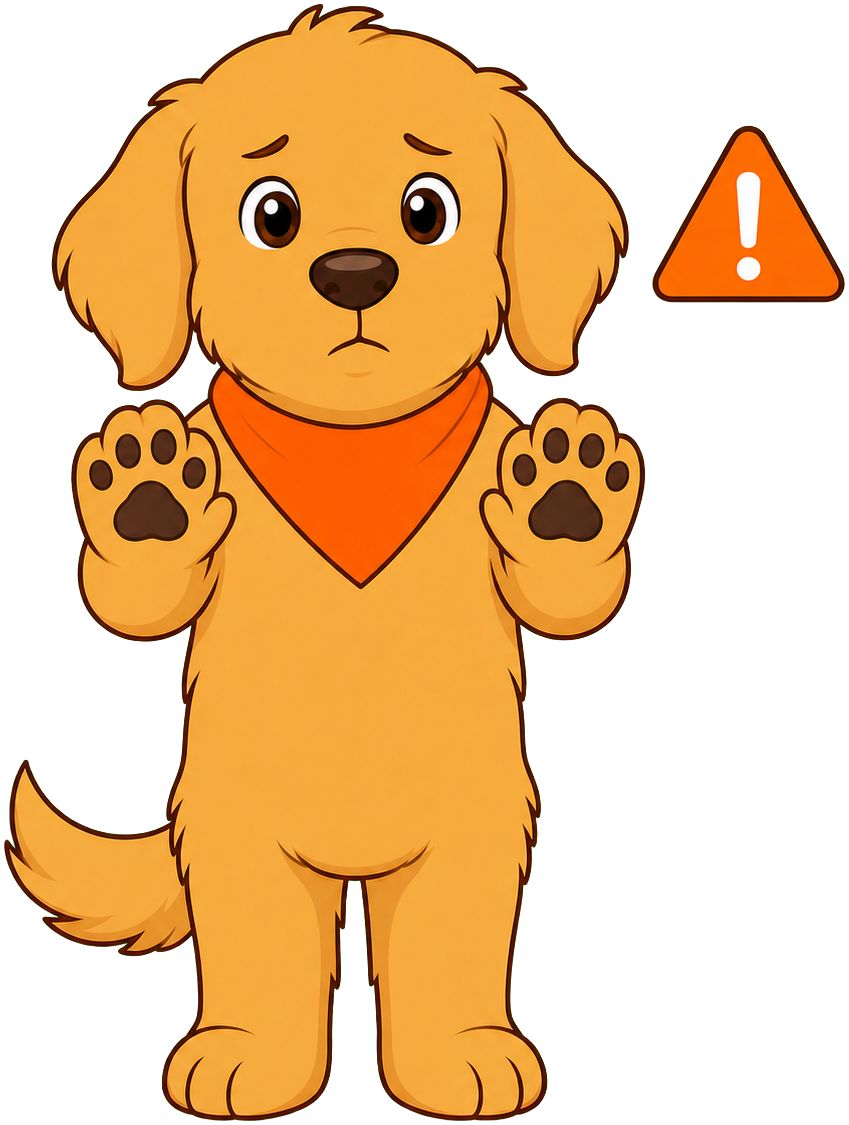 If anyone online asks you to keep a secret from your trusted adult, that is a sign to tell your trusted adult right away — even if you're not sure anything is wrong.
Getting Help For Tech Situations
Getting help for tech situations means knowing the steps to take right away when a technology situation feels unsafe or uncomfortable. The goal is not to handle the problem alone — the goal is to get a trusted adult involved as quickly as possible.
The recommended steps are simple and always the same, no matter what the specific problem is:
- Stop using the device or app.
- Do not respond to the message or request.
- Tell a trusted adult right away — a parent, guardian, teacher, or school counselor.
- Let the trusted adult decide what to do next.
Following the same four steps every time — instead of a different plan for every possible problem — makes it much easier for a young child to remember what to do in the moment, even if they feel upset or confused.
Diagram: Steps for Getting Help With a Tech Situation
Steps for Getting Help With a Tech Situation MicroSim
Type: workflow
sim-id: tech-help-steps-workflow
Library: Mermaid
Status: Specified
Bloom Taxonomy: Understand (L2) Bloom Taxonomy Verb: explain, describe, summarize
Learning objective: Students explain the correct order of steps to take when a technology situation feels unsafe or uncomfortable.
Purpose: Show the four-step process for getting help with an unsafe technology situation as a simple, linear flowchart
Visual style: Mermaid flowchart (graph TD), four boxes connected top to bottom, plain and calm in tone -- no scary imagery
Nodes (each must have a click handler opening an infobox with plain, sincere definition text): 1. "Something Feels Wrong" (start node) -- click shows "This is the moment you notice a message, request, or content that feels scary, confusing, or uncomfortable." 2. "Stop Using the Device" -- click shows "Close the app or step away from the screen. You do not need to answer or figure it out yourself." 3. "Do Not Respond" -- click shows "Do not reply, click, or share anything else. It is never your job to handle this alone." 4. "Tell a Trusted Adult" -- click shows "Tell a parent, guardian, teacher, or school counselor exactly what happened. They will help decide what to do next."
Connections: Straight top-to-bottom arrows connecting node 1 to node 2, node 2 to node 3, and node 3 to node 4 -- no branches, since the same steps apply every time
Color coding: Calm blue-gray tones throughout; no red or alarming colors, since the tone for this section stays plainly sincere rather than urgent-sounding
Interactive features: click directive on every node in the Mermaid syntax, mapped to a JavaScript function that opens an infobox with the definition text above
Implementation: Mermaid flowchart with click bindings; render inside a small wrapper page that displays the infobox below the diagram. Keep the visual plain and reassuring, matching the sincere tone required for personal-safety-adjacent content.
Diagram: Safe Tech — Stop, Close, Tell
Safe Tech — Stop, Close, Tell Interactive Poster
Type: infographic
poster-id: safe-tech-stop-close-tell
Library: p5.js
Status: Published
An interactive Grade 2 infographic for responding safely to an uncomfortable or unsafe technology situation.
Use Explore mode to select a column and learn about the action. Use Quiz Me to practice choosing the correct step for a technology-safety situation.
Before moving to the next topic, it helps to notice something reassuring: the four steps above work for almost any unsafe technology situation a Grade 2 student might encounter, because the goal is always the same — stop, don't respond, and tell a trusted adult.
Encouraging Safe Choices
Encouraging safe choices means helping other people — friends, classmates, or family members — decide to do something safe, using kind words instead of pressure or teasing. A person does not have to be an adult to encourage someone else toward a safer choice.
There are gentle, everyday ways any student can encourage safe choices:
- Reminding a friend to ask a trusted adult before trying something new.
- Saying "let's tell a grown-up" instead of going along with something that feels unsafe.
- Praising a friend for making a safe choice, instead of teasing them for being careful.
- Modeling the safe choice yourself, since friends often copy what they see.
Encouraging safe choices connects back to what students learned about teasing in Chapter 3: just as unkind teasing can hurt feelings, kind encouragement can help a friend feel supported instead of pressured when making a safety decision.
Why Encouragement Works
 Think about it this way: if a friend teases you for being "too careful," it can feel harder to make the safe choice. But if a friend says "good thinking," it feels easier. Words really do make a difference!
Community Values
Community values are the shared beliefs and traditions a group of people hold about what matters and how to treat one another. Families, schools, neighborhoods, and cultural communities each carry their own values, and many of those values support safety and caring for others.
Communities express their values about safety in many different ways, including:
- Cultural traditions that teach respect for elders and for rules that keep people safe.
- Community celebrations or ceremonies that reinforce shared beliefs about caring for one another.
- School-wide expectations, like hallway rules or buddy systems, that come from a shared value of looking out for classmates.
- Family sayings or stories passed down that remind children to make safe, caring choices.
Community values give encouraging safe choices its "why." A student who reminds a friend to ask an adult first is not just following a rule — they are living out a value their family, school, or culture holds about caring for one another.
Diagram: Community Values Around the World
Community Values Around the World MicroSim
Type: map
sim-id: community-values-safety-map
Library: Leaflet
Status: Specified
Bloom Taxonomy: Understand (L2) Bloom Taxonomy Verb: describe, exemplify, compare
Learning objective: Students describe examples of community values and cultural traditions from different communities that encourage safe, caring choices.
Geographic scope: World map with five marked regions
Purpose: Show that many different communities and cultures have their own traditions and values that encourage safety and care for one another
Locations and markers: - West Africa: proverb-and-storytelling tradition marker about caring for community members - East Asia: family-respect tradition marker about looking out for younger and older generations - North American Indigenous nations (general region marker, respectfully labeled by nation where possible): community-circle tradition marker about shared responsibility - Latin America: extended-family "compadrazgo" support-network marker - General "your community" marker inviting students to think of a local value or tradition
Legend: Icons for "storytelling tradition," "family tradition," and "community gathering"
Interactive features: - Click each marker to open an infobox with: the name of the tradition or value, a simple description, and one sentence on how it encourages safe or caring choices - All markers presented with equally respectful, neutral description style -- no marker described as more "unusual" than another - Button: "Show My Community" prompts students (via teacher discussion) to name a local value or tradition to add to the discussion
Color scheme: Each marker uses the same neutral gold color (matching mascot palette) so no single tradition is visually emphasized over another
Implementation: Leaflet map with custom marker icons and popups; simple world basemap with minimal extra detail so markers are the visual focus
Here is a quick way to see how encouraging safe choices and community values connect to each other.
| Concept | What It Means | Example |
|---|---|---|
| Encouraging Safe Choices | Helping someone else choose safety with kind words | Saying "let's ask a grown-up" instead of going along with a risky idea |
| Community Values | Shared beliefs a group holds about caring for one another | A family story or school tradition that teaches looking out for others |
Safety Drill
A safety drill is a practice activity where a school or community rehearses what to do during an emergency, so that everyone knows the right actions before a real emergency ever happens. Just like practicing a fire drill helps everyone know where to go if there is smoke, other safety drills prepare students for different kinds of emergencies.
Common features of a safety drill include:
- A signal, such as an alarm, announcement, or a signal from the teacher.
- A specific set of actions to follow, such as lining up, moving to a location, or staying quiet.
- Practice happening on a regular schedule, so the actions become familiar.
- Adults leading and directing the drill so students always know who to follow.
Safety drills are not meant to be scary — they are meant to make emergencies feel less scary, because everyone already knows exactly what to do.
Practice Makes It Feel Okay
 Safety drills might feel a little strange at first, but the more you practice, the more natural it feels. That's exactly why schools do them again and again!
Staying Safe Away From Classroom
Staying safe away from classroom means knowing what to do during a safety drill or a real emergency when a student is not with their classroom teacher — for example, in the hallway, the cafeteria, the bathroom, or on the playground.
Because students are not always sitting at their classroom desk when a safety drill happens, it is especially important to know these strategies:
- Stop and listen for the drill signal, wherever you are.
- Look for the nearest adult in charge — this might be a different teacher, a lunch aide, or a hallway monitor.
- Follow that adult's directions immediately, just as you would follow your own teacher.
- Move calmly to the location the adult directs, without running.
The key idea is that during a safety drill, any adult in charge becomes the trusted adult to follow, not only a student's own classroom teacher. Practicing this idea in advance means a student won't feel lost or unsure if a drill or emergency happens away from their usual classroom.
Diagram: Following the Drill Away From Your Classroom
Following the Drill Away From Your Classroom MicroSim
Type: microsim
sim-id: away-from-classroom-drill-sim
Library: p5.js
Status: Specified
Bloom Taxonomy: Apply (L3) Bloom Taxonomy Verb: demonstrate, practice, apply
Learning objective: Students apply the correct safety-drill actions in different school locations away from their classroom teacher.
Canvas layout: - Top area (100px): A location banner showing a simple school setting (hallway, cafeteria, playground, bathroom) and a short caption - Middle area (300px): A simple scene with a drawn student figure and a nearby adult-in-charge figure, plus a drill-signal icon (bell or speaker) - Bottom area (100px): Infobox showing feedback text and a "Next Location" button
Visual elements: - Four preset location cards: hallway, cafeteria, playground, bathroom hallway - A drill-signal icon that "activates" (changes color/animation) when the student clicks "Start Drill" - Four ordered action buttons: "Stop and Listen," "Find the Adult in Charge," "Follow Directions," "Move Calmly"
Interactive controls: - Button: "Start Drill" activates the drill signal for the current location - Click the four action buttons in the correct order - Button: "Next Location" cycles to the next of four settings - Button: "Reset"
Default parameters: - Location 1: Hallway - Drill signal: not yet activated
Data Visibility Requirements: Stage 1: Show hallway scene with drill signal inactive Stage 2: Student clicks "Start Drill" -- signal icon activates and infobox shows "The drill signal just started. What do you do first?" Stage 3: Student clicks buttons in order (Stop and Listen, Find the Adult in Charge, Follow Directions, Move Calmly) -- each correct click in order highlights green and shows matching explanation text Stage 4: If a button is clicked out of order, infobox gently reminds the correct next step without penalty
Behavior: - The four action buttons must be clicked in the correct sequence to complete the drill for that location - After completing the sequence, infobox shows a short congratulatory message before "Next Location" becomes available
Instructional Rationale: This is an Apply-level objective, so students practice performing the correct sequence of actions across multiple unfamiliar locations rather than only reading about the steps, reinforcing that the same four-step sequence applies no matter where a drill happens.
Implementation notes: Use p5.js. Keep all figures simple, calm, and non-threatening. Feedback text stays plainly sincere and reassuring throughout, consistent with the tone required for personal-safety-adjacent content.
Health Helper
A health helper is any trusted adult whose job is to help keep people healthy and safe, either at school or in the community. Health helpers are easy to recognize once a student knows what to look for, because they share a common purpose: helping others stay well.
Health helpers a Grade 2 student is likely to encounter include:
- The school nurse, who cares for injuries and illnesses at school.
- The school counselor, who helps with feelings, friendships, and safety concerns.
- A doctor or nurse at a clinic or hospital.
- A dentist, who cares for teeth and gums.
- A firefighter or police officer, who helps keep the community safe.
Notice that a health helper is not only a person who treats an illness — someone who helps keep the community safe, like a firefighter, is also a kind of health helper, because safety and health are closely connected.
Locating Health Helpers
Locating health helpers means knowing where to find the health helpers in a school or community when help is needed. Knowing a helper exists is only useful if a student also knows how to reach that helper quickly.
Some ways students can locate health helpers include:
- Learning where the school nurse's office and counselor's office are located.
- Knowing that a trusted adult can call for help from a doctor, dentist, or clinic in the community.
- Recognizing community buildings, like a fire station, clinic, or police station, and what helpers work there.
- Asking a trusted adult, "Who can help with this?" when unsure which helper is needed.
- The following diagram brings together every health helper and safety helper from this chapter in one interactive map, helping students see both who each helper is and where to find them.
Diagram: Finding Health Helpers at School and in the Community
Finding Health Helpers at School and in the Community MicroSim
Type: infographic
sim-id: finding-health-helpers-map
Library: p5.js
Status: Specified
Bloom Taxonomy: Understand (L2) Bloom Taxonomy Verb: locate, identify, describe
Learning objective: Students locate and identify school and community health helpers and describe the role each one plays.
Canvas layout: - Left area (300px): A simple illustrated school building with labeled hotspot rooms (nurse's office, counselor's office, front office) - Right area (300px): A simple illustrated community street with labeled hotspot buildings (clinic, dentist office, fire station, police station)
Visual elements: - Flat, friendly icons for each helper role standing near their hotspot (nurse, counselor, doctor, dentist, firefighter, police officer) - Infobox panel below both illustrations showing helper information when a hotspot is clicked
Interactive controls: - Click any school or community hotspot to reveal that helper's role in the infobox - Button: "Show All Helpers" reveals all six helper descriptions at once for review
Default parameters: - No hotspot selected at start; instructions read "Click a building or room to meet the health helper who works there."
Data Visibility Requirements: Stage 1: Show school building and community street with six unselected hotspots Stage 2: Click nurse's office -- infobox shows "The school nurse helps with injuries and illnesses at school. You can find them in the nurse's office." Stage 3: Click counselor's office -- infobox shows "The school counselor helps with feelings, friendships, and safety concerns. You can find them in the counselor's office." Stage 4: Click clinic -- infobox shows "A doctor or nurse at a clinic helps treat illness and keep the body healthy." Stage 5: Click fire station -- infobox shows "A firefighter helps keep the whole community safe, including from fires and some emergencies."
Behavior: - Clicking a hotspot highlights it and displays its role description; clicking another hotspot switches the highlight and text - "Show All Helpers" displays all six descriptions stacked in the infobox at once for a wrap-up review
Instructional Rationale: This is an Understand-level (locate/describe) objective, so the design uses a labeled, clickable map of real places students recognize rather than an abstract list, helping students connect each helper's role to a specific, findable location.
Implementation notes: Use p5.js. Keep buildings and figures simple and inclusive. Use warm, encouraging language in every infobox message.
Here is a quick summary connecting each concept in this chapter to the skill it builds.
| Concept | Skill It Builds |
|---|---|
| Technology Safety | Following rules that protect the body and information while using devices |
| Unsafe Technology Situation | Recognizing when a technology experience feels wrong |
| Getting Help For Tech Situations | Knowing the four steps for getting help right away |
| Encouraging Safe Choices | Helping others choose safety with kind words |
| Community Values | Understanding the shared beliefs behind safe, caring choices |
| Safety Drill | Practicing emergency actions before a real emergency happens |
| Staying Safe Away From Classroom | Following any adult in charge during a drill away from the teacher |
| Health Helper | Recognizing the adults whose job is to help keep people healthy and safe |
| Locating Health Helpers | Knowing where to find a health helper at school or in the community |
Chapter Complete!
 Great job, friend! You now know how to stay safe with technology, how community values encourage safe choices, what to do during a safety drill away from your classroom, and how to find a health helper when you need one. Healthy choices, happy you!
Wrap-Up for Teachers
By the end of this chapter, most Grade 2 students should be able to describe an unsafe technology situation and the four steps for getting help, explain a safety-drill strategy for staying safe away from the classroom, and name at least one health helper at school and one in the community. Keep the Unsafe Technology Situation and Getting Help For Tech Situations sections plainly sincere in classroom discussion — this is not a place for the mascot's usual light humor. The MicroSims in this chapter move from Remember-level rule recognition, to Understand-level workflow and map explorations, to Apply-level drill practice, matching the Grade 2 emphasis on comparison and cause-effect explanation. Consider pairing this chapter with a real school safety-drill walkthrough and a visit or introduction to your school nurse or counselor before moving on to Chapter 6.