Lab 10: Picture Show
Pixel says...
 One picture is nice. Eight pictures is a show! Your two buttons will flip through a gallery:
a heart, an alien, a ghost, and more. Let's light this up!
One picture is nice. Eight pictures is a show! Your two buttons will flip through a gallery:
a heart, an alien, a ghost, and more. Let's light this up!
Program files: 10-picture-show.py and pictures.py
What you'll learn
- How a module can hold pictures for other programs to share
- How a list can hold pairs of things, like a name and a picture
- How the
%sign makes a count wrap around - How to use a button press to step forward or back
- How a program keeps time without stopping to sleep
What you'll need
- Your kit, with the matrix and both buttons wired as shown in the Kit Guide
- These files saved on the Pico:
config.py,pictures.py, and10-picture-show.py - Thonny open and connected to your Pico
- The
drawfunction from Lab 9 and the button ideas from Lab 3
The program
This program shows eight pictures, one at a time. Button 1 moves to the next picture, and Button 2 moves back.
# Lab 10: Picture Show
# Filename: 10-picture-show.py
# Version: 1.0.0
#
# Shows the eight pictures in the gallery file pictures.py, one at a time.
# Press button 1 for the next picture and button 2 for the one before.
# If you press nothing, the show moves on by itself.
# Save pictures.py on the Pico before you run this.
# Not yet tried by hand: the buttons need a person to press them.

from machine import Pin
from neopixel import NeoPixel
from utime import sleep_ms, ticks_ms, ticks_diff
import config
import pictures

print("Lab 10: Picture Show (version 1.0.0)")

# hardware settings from config.py
NEOPIXEL_PIN = config.NEOPIXEL_PIN
NUMBER_PIXELS = config.NUMBER_PIXELS
MATRIX_WIDTH = config.MATRIX_WIDTH
MATRIX_HEIGHT = config.MATRIX_HEIGHT
SERPENTINE = config.SERPENTINE
BUTTON_PIN_1 = config.BUTTON_PIN_1
BUTTON_PIN_2 = config.BUTTON_PIN_2

HOLD_MS = 3000      # how long a picture stays if you press nothing - change me!

strip = NeoPixel(Pin(NEOPIXEL_PIN), NUMBER_PIXELS)

# the buttons connect the pin to GND, so a press reads 0
button1 = Pin(BUTTON_PIN_1, Pin.IN, Pin.PULL_UP)
button2 = Pin(BUTTON_PIN_2, Pin.IN, Pin.PULL_UP)

def xy(x, y):
    if SERPENTINE and y % 2 == 1:
        return y * MATRIX_WIDTH + (MATRIX_WIDTH - 1 - x)
    return y * MATRIX_WIDTH + x

def draw(picture):
    # look at every letter and give the pixel in the same spot its color
    for y in range(MATRIX_HEIGHT):
        for x in range(MATRIX_WIDTH):
            letter = picture[y][x]
            strip[xy(x, y)] = pictures.COLORS[letter]
    strip.write()

def show(number):
    # draw one picture from the gallery and print its name
    name, picture = pictures.GALLERY[number]
    print("Picture", number + 1, "-", name)
    draw(picture)

count = len(pictures.GALLERY)
number = 0
show(number)
shown_at = ticks_ms()
last1 = 1
last2 = 1
print("Button 1 is next. Button 2 is back. Press Ctrl-C to stop.")
while True:
    now1 = button1.value()
    now2 = button2.value()
    step = 0
    if now1 == 0 and last1 == 1:        # button 1 was just pressed
        step = 1
    if now2 == 0 and last2 == 1:        # button 2 was just pressed
        step = -1
    last1 = now1
    last2 = now2
    if step == 0 and ticks_diff(ticks_ms(), shown_at) >= HOLD_MS:
        step = 1                        # nobody pressed, so move on
    if step != 0:
        number = (number + step) % count
        show(number)
        shown_at = ticks_ms()
    sleep_ms(20)
Run it. The smiley face appears first. Press Button 1 to see the next picture. Press Button 2 to go back. If you press nothing for three seconds, the show moves on by itself. The Shell prints the name of each picture.
Lab 10: Picture Show (version 1.0.0)
Picture 1 - Smiley
Button 1 is next. Button 2 is back. Press Ctrl-C to stop.
Picture 2 - Heart
Picture 3 - Alien
Here are all eight pictures in the gallery:
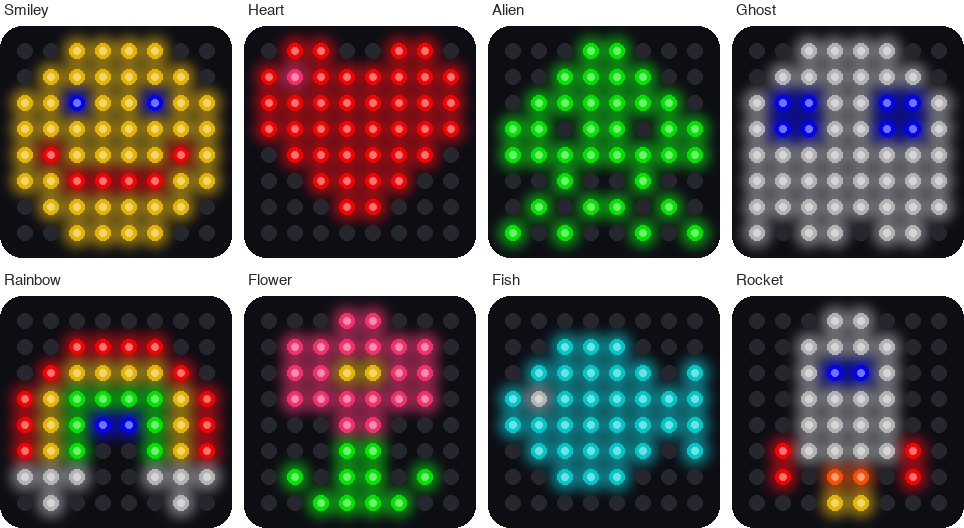
This picture was drawn by a computer simulator, so your real matrix may look a little different.
How it works
A file full of pictures
The pictures do not live in the program. They live in their own file, pictures.py. A Python file that other programs can load is called a module. The line import pictures loads it.
Here is the color key from that file. It has more letters than the key in Lab 9, so the pictures can use more colors.
COLORS = {
    ".": (0, 0, 0),         # off
    "R": (32, 0, 0),        # red
    "O": (32, 10, 0),       # orange
    "Y": (28, 22, 0),       # yellow
    "G": (0, 28, 0),        # green
    "C": (0, 22, 22),       # cyan (blue-green)
    "B": (0, 0, 32),        # blue
    "V": (16, 0, 28),       # violet
    "P": (32, 6, 14),       # pink
    "W": (18, 18, 18),      # white
    "N": (14, 6, 0),        # brown
}
Here is one of the pictures. It uses R for red and one P for a pink shine.
HEART = [
    ".RR..RR.",
    "RPRRRRRR",
    "RRRRRRRR",
    "RRRRRRRR",
    ".RRRRRR.",
    "..RRRR..",
    "...RR...",
    "........",
]
To use something from a module, write the module name, a dot, and the thing's name. So pictures.COLORS is the color key inside pictures.py.
A list of pairs
# the order the pictures are shown in: (name, picture)
GALLERY = [
    ("Smiley", SMILEY),
    ("Heart", HEART),
    ("Alien", ALIEN),
    ("Ghost", GHOST),
    ("Rainbow", RAINBOW),
    ("Flower", FLOWER),
    ("Fish", FISH),
    ("Rocket", ROCKET),
]
GALLERY is a list. Each item is a pair in parentheses: a name and a picture. The list sets the order of the show.
name, picture = pictures.GALLERY[number]
This line takes one pair out of the list and gives each half its own name. When number is 0, name is "Smiley" and picture is the smiley picture.
Wrap around with %
number = (number + step) % count
The variable step is 1 for next and -1 for back. There are 8 pictures, so count is 8, and the picture numbers go from 0 to 7. What happens after picture 7? The % sign gives the remainder after dividing, and that makes the count wrap around.
number |
step |
number + step |
% 8 |
What you see |
|---|---|---|---|---|
| 2 | 1 | 3 | 3 | The next picture |
| 7 | 1 | 8 | 0 | Back to the first picture |
| 0 | -1 | -1 | 7 | Around to the last picture |
In Python, -1 % 8 is 7. So stepping back from the first picture lands on the last one.
Spot a press
if now1 == 0 and last1 == 1:        # button 1 was just pressed
    step = 1
Remember that pressed means zero. This line asks two questions at once. Is the button down now? Was it up last time? Both must be true. That way one press moves one picture, even if you hold the button down.
Keep time without sleeping
if step == 0 and ticks_diff(ticks_ms(), shown_at) >= HOLD_MS:
    step = 1                        # nobody pressed, so move on
A long sleep would make the program deaf to your buttons. So this program looks at a clock. ticks_ms() is the Pico's stopwatch. It counts milliseconds, which are thousandths of a second. The variable shown_at remembers when the picture appeared. ticks_diff works out how long ago that was.
When 3,000 milliseconds have passed, the show moves on. The loop still runs 50 times a second, so a button press is never missed.
Key idea
Checking a clock lets a program do two jobs at once. This one waits for the next picture and listens for buttons.
Try it yourself
- Speed up the show. Change
HOLD_MS = 3000toHOLD_MS = 1000. How many seconds does each picture stay now? - Run the show backwards. Find the line
step = 1with the commentnobody pressed. Change it tostep = -1. Which picture comes after the smiley now? -
Add your own picture. Open
pictures.pyand add this tree above theGALLERYlist.TREE = [ "...YY...", "...GG...", "..GGGG..", "..GRGG..", ".GGGGGG.", ".GGGGRG.", "GGGGGGGG", "...NN...", ]Then add this line at the end of
GALLERY, right before the closing]. Savepictures.pyonto the Pico and run the show again.("Tree", TREE), -
Change the order. Move the lines in
GALLERYso the rocket comes first.
Check your understanding
- What is a module? Which module holds the pictures?
- What two things are in each item of
GALLERY? numberis 7 and you press Button 1. What is the newnumber? Show the math.- Why does the program remember
last1andlast2? - Why does this program check a clock, and not use one long
sleep?
Lab complete!
 You built a picture gallery with buttons! Phones and tablets flip through photos the same way.
What's next: In Lab 11: Winking Face, you will make a picture move.