Lab 01: Blink the Onboard LED
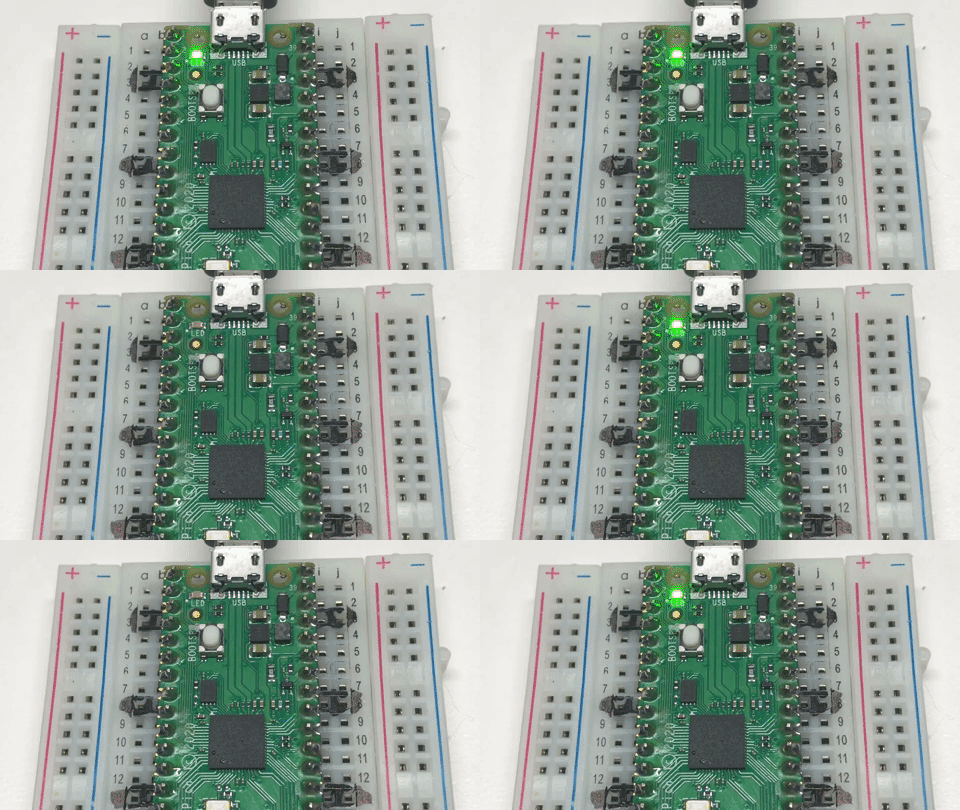
Before you build a clock, make sure the brain of the clock is working. The Pico has a tiny green light built onto the board, next to the USB plug. It is an LED (short for light-emitting diode), a part that glows when power flows through it. This program makes it blink once a second.
The program uses nothing else in the kit: no screen, no knob, not even the kit's other files. So if this lab works, you know the Pico, the USB cable, and MicroPython are all fine.
Welcome to Lab 01
 A clock is a machine that ticks at a steady beat, and today you make
your first tick. One blink each second, from a program you ran
yourself, on a real computer chip. Let's make time tick!
A clock is a machine that ticks at a steady beat, and today you make
your first tick. One blink each second, from a program you ran
yourself, on a real computer chip. Let's make time tick!
What You Will Learn
- how to run a program on the Pico from Thonny
- how to switch a light on and off from code
- how a loop makes code repeat, here forever
Run It
- Plug the Pico into your computer with the USB cable.
- Open
01-blink-onboard-led.pyin Thonny. - Click the green Run button.
- Watch the light: half a second on, half a second off.
- Look at the shell, the text area at the bottom of Thonny's window. The program prints the line below.
- Click the red Stop button.
1 | |
Setting Up the Light
The file begins with comments: lines that start with #, which
Python skips. After them comes the first part of the program:
1 2 3 4 5 6 7 8 | |
- The first three lines print the program's name and version. Every lab in this kit starts this way, so you can always tell which program is running.
from machine import Pinborrows thePintool. A pin is one of the Pico's connection points.from time import sleepborrowssleep, which makes the program wait.led = Pin("LED", Pin.OUT)gives the light a name,led.Pin.OUTmeans the Pico sends power out through this pin.
Why "LED" and not a number?
On a plain Pico, the light is on pin number 25. On a Pico 2 W, it is
wired to the WiFi chip instead, so Pin(25) cannot reach it. The
name "LED" works on every Pico board.
A Loop That Never Stops
Here is the rest of the program:
1 2 3 4 5 | |
while True:starts the loop. Everything indented under it runs again and again, like a song set to repeat.Trueis always true, so the loop never ends.led.on()switches the light on.sleep(0.5)waits half a second, with the light still on.led.off()switches the light off, and the last line waits again.
One trip around the loop takes 0.5 + 0.5 = 1 second, like the tick of a clock.
You met while True loops in
chapter 10 of Learning Python.
The
Blink lesson in Learning MicroPython
blinks a Pico's onboard light the same way.
Try This
- Change both
sleep(0.5)lines tosleep(0.1). How many times does the light blink in one second now? - Make a lighthouse. Use
sleep(0.05)afterled.on()andsleep(2)afterled.off(). - Use one small number in both
sleeplines:0.05, then0.02, then0.005. When do your eyes stop seeing the blinks?
If It Doesn't Work
- Nothing happens when you click Run. Look in the bottom-right corner of Thonny's window for "MicroPython (Raspberry Pi Pico)". If it is missing, unplug the USB cable and plug it back in, or try another cable.
- The program runs, but the light stays dark. The Pico may have the wrong MicroPython on it. This board needs the one made for the Pico 2 W. See Before You Start.
Your First Tick!
 You switched a real light with
 led.on() and led.off(), and kept
it going with a while True loop. Every clock face in this kit runs
inside a loop like that. Next, you will give the kit a checkup.
Next: Lab 02: Kit Checkup