Lab 14: Weather Clock
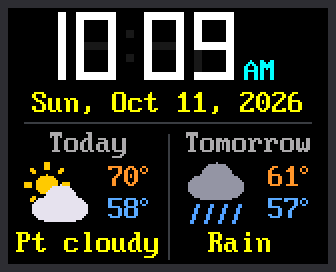
Now your clock knows more than the time. Every half hour it asks the internet for the forecast. Then it shows today's and tomorrow's highs and lows, each with a small weather picture.
The picture shows a made-up forecast: partly cloudy, 70 and 58, then rain, 61 and 57. Yours will be the real one for your town.
Welcome to Lab 14
 Will you need a jacket tomorrow? After this lab your clock can tell
you, with the same trick phone apps use to get scores and maps. Let's
make time tick!
Will you need a jacket tomorrow? After this lab your clock can tell
you, with the same trick phone apps use to get scores and maps. Let's
make time tick!
What You Will Learn
- how a program gets facts from a computer on the internet
- how two numbers tell the forecast where you live
- how a weather code becomes a picture and a word
- how to draw a picture off-screen, so it never flickers
Before You Start
- Check that
secrets.pyis on the Pico. Lab 10 shows how to make it. - Open
config.pyand find the three lines below. - Search the web for "your town latitude longitude".
- Type in your town's two numbers. Save
config.pyon the Pico, the way you did in lab 10.
1 2 3 | |
Latitude is how far north of the equator a place is, and longitude is how far east or west. The kit comes set to Minneapolis, in degrees Fahrenheit. In the United States the longitude is negative, so keep the minus sign.
Run It
- Open
14-weather-clock.pyin Thonny and click Run. - Wait while the screen says
Weather clock. The Pico joins your WiFi, gets the forecast, and sets the time. - Look at the face: the time and date on top, Today and Tomorrow below.
- Find the line in Thonny's shell that starts with
Forecast:.
1 | |
That line is the made-up forecast from the picture. Your numbers will be different. Each pair of round brackets is one day: the high, the low, and a weather code. A weather code is a number that stands for a kind of weather.
Asking for the Weather
A website sends back pages for people to read. A web service sends back facts for programs to read. This kit asks a free weather service called Open-Meteo, which needs no account.
The kit's file forecast.py sends your latitude and longitude. It asks
for the high, the low and the weather code, for today and tomorrow. This
part of it reads the answer:
1 2 3 4 5 6 7 | |
dailyholds the answer, anddaily["weather_code"]picks out its list of codes.for i in range(2)runs twice: 0 is today and 1 is tomorrow.round()turns a temperature like 70.3 into the whole number 70.print()writes theForecast:line you saw in the shell.
You may have asked a web service for a forecast before, in the weather lab of Learning MicroPython.
From a Code to a Picture
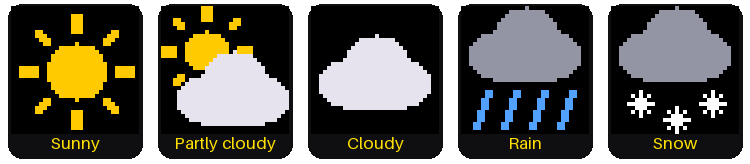
The service doesn't say "rain". It sends a number, such as 63. The
function forecast.describe() turns each code into one of five icons,
plus a word or two for the screen.
1 2 3 4 5 6 7 8 | |
This is the top of describe(). It is a chain of if tests, and the
first one that is true decides the answer. Each return hands back two
things: an icon name and the words. Here are all the choices:
| Weather codes | Icon | Words on the screen |
|---|---|---|
| 0, 1 | Sunny | Sunny |
| 2 | Partly cloudy | Pt cloudy |
| 3, 45, 48 | Cloudy | Cloudy, Fog |
| 51 to 67, 80 to 82, 95 and up | Rain | Drizzle, Frz rain, Rain, Showers, T-storms |
| 71 to 77, 85, 86 | Snow | Snow |
In the picture, today's code is 2 and tomorrow's is 63. Find both in the table.
Draw It Off-Screen First
Each icon is built from circles, rectangles and lines. As you saw in lab 11, this screen shows every shape the moment it is drawn. An icon built right on the screen would flicker.
So the program draws on scrap paper first: a small patch of memory called a frame buffer. It holds one icon, 32 × 32 pixels. The icon is built there, out of sight, then sent to the screen in one go.
1 2 3 4 5 6 | |
- The
ifskips an icon that is already on the screen. The last line remembers the new one. render_icon(icon)draws the icon intoicon_buffer, the scrap paper.display.blit_buffer(...)copies all 32 × 32 = 1,024 pixels to the screen at once.
One catch: the frame buffer stores each color's two halves, called bytes,
in the opposite order from the screen. So every icon color goes through
swapped() first, or the yellow sun comes out blue.
Draw First, Show Later
 Notice the pattern: build the picture where nobody can see it, then
show it all at once. Video games do the same for every frame they
draw.
Notice the pattern: build the picture where nobody can see it, then
show it all at once. Video games do the same for every frame they
draw.
Try This
- In
config.py, change"fahrenheit"to"celsius". Save it and run the lab again. - In
config.py, try a faraway city. Miami is 25.76 and -80.19. Anchorage, Alaska is 61.22 and -149.90. - In the lab, change
HIGH_COLORtoconfig.REDandLOW_COLORtoconfig.CYAN. - Find the comment line in
forecast.pythat starts withcurl. Copy the web address between its quotation marks into a web browser to see what the Pico gets.
If It Doesn't Work
- The temperatures show
--and there are no icons. The clock has no forecast yet. The last lines in Thonny's shell say what went wrong, and the clock tries again every 5 minutes. - The forecast is for the wrong place. Check
LATITUDEandLONGITUDEinconfig.py. Did you keep the minus sign? - The colon stops blinking for a moment. That is normal. The clock stands still for a second or two while it gets a new forecast.
Your Clock Reads the Sky!
 You asked a web service a question and turned its weather codes into
icons, drawn off-screen so they never flicker. Next comes a stopwatch
that times laps to a hundredth of a second.
You asked a web service a question and turned its weather codes into
icons, drawn off-screen so they never flicker. Next comes a stopwatch
that times laps to a hundredth of a second.
Next: Lab 15: Stopwatch