Lab 17: One Clock, Five Modes
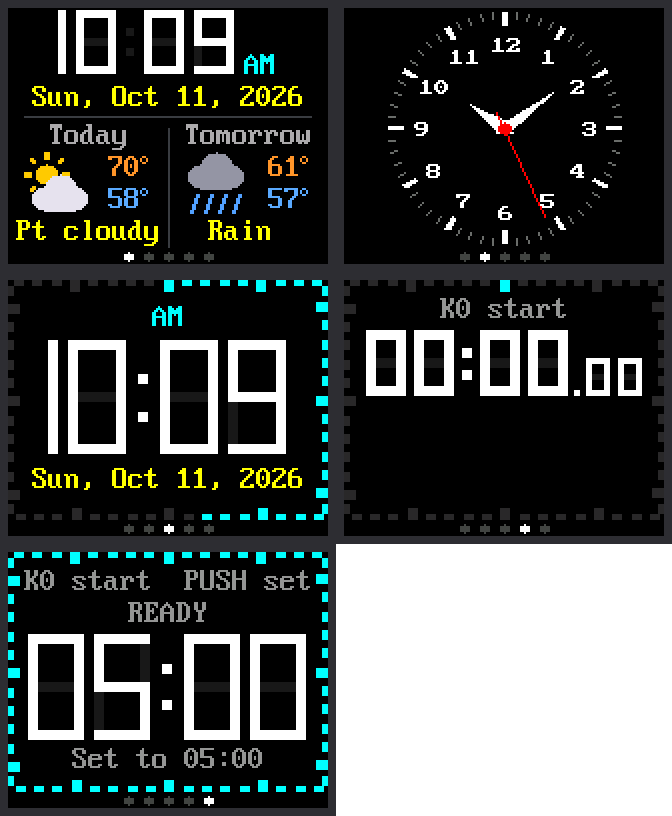
This is the big finish. Everything you have built comes together in one clock. Turn the knob to move between its five faces, called modes:
Weather ↔ Analog ↔ Digital ↔ Stopwatch ↔ Timer, and around again to Weather.
Clockwise goes forward and counter-clockwise goes back. Five dots at the bottom of the screen show where you are: the bright dot is your mode.
| Control | What it does |
|---|---|
| Turn the knob | Go to the next mode, or back to the one before |
| K0 | Start and stop the stopwatch or the timer |
| Press the knob | Lap or reset in the stopwatch. Set or reset in the timer. |
Welcome to Lab 17
 You started with one blinking light, and now you have five clock
faces. In this lab you'll join them into one clock that runs on its
own, with no computer attached. Let's make time tick!
You started with one blinking light, and now you have five clock
faces. In this lab you'll join them into one clock that runs on its
own, with no computer attached. Let's make time tick!
What You Will Learn
- why a program should load only the part it needs
- how the main program and a mode share the knob
- how a stopwatch or a timer keeps going while you look elsewhere
- how to make the clock start by itself
Run It
- Open
17-main-template.pyin Thonny and click Run. - Wait while the screen says
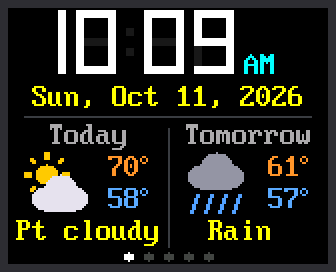
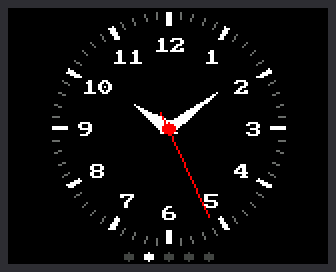
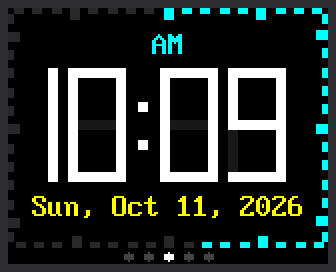
Setting clock. Then the Weather mode appears, and its forecast fills in a moment later. - Turn the knob one click clockwise. The analog face appears, and the second dot turns bright.
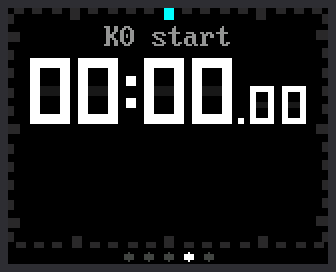
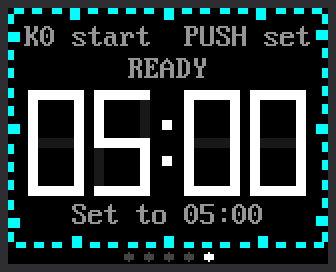
- Keep turning to visit Digital, Stopwatch and Timer. One more click brings you back to Weather.
- Turn the knob the other way to go back through the list.
| Weather | Analog | Digital | Stopwatch | Timer |
|---|---|---|---|---|
 |
 |
 |
 |
 |
Each Mode Is a Module
Each mode lives in its own file, or module: mode_weather.py,
mode_analog.py, and so on. You met modules in
chapter 17 of Learning Python.
The main program lists the modes in the order the knob visits them:
1 2 3 4 5 6 7 8 | |
Each line pairs a module's name with a name to print in the shell.
Counting starts at 0, so START_MODE = 0 means Weather.
Why not load all five at the start? They would fill the Pico's memory with code and drawings nobody is looking at. Think of a desk with room for one board game. Before you set up a new game, you pack the old one back in its box.
So only the mode on the screen is in memory. When you turn the knob, the main program does three things:
- It asks the current mode to stop, and keeps whatever it hands back.
- It removes that mode from memory. Then it runs the garbage collector, the part of MicroPython that frees unused memory.
- It loads the next mode and asks it to start.
Four Functions Every Mode Has
The main program doesn't know what a mode draws. It only knows that every mode has the same four functions:
| Function | When the main program calls it | What the mode does |
|---|---|---|
start(display, k0, push, saved) |
once, when the mode is loaded | draws its whole screen |
update(now) |
on every pass of the loop | reads the buttons and redraws only what changed |
on_knob(clicks) |
when the knob turns (this one is optional) | returns True if it used the turn itself |
stop() |
when you switch away | turns off anything that is on, and hands back a note to keep |
It works like a game console: any cartridge plays, because they all fit
the same slot. This part of switch_to() plugs a mode in:
1 2 3 4 5 | |
MODES[index][0]is the module's name, such as"mode_analog".loaded_beforelists what is in memory now, so the next switch knows what to remove.__import__(name)does the job ofimport, with the name taken from a variable.mode.start(...)hands the mode the screen, both buttons, and its saved note.
For the curious: add a sixth mode
- Save a copy of
mode_digital.pyon the Pico, namedmode_green.py. - In the copy, change
DIGIT_COLOR = config.WHITEtoconfig.GREEN. - In the main program, add the line
("mode_green", "Green"),after the Timer line inMODES. - Run the main program and count the dots.
Now change your mode as much as you like. Follow two rules. Stay out
of the bottom 8 rows, where the dots go. Clear the screen only in
start().
Who Owns the Knob?
The knob belongs to the main program, so a turn means the same thing in every mode: switch. But the timer needs the knob too, to set its minutes and seconds. So the main program asks the mode first:
1 2 3 4 5 6 7 | |
knob.turned()gives the clicks since the last pass. Clockwise is a positive number.getattr(mode, "on_knob", None)looks in the mode for a function namedon_knob. If there is none, it givesNone.usedisTrueonly when the mode hason_knob()and it answersTrue.stepis 1 for forward and -1 for back. The%wraps around the ends of the list. From Timer, which is mode 4, forward is (4 + 1) % 5 = 0. That is Weather.
Only the timer has on_knob(). It answers True while you set the time
and while its alarm flashes. So you can't fall out of the timer halfway
through setting it.
Modes That Keep Going
Start the stopwatch, then turn to the weather. The stopwatch's module is removed from memory. Yet when you turn back, it shows the right time. How? When a mode stops, it hands the main program a note to keep:
1 2 3 4 | |
The note is a dictionary, a set of values that each have a name. One
of them is run_started, the moment the stopwatch began. When the mode
loads again, start() gets the note back as saved. The millisecond
counter never stopped, so "now minus run_started" is still right.
A running timer adds one more thing to its note:
1 2 | |
wake_at means "show me again at this moment". The main program checks
the notes on every pass of its loop. When the moment comes, it switches
to the timer by itself, and the alarm goes off.
Nothing Was Counting
 Notice that nothing was counting while you were away. The stopwatch
kept one number, the moment it started, and that was enough. A
program that remembers moments can be packed away and brought back.
Notice that nothing was counting while you were away. The stopwatch
kept one number, the moment it started, and that was enough. A
program that remembers moments can be packed away and brought back.
Make It Start by Itself
So far, Thonny has started every program. But each time the Pico gets
power, MicroPython looks for a file named main.py and runs it. So save
a copy of this program on the Pico with that name:
- Open
17-main-template.pyin Thonny. - Choose File, then Save copy....
- When Thonny asks where to save, pick Raspberry Pi Pico.
- Type
main.pyas the file name and click OK. - Unplug the Pico from your computer. Plug its cable into a phone charger or a battery pack.
The clock starts by itself. With no computer attached, Thonny can't set
the time. WiFi is now the only way the clock can learn it, so
secrets.py must be on the Pico.
Getting Thonny Back
 The clock now starts every time the Pico gets power, even when you
plug it into your computer. Click Stop in Thonny to end it before
you run another lab. To switch this off for good, choose View,
then Files, right-click
The clock now starts every time the Pico gets power, even when you
plug it into your computer. Click Stop in Thonny to end it before
you run another lab. To switch this off for good, choose View,
then Files, right-click main.py on the Pico, and choose
Delete.
Try This
- Change
START_MODE = 0toSTART_MODE = 2. Which mode comes up first? - Start the stopwatch, turn to the weather, count to ten, and turn back. Is the time right?
- Set the timer to 20 seconds and start it. Turn to the analog face and wait. What happens at zero?
- Take the line
("mode_analog", "Analog"),out ofMODES. How many dots are there now?
If It Doesn't Work
- Turning the knob changes the timer's numbers, not the mode. You are
setting the timer. Press the knob until the screen says
READY, then turn. - The clock jumps to the timer by itself. A timer you started has reached zero. Press K0 or the knob to stop the alarm.
- On a charger, the clock shows the wrong time. It could not join
your WiFi. Check
secrets.py, and keep the clock within reach of your WiFi.
You Built a Five-Mode Clock!
 You joined five faces into one program that loads only the mode it
needs. It shares one knob, and it keeps a stopwatch and a timer going
out of sight. That is how real gadget software is built!
You joined five faces into one program that loads only the mode it
needs. It shares one knob, and it keeps a stopwatch and a timer going
out of sight. That is how real gadget software is built!
You have finished all 17 labs. Go back to the kit's main page, or invent a sixth mode of your own.