Lab 12: Set the Time with the Knob
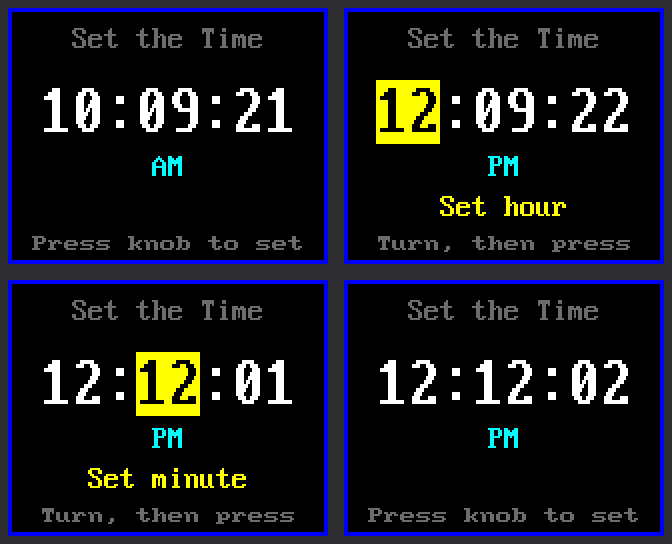
What if there is no WiFi? A clock from a store lets you set the time by hand. This lab does too, and it uses the knob:
| Control | What it does |
|---|---|
| Press the knob | Steps through: run → set hour → set minute → run |
| Turn the knob | Changes the highlighted number: clockwise adds, the other way subtracts |
K0 has nothing to do in this lab.
Welcome to Lab 12
 After this lab, you can set your clock by hand, even where there is
no WiFi. You will also catch a sneaky problem that hides inside every
switch. Let's make time tick!
After this lab, you can set your clock by hand, even where there is
no WiFi. You will also catch a sneaky problem that hides inside every
switch. Let's make time tick!
What You Will Learn
- why one press of a switch can count as several, and the fix
- how the program asks the knob how far it turned
- how to highlight a number by swapping two colors
Run It
- Open
12-set-time.pyin Thonny and click Run. The bottom line saysPress knob to set. - Press the knob. The hour gets a yellow highlight, and
Set hourappears. - Turn the knob until the hour is right.
- Press the knob again. Now the minutes are highlighted.
- Turn the knob to set the minutes. Each click also sets the seconds
back to
00. - Press the knob once more. The highlight goes away, and the clock runs.
To match another clock to the second, set the same minute it shows. Then add one more click at the moment that clock starts a new minute.
Problem 1: The Bouncing Switch
Pressing the knob closes a tiny switch: two bits of metal touch. But they
do not touch just once. They bounce, like a ping-pong ball dropped on
a table. For a few thousandths of a second they rattle together and
apart. The Pico is fast enough to see the rattles. One press could count
as several and skip right past Set hour.
The fix is called debouncing. After the switch changes, the program ignores it until the rattling is over. This lab waits 40 milliseconds, which is 40 thousandths of a second:
1 | |
The waiting happens in a class named Button. A class is a blueprint
for an object that keeps its own notes. You met classes in
chapter 25 of Learning Python.
1 2 3 4 5 6 7 8 9 | |
downisTrueif the knob is pressed right now.- The names that start with
self.are the notes.self.heldis what the program last believed about the switch.self.changed_atis the time it last changed its mind. - The
ifneeds two things. The switch must look different. Andtime.ticks_diff(...), the time since that last change, must be more than 40 milliseconds. A rattle comes too soon, so it is ignored. return downanswersTruefor a press andFalsefor a release. So each press gives oneTrue.
Problem 2: Turns Faster Than the Loop
Spin the knob, and several clicks go by while the loop is busy drawing.
A class named Knob counts them with the interrupt from
lab 07. The loop only has to ask it one
question:
1 2 3 4 5 6 7 8 9 | |
knob.turned()hands over the clicks since the loop last asked. A 3 means three clicks clockwise, and -1 means one click back. A 0 means no turn, and it counts as false in theif.% 24wraps the hour around. One click past hour 23 is hour 0.second = 0makes the seconds start over.set_rtc(...)writes the new time into the RTC, the Pico's real-time clock. Labs 09 and 11 will show it too.
A clock with only buttons needs 45 presses to reach 45 minutes. Here it takes one quick spin, and you can turn back if you go too far.
How the Highlight Is Drawn
text() takes two colors: one for the letters and one for the
background behind them. The highlight is the same text with the colors
changed:
1 2 3 4 5 6 | |
fieldsholds the five pieces of the time: hour, colon, minute, colon, second. Each one comes withTrueif it is being set.- A selected piece is drawn black on yellow. The others are white on black.
- The last line moves
xto the right, ready for the next piece.
The hour and the minute always fill two characters. So a new piece lands right on top of the old one. Nothing is erased first, and nothing flickers.
Try This
- Change
HIGHLIGHT_BG = config.YELLOWtoconfig.GREEN. Two things on the screen change color. Which two? - Change
minute = (minute + step) % 60tominute = (minute + 5 * step) % 60. How far does one click move the minutes now? - Change
DEBOUNCE_MS = 40to1000. Press the knob twice, quickly. The second press is ignored! A wait that is too long throws away real presses. Change it back to 40.
If It Doesn't Work
- Pressing the knob does nothing. Run lab 05 again to test PUSH.
- Turning the knob does nothing. Turning only changes a highlighted number. If one is highlighted, run lab 06 again.
- A number jumps when you press the knob. You turned it a little as you pressed. Press straight down.
Set It Yourself!
 You tamed a bouncing switch with a 40 millisecond wait. You asked the
knob for its clicks and made a highlight from two swapped colors.
Next, you will build a clock face with giant digits.
You tamed a bouncing switch with a 40 millisecond wait. You asked the
knob for its clicks and made a highlight from two swapped colors.
Next, you will build a clock face with giant digits.