Lab 10: Set the Clock from the Internet
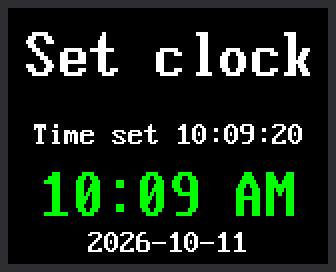
The Pico forgets the time whenever it loses power. A phone never seems to have this problem, because it asks the network for the correct time. In this lab, your clock learns to do the same.
Welcome to Lab 10
 This is the lab where your clock goes online. After it, your clock
can set itself anywhere there is WiFi, with no help from Thonny.
Let's make time tick!
This is the lab where your clock goes online. After it, your clock
can set itself anywhere there is WiFi, with no help from Thonny.
Let's make time tick!
What You Will Learn
- how to keep a password out of your programs
- what a time server is
- why joining WiFi sometimes takes more than one try
- what UTC and time zones are
Before You Start
The Pico needs the name and password of a WiFi network. They go in a file
of their own, called secrets.py.
- Copy
secrets-template.pyto a new file namedsecrets.py. In Thonny, open the template from the kit folder on your computer. Choose File, Save as..., This computer, and type the new name. -
In
secrets.py, type your WiFi name and password between the quote marks. Then save it.1 2
wifi_ssid = "your-network-name" wifi_pass = "your-network-password" -
Open
config.pyand check the lineTIMEZONE_HOURS = -6. That is right for US Central time. The table further down lists other zones. - Upload
secrets.pyto the Pico. With the file open, choose File, Save copy..., and pick the Pico this time. Do the same forconfig.pyif you changed it.
Use a 2.4 GHz network. The Pico 2 W cannot join a 5 GHz one.
Keep Secrets Secret
 Never type a password straight into a program, because programs get
shared. With the password in
Never type a password straight into a program, because programs get
shared. With the password in secrets.py, you can share every lab
and still keep it private. This kit is set up so that secrets.py
is never sent to GitHub.
If you did the
Connecting to WiFi
lab in Learning MicroPython, you have made a secrets.py before.
Run It
- Open
10-wifi-sync-time.pyin Thonny and click Run. - Watch the small line in the middle of the screen. It reports each step.
- When the clock is set, the time appears in big green letters.
The Thonny shell shows the same steps:
1 2 3 4 5 | |
The numbers after IP are the Pico's address on your network.
How It Works
Some computers on the internet have one job: telling other computers the exact time. They are called time servers, and they follow rules called NTP, short for Network Time Protocol. The whole conversation happens inside one line of this lab:
1 | |
sync_time() lives in the kit's file wifi_time.py. It joins your WiFi,
asks a time server, and shifts the answer to your time zone. Then it sets
the Pico's clock and turns WiFi off again. It answers True if all of
that worked, and the if shows the green time.
Joining WiFi can fail on the first try, even with the right password.
The program then switches the WiFi radio off and on again, like
restarting a stuck game. It tries up to three times, so if you see
Try 1 failed, just wait.
UTC and Time Zones
A time server does not know where you live. It answers in UTC, short
for Coordinated Universal Time, one shared time for the whole world.
Each time zone is a set number of hours away from UTC. US Central
time is 6 hours behind, which is the -6 in config.py.
| Time zone | TIMEZONE_HOURS |
|---|---|
| Eastern | -5 |
| Central | -6 |
| Mountain | -7 |
| Pacific | -8 |
From March to November, most of the United States moves its clocks one hour ahead. This is daylight saving time, or DST. Central time is then only 5 hours behind UTC. The program works that out by itself:
1 2 3 4 5 6 | |
offset starts at -6. On a daylight saving day, is_us_dst(...) answers
True, and offset += 1 turns -6 into -5.
Check it on the picture at the top. October 11 is a daylight saving day, so the offset is -5. For the clock to say 10:09 AM, the server must have answered 15:09 UTC, because 15 - 5 = 10.
Try This
- When this lab finishes, run lab 09. The time is still right, because the Pico's clock keeps counting until it loses power.
- In
config.py, changeTIMEZONE_HOURSto-8. Save a copy to the Pico and run this lab again. What time does it show? Change it back when you finish. - Do the same with
USE_US_DST = False. From March to November the clock loses an hour. In winter nothing changes. Why?
If It Doesn't Work
No secrets.py found. The file is not on the Pico. Do step 4 of Before You Start again.Try 3 failed, then a redNot set. Check the name and password insecrets.py. Capital letters matter! Is the network 2.4 GHz?NTP try 3 failed, then a redNot set. The WiFi worked, but the time server did not answer. Yoursecrets.pyis fine, whatever the screen says. Run the lab again.- The time is off by exactly one hour. Check
TIMEZONE_HOURSandUSE_US_DSTin the copy ofconfig.pyon the Pico.
Your Clock Is Online!
 You kept a password out of your code and asked a time server for the
time. You shifted it from UTC to your own time zone. Next, that time
goes onto a clock face with moving hands.
You kept a password out of your code and asked a time server for the
time. You shifted it from UTC to your own time zone. Next, that time
goes onto a clock face with moving hands.