Lab 03: Hello, World!
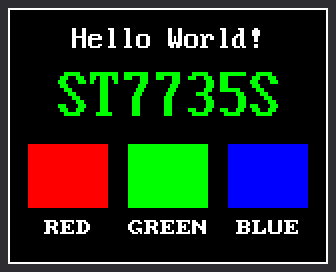
Programmers have a tradition. The first program on a new gadget says hello to the world. This lab puts "Hello World!" on your screen, with a white line around the edge and three colored bars.
The picture is also a test. It checks three screen settings that nobody can know until a real picture is on the glass.
Welcome to Lab 03
 This is the lab where the screen wakes up and says its first words.
Once you can put words and shapes anywhere you like, you can draw any
clock face you can imagine. Let's make time tick!
This is the lab where the screen wakes up and says its first words.
Once you can put words and shapes anywhere you like, you can draw any
clock face you can imagine. Let's make time tick!
What You Will Learn
- how coordinates, the two numbers that say where a dot goes, work
- how to write text in three sizes
- why a drawing shows up the moment you ask for it
- how to fix a picture that is upside down, shifted, or the wrong color
Run It
- Hold the kit so the knob is on the right.
- Open
03-hello-world.pyin Thonny. - Click Run.
- Compare the screen with the picture above. Look for the white line on all four edges, and for RED, GREEN, BLUE in that order.
The shell prints:
1 2 3 | |
Where Is Everything? Coordinates
The screen is made of tiny dots called pixels: 160 across and 128 down. Every pixel has an address made of two numbers, x and y:
- x counts across, from 0 at the left edge to 159 at the right.
- y counts down, from 0 at the top to 127 at the bottom.
So bigger y means lower, not higher. The turtle's goto(x, y) in
chapter 7 of Learning Python
worked the other way, with y going up.
The program starts by painting the screen black and drawing the line:
1 2 3 4 5 6 | |
config.init_display()wakes up the screen and names itdisplay.display.fill(config.BLACK)paints every pixel black.display.rect(...)draws the outline of a rectangle. It starts at x = 0, y = 0, the top-left corner. It is 160 wide and 128 tall, so it runs along all four edges.
Three Sizes of Letters
This screen has no lettering built in. The kit brings three fonts, which are sets of pictures of letters:
| Font | Each letter is | Letters across the screen |
|---|---|---|
config.TINY_FONT |
8 × 8 pixels | 20 |
config.SMALL_FONT |
8 × 16 pixels | 20 |
config.BIG_FONT |
16 × 32 pixels | 10 |
The two lines of words use two of them:
1 2 3 4 5 | |
config.centered_text() needs the display, a font, the words, and y.
The y is the row where the tops of the letters go. A color at the end is
extra: leave it out and you get white.
The function works out x for you. "Hello World!" is 12 characters long, counting the space and the exclamation mark. At 8 pixels each, that is 96 pixels. That leaves 160 - 96 = 64 pixels. Half go on each side, so the words start at x = 32.
ST7735S is the name of the chip that runs your screen.
No show() Needed
Some screens make you call show() before anything appears. This one
does not. Each drawing line goes straight down the wires, like paint
going straight onto a wall. It is on the glass before the next line
runs. The loop that draws the bars works that way:
1 2 3 4 5 6 7 | |
- The second line centers the three bars. The first one starts at x = 10.
- The
forloop runs once for each name and color inBARS. display.fill_rect(...)draws a solid bar at x, 68 pixels down.display.text(...)writes the name under the bar, atlabel_x. It takes a font first, then the words, x, y, and two colors.x += BAR_WIDTH + GAPmoves 50 pixels right for the next bar.
Three Settings to Check
Screens of this kind are not all built alike, so config.py has four
lines to match yours:
1 2 3 4 | |
These values are right for this kit's screen. If your picture looks
wrong, change one setting, save config.py to the Pico, and run again:
| If you see this | Change this |
|---|---|
| the picture is upside down | ROTATION = 3 |
| one side of the white line is missing, or an edge has a strip of colored specks | X_OFFSET or Y_OFFSET to 1, then 2 |
| the RED bar is blue and the BLUE bar is red | BGR = True |
BGR stands for blue, green, red: the same colors in the opposite order.
Try This
- Change
"Hello World!"to your own name. Up to 19 letters fit inside the white line. - Change
config.GREENtoconfig.YELLOW, or mix your own color withconfig.color565(255, 128, 0). The numbers are red, green, and blue. - Change the 28 in the
"ST7735S"line to 34. Which way do the big letters move? - Add
import timeunderimport config. Then addtime.sleep(1)as a new last line inside theforloop, lined up with the line above it. Watch the bars arrive one at a time.
If It Doesn't Work
- The screen stays dark. Check the screen's wires against How It Is Wired.
ImportError: no module named 'st7735s'. Thelibfolder is not on the Pico yet. See Before You Start.
Hello, Screen!
 You can now start the screen, place anything by its x and y, and
write text in three sizes. You also know which settings fix a
picture that looks wrong. Next, you will test the K0 button.
You can now start the screen, place anything by its x and y, and
write text in three sizes. You also know which settings fix a
picture that looks wrong. Next, you will test the K0 button.