Playing an Audio File
Welcome to Audio Playback
 In this lab, you will play a real audio file stored on your Pico. This is much better quality than a buzzer tone!
Note
This lesson is still a work in progress. The wavePlayer is in an early draft form and has unpredictable interactions with other components. See the WAV file test results section below. There are also known problems when using GPIO pins other than GPIO 2 and 3. If you stick to pins 2 and 3 for the two channels, the tests run correctly.
Playing Sounds on the RP2040 Chip
Pulse-Width Modulation (PWM) square waves can produce tones, but the sound quality is not close to what you hear from a music player. In this lab, you will play high-quality audio files stored in the Pico's built-in memory.
The Raspberry Pi Pico has 2 MB of on-board flash memory (non-volatile storage that keeps your files even when unplugged). You can store short sound effects there. By adding an SD card reader, you can store much longer audio files and even full songs.
Background on Audio Encoding
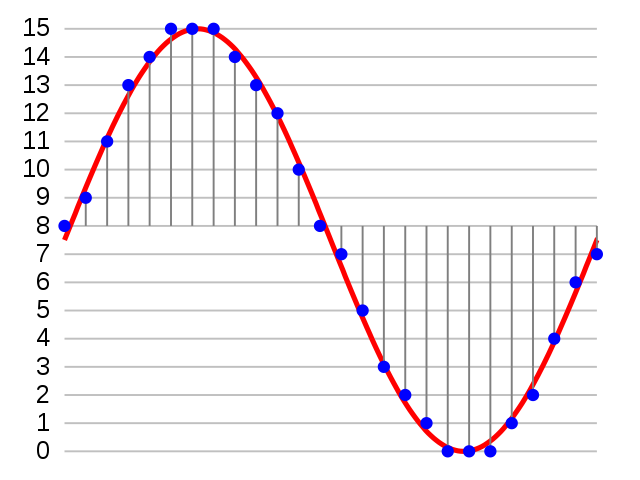
Audio files come in many formats. Two ideas are important for this lab:
- Sampling rate — how many times per second the audio is measured. A rate of 8,000 samples per second (8 kHz) gives decent quality for speech and robot sounds. A rate of 44,100 samples per second (44.1 kHz) gives CD quality.
- Bit depth — how many bits store each sample. A 16-bit depth gives good accuracy. An 8-bit depth saves space but sounds noisier.
For these labs, you will use mono audio (one channel, not stereo) at 8,000 samples per second with 16-bit depth. This is a good balance between small file size and useful sound quality.
A one-second robot sound effect at 8 kHz and 16-bit depth takes about 20 KB. The Pico's 2 MB flash can hold about 10 such sound effects while leaving plenty of space for your code.
You will use standard WAV files with Pulse-Code Modulation (PCM) encoding. WAV files take more space than compressed MP3 files, but they are much easier for the microcontroller to play because there is almost no decoding needed.
Overall Architecture
- WAV files are stored in the
/soundsfolder on the Pico's flash memory or on an SD card. - The
wave.pymodule reads the WAV files. - The
myPWM.py,chunk.py, andmyDMA.pymodules stream the audio data to the PWM output. - The file's own metadata sets the playback sample rate automatically.
Checking Your Sound File Sizes
Use this program to see the files in your /sounds folder and their sizes:
1 2 3 4 5 6 7 8 9 10 11 | |
Connections
Some of this documentation comes from Dan Perron's Pico Audio GitHub Repo.
In these tests, GPIO pins 2 and 3 drive the left and right audio channels. Those signals go to a stereo amplifier. You can also connect headphones with a 1 kΩ resistor in series on each pin to limit the current.
The PWM is set to 10-bit depth (values from 0 to 1023) at about 122.5 kHz. The DMA (Direct Memory Access) controller transfers each audio chunk at the correct sample rate so the main CPU does not have to handle every byte.
You will need to install wave.py and chunk.py from the Jokey GitHub Awesome MicroPython Repo into the root folder or the /lib folder on the Pico.
The playback process follows these steps:
- Set the PWM range to 255 at 122 kHz.
- Read the WAV file using
wave.py, which provides the sample rate and audio data. - Convert each chunk from 16-bit signed to unsigned values with the midpoint at 128 (or 512 for 10-bit).
- Wait for the previous DMA transfer to finish.
- Pass the converted chunk to DMA for transfer at the sample rate.
- Repeat from step 2 until the file ends.
Steps to Test Playing a WAV File
Clone the Pico Audio PWM GitHub Repository
1 2 | |
Download Some Test Robot WAV Files
This GitHub folder contains a set of 8 kHz, 16-bit robot sounds:
https://github.com/CoderDojoTC/robot-media/tree/master/wav-8k
Converting MP3 to WAV Files
This software only supports WAV files because they are easy to decode on a microcontroller. WAV files store uncompressed audio. MP3 files are smaller but need complex decoding algorithms.
The standard WAV encoding is Linear Pulse-Code Modulation (LPCM).
If you have just a few MP3 files, you can use this website to convert them:
Cloud Convert Service that Converts MP3 to WAV files
The next lab shows you how to convert a whole folder of MP3 files to 8 kHz, 16-bit WAV format using a command-line script.
Copy Sound Files to the Pico
Your Pico has 2 MB of flash storage. A typical one-second robot sound effect takes about 20 KB, so you can store many effects. Use the rshell program to copy files from your computer to the Pico.
Lines starting with pc$ are commands you type in your computer's terminal. Lines starting with rs$ are commands you type inside rshell.
1 2 3 4 5 6 7 8 9 10 11 12 13 14 15 16 17 | |
Listing the Wave Files
After copying files, verify them with this program:
1 2 3 4 5 6 7 8 9 10 11 12 13 14 15 16 17 | |
Sample console output:
1 2 3 4 5 6 | |
Checking the WAV File Format
The wave.py module can read the metadata inside each WAV file and show you its format. WAV files come in many formats — single channel, stereo, and different bit depths. This program prints the details in neat columns:
1 2 3 4 5 6 7 8 9 10 11 12 13 14 15 16 17 18 19 20 21 22 23 24 25 26 | |
Sample output:
1 2 3 4 5 6 7 | |
Adding an Interrupt
If you stop the RP2040 while it is playing a sound, the PWM hardware keeps generating the tone on its own. To stop it cleanly, use a try/except block:
1 2 3 4 5 6 7 8 9 10 11 | |
Playing the Same Sound Repeatedly
1 2 3 4 5 6 7 8 9 10 | |
Downloading the Audio Libraries
Both wave.py and chunk.py are available here:
https://github.com/joeky888/awesome-micropython-lib/tree/master/Audio
Monty's Tip
 Copy
Copy wave.py and chunk.py to the /lib folder on your Pico. That way they load automatically for any program that needs them.
References
- Daniel Perron
- Wikipedia — WAV File
- Web-Based Audio Conversion Service Convertio
- Wikipedia — Audio Interchange File Format
- Wikipedia — Pulse-Code Modulation
- Raspberry Pi Pico Forum on Sound Files
Great Work!
 You have learned how to store and play real audio files on your Pico. Next, you will test your stereo audio connections to make sure both channels work correctly.