Introduction to OLED Displays
Welcome to OLED Displays
 In this lab, you will connect a tiny screen to your microcontroller and make it show text. Get ready — this is one of the most exciting labs in the course!
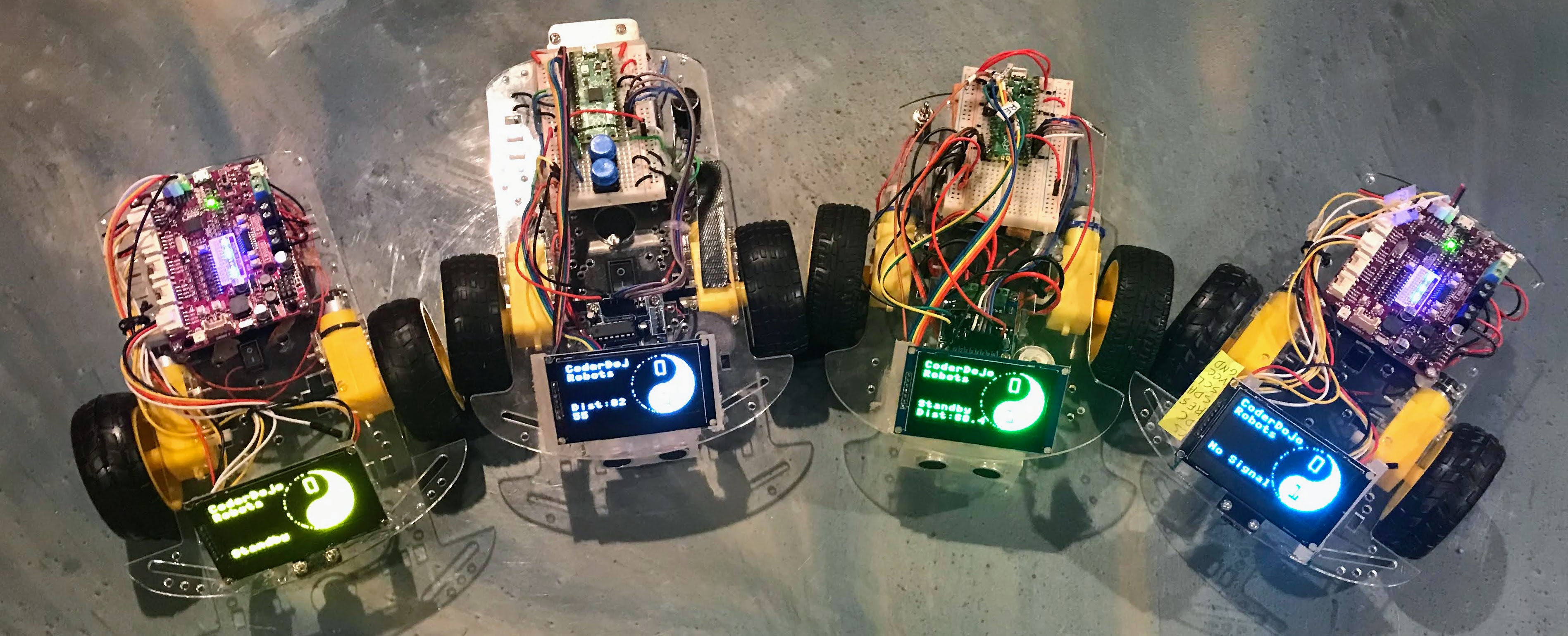
Four colors of 2.44" Organic Light-Emitting Diode (OLED) displays from DIY More. You can buy them on eBay for about $18 each.
What Is an OLED Display?
An Organic Light-Emitting Diode (OLED) is a type of screen. Each tiny dot on the screen is called a pixel. An OLED pixel makes its own light. It does not need a backlight like older screens do. This makes OLEDs very bright and easy to read.
Most of the OLED displays in these labs are 128 pixels wide and 64 pixels tall. That gives you 128 x 64 = 8,192 pixels to work with!
Why We Use OLED Displays
We use small OLED displays in many of our labs because:
- They are inexpensive — about $4 each.
- They are easy to connect. You only need four wires for the Inter-Integrated Circuit (I2C) connection or seven wires for the Serial Peripheral Interface (SPI) connection.
- They have a large area to show feedback. Most are 128 x 64 pixels.
- They are easy to program. You only need to set up the device and run three functions:
oled.fill(),oled.text(), andoled.show(). - OLEDs keep high contrast even when batteries get low. Liquid Crystal Displays (LCDs) can look dim as batteries drain, but OLEDs stay bright.
- There is plenty of sample code and tutorials online.
- You can program them with Python — a friendly and popular language.
- They are crazy fun!
Key Idea
 A pixel is one tiny dot on a screen. Your OLED has 8,192 of them. You can turn each dot on or off to draw text and shapes!
Two Ways to Connect an OLED
There are two ways to wire an OLED to your microcontroller.
Inter-Integrated Circuit (I2C) uses just two signal wires. It is simple and great for beginners. Updating the full screen with I2C takes about 37 milliseconds (ms). A millisecond is one-thousandth of a second.
Serial Peripheral Interface (SPI) uses five signal wires. It is faster. Updating the screen with SPI takes only about 2.79 ms. That is about 13 times faster than I2C!
For most beginner projects, I2C is the right choice. You will start with I2C in these labs.
Finding Your Display Chip
Before you write any code, you need to know which graphics chip is inside your OLED. The chip talks to your microcontroller and draws pixels on the screen.
The two most common chips are:
- SSD1306 — the most popular chip. Most $4 OLED displays use this one.
- SH1106 — very similar to the SSD1306. It has a slightly larger internal memory (132 x 64 pixels vs. 128 x 64 pixels).
The chip name is usually printed on the back of the display or listed in the product description where you bought it.
Monty's Tip
 Not sure which chip you have? Run the I2C scanner code in the next section. If it finds a device at address 60, your wiring is correct and you are ready to go!
I2C Scanner
Because your microcontroller can have many devices connected at once, each device gets a unique address. Think of it like house numbers on a street. Most OLED displays come with a default address of 60 (that is the number 3C in hexadecimal notation, which uses letters A–F alongside digits 0–9).
You can run this short program to check that your display is connected correctly:
1 2 3 4 5 6 7 | |
What each line does:
import machine— loads the MicroPython library for hardware pins.sda = machine.Pin(0)— sets up the data wire on GPIO pin 0.scl = machine.Pin(1)— sets up the clock wire on GPIO pin 1.i2c = machine.I2C(0, ...)— creates an I2C connection using those two pins at 400,000 signals per second.print(...i2c.scan())— scans for devices and prints their addresses.
If you see [60] printed in the console, your display is wired correctly!
If you do not see [60], check your wiring. Make sure you are using an I2C display, not an SPI display.
You Can Do This!
 Getting hardware connected can take a few tries. That is completely normal. Every engineer double-checks wiring — you are on the right track!
References
Great Work!
 You have learned what an OLED display is, why we use them, and how to scan for one. Next, you will write your first program to show text on the screen!