ILI9341 TFT Display
Welcome to the ILI9341 Color Display Lab
 In this lab, you will connect a 3.2-inch color display and write code to show text and colorful rectangles. Get ready to fill the screen with color!
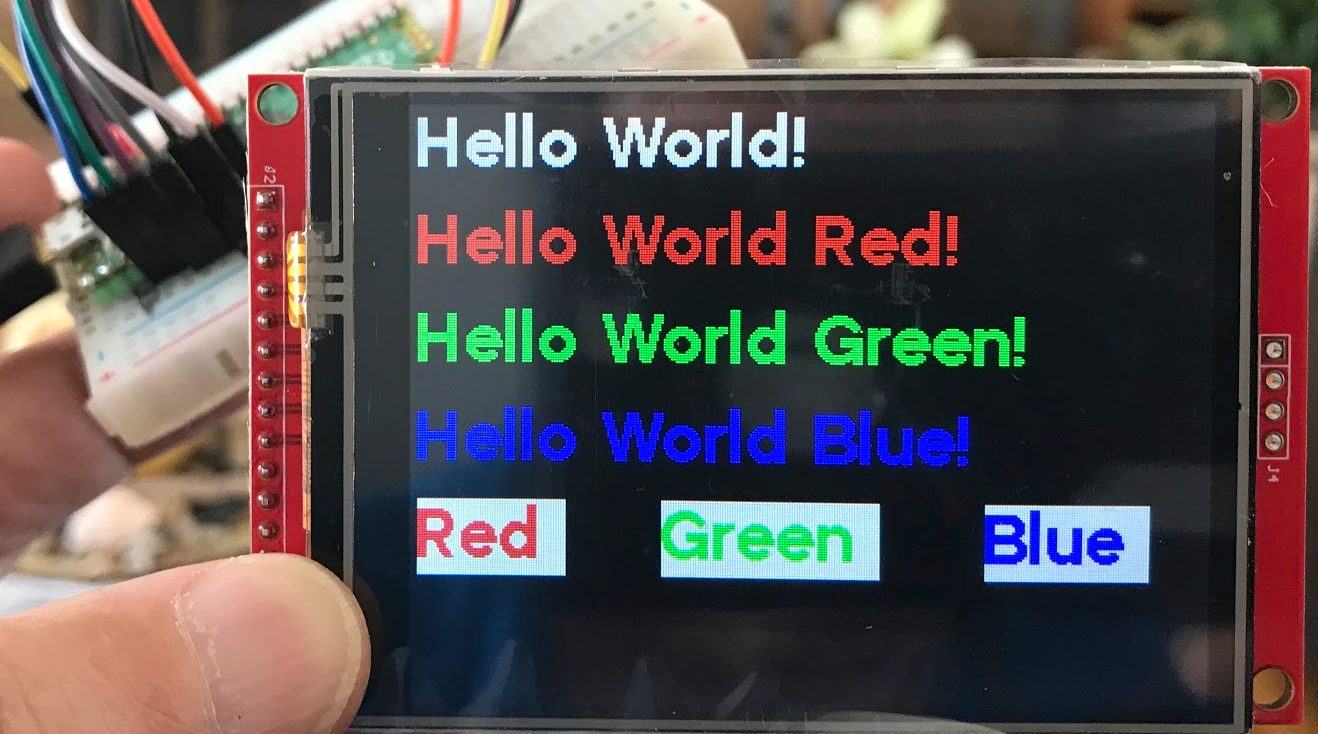
What Is This Display?
The ILI9341 is a Thin-Film Transistor (TFT) color display. TFT is a technology that makes each pixel very bright and clear. This display is 3.2 inches across. It shows 240 pixels tall and 320 pixels wide — a sharp, colorful screen.
You can buy this display for about $10 on Amazon or eBay.
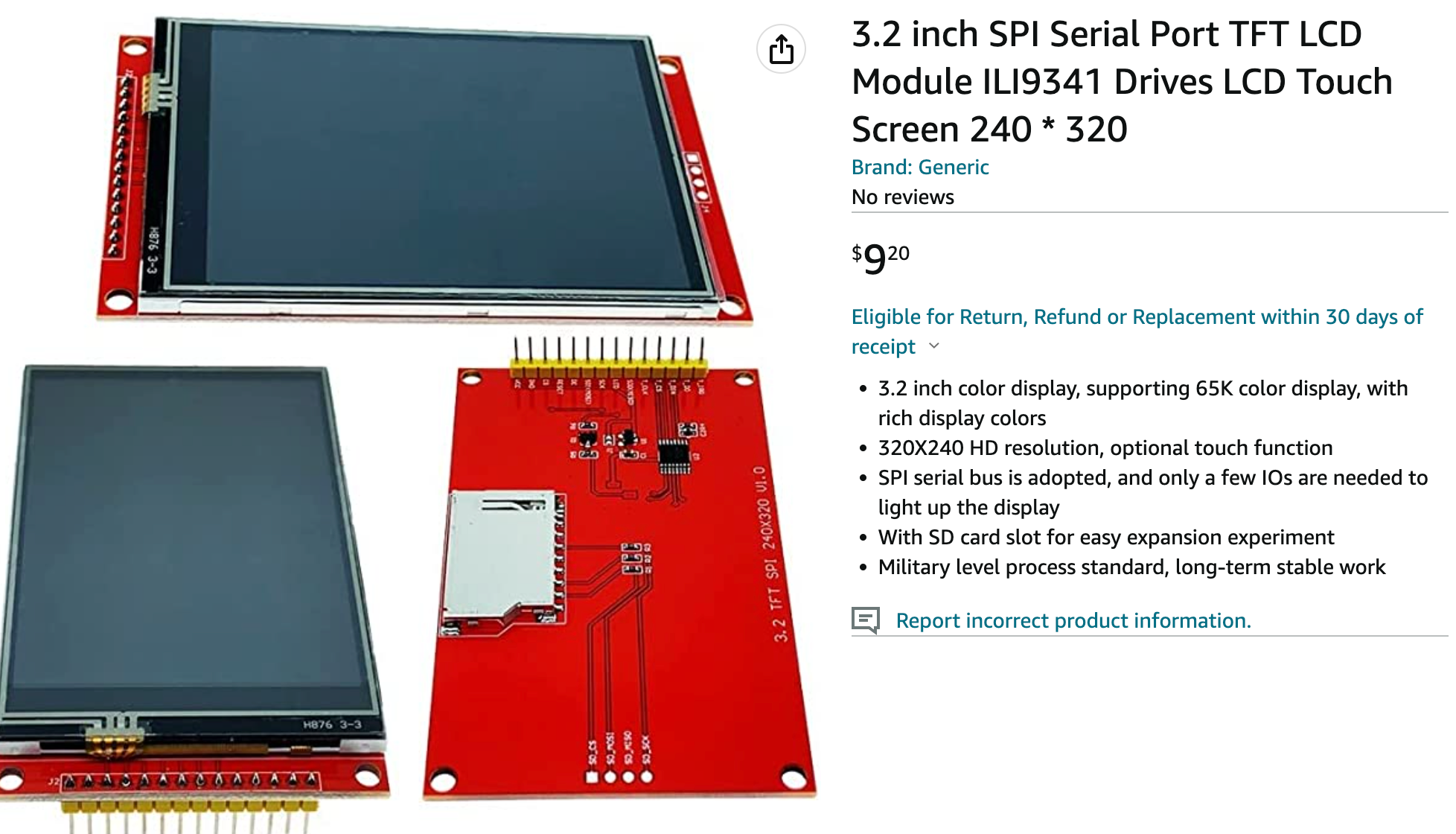
The display also has a touch screen and an SD card slot. However, MicroPython drivers for those extra features are not yet available.
How Color Works on This Display
This display uses a 16-bit color format called RGB565. Each pixel stores 16 bits of color information:
- 5 bits for red (32 shades)
- 6 bits for green (64 shades)
- 5 bits for blue (32 shades)
To use colors in your code, you call the color565() function. You give it red, green, and blue values from 0 to 255. It converts them into the 16-bit format the display understands.
For example, to make yellow:
1 | |
Why RGB565?
 Storing 16 bits per pixel instead of 24 bits saves memory and makes the display faster to update. RGB565 gives you 65,536 different colors — more than enough for great-looking graphics!
Wiring the Display
Connect the ILI9341 to the Pico using these steps:
- Connect the display's SCK pin to Pico GP2 (the SPI clock).
- Connect the display's SDI (MOSI) pin to Pico GP3 (the SPI data line).
- Connect the display's DC pin to Pico GP4 (data or command select).
- Connect the display's RESET pin to Pico GP5.
- Connect the display's CS pin to Pico GP6 (chip select).
- Connect the display's VCC pin to the Pico's 3.3V pin.
- Connect the display's GND pin to the Pico's GND pin.
Hello World Example
1 2 3 4 5 6 7 8 9 10 11 12 13 14 15 16 17 18 19 20 21 22 23 | |
What Each Line Does
from ili934x import ILI9341— loads the driver that knows how to talk to the ILI9341 chip.import tt32— loads a 32-pixel-tall font for large, easy-to-read text.SCK_PIN = 2throughCS_PIN = 6— gives each wire a clear name.spi = SPI(0, baudrate=20000000, ...)— starts SPI bus 0 at 20 million bits per second.display = ILI9341(...)— creates the display object with size, rotation, and pin settings.r=3— sets landscape rotation with (0,0) at the top-left, pins on the left side.display.erase()— fills the whole screen with black.display.set_font(tt32)— selects the large 32-pixel font.display.set_pos(0, 0)— moves the text cursor to column 0, row 0 (top-left corner).display.print('Hello World!')— draws the text at the current cursor position.
Draw Random Rectangles
1 2 3 4 5 6 7 8 9 10 11 12 13 14 15 16 17 18 19 20 21 22 23 24 25 26 27 28 29 30 31 32 33 34 35 36 37 38 39 40 41 42 43 44 45 46 47 48 49 50 51 52 53 54 55 56 57 58 59 60 61 | |
What Each Line Does
from random import randint— loads the random number generator for random positions and sizes.WIDTH = 320,HEIGHT = 240— store the screen size so all code uses the same values.ROTATION = 3— landscape mode with (0,0) at the top-left corner.color565(...)for each color — converts normal RGB values to the 16-bit format.color_list = [...]— puts all color values into a list so we can pick one randomly.color_num = len(color_list)— counts the colors so we can pick a valid random index.while True:— runs forever so new rectangles keep appearing.randint(0, HALF_WIDTH)— picks a random number between 0 and half the screen width.display.fill_rectangle(x, y, width, height, color)— draws a filled rectangle at the chosen position.
Show a Color List
One great way to learn about colors is to show each color as a large rectangle with its name below it.
1 2 3 4 5 6 7 8 9 10 11 12 13 14 15 16 17 18 19 20 21 22 23 24 25 26 27 28 29 30 31 32 33 34 35 36 37 38 39 40 41 42 43 44 45 46 47 48 49 50 51 52 53 54 55 56 57 58 59 60 61 62 63 64 65 66 67 68 69 70 71 | |
What Each Line Does
color_names = [...]— stores the name of each color as a string with RGB values.display.fill_rectangle(0, 0, WIDTH, HEIGHT, black)— fills the whole screen with black to start.for i in range(0, color_num):— loops through every color in the list.display.fill_rectangle(0, 0, WIDTH, HEIGHT - 33, color_list[i])— fills most of the screen with the current color.display.fill_rectangle(0, HEIGHT - 32, WIDTH, 32, black)— draws a black strip at the bottom for the label.display.set_pos(0, HEIGHT - 32)— moves the text cursor to the black strip.display.print(color_names[i])— draws the color name in white.sleep(1)— pauses for 1 second before moving to the next color.
Screen Update Speed
One thing to know about this display: it is slow to refresh. Sending the full screen of 240 by 320 pixels — with 2 bytes of color per pixel — takes a long time over SPI. This makes smooth animation difficult with this setup.
Ball Bounce Animation
Here is a simple ball bounce animation. It runs slowly and has some flicker, but it shows how animation works:
1 2 3 4 5 6 7 8 9 10 11 12 13 14 15 16 17 18 19 20 21 22 23 24 25 26 27 28 29 30 31 32 33 34 35 36 37 38 39 40 41 42 43 44 45 46 47 48 49 50 51 52 53 54 55 56 57 58 59 | |
What Each Line Does
def draw_ball(x, y, size, color):— defines a function that draws a square ball at any position with any color.display.pixel(x, y, color)— draws a single dot (used when size is 1).display.fill_rectangle(...)— draws a filled square (used for all other sizes).ball_size = 20— sets the ball to be 20 pixels wide and tall.current_x,current_y— track the ball's current position on the screen.direction_x = 1,direction_y = -1— the ball starts moving right and upward.draw_ball(..., white)— draws the ball in white so you can see it.sleep(0.1)— pauses briefly so you can see the ball before it moves.draw_ball(..., black)— erases the old ball by drawing it in black (the background color).- Edge checks — if the ball hits any edge, the matching direction flips to make it bounce.
current_x = current_x + direction_x— moves the ball one pixel in the current direction.
Monty's Tip
 The ball flickers because erasing and redrawing over SPI is slow. For smooth animation, look for displays with faster interfaces or built-in frame buffers.
References
- Jeffmer's GitHub library — includes four fonts (sizes 8, 14, 24, and 32 pixels)
- Amazon — HiLetgo ILI9341 2.8" SPI TFT LCD Display Touch Panel 240x320
- eBay Listing
Great Work!
 You connected a large color TFT display, showed text and a color parade, and even made a bouncing ball animation! You are building real graphical programs now.