Pong
Using a low-cost OLED (Organic Light-Emitting Diode) display, you can write a Pong game. The total cost for parts is about $12.
Part List
| Part Name |
Price |
Link |
Description |
| Raspberry Pi Pico |
$4 |
Microcenter |
With 264K RAM it has plenty of room for storing the framebuffer |
| 1/2 Size Solderless Breadboard |
$2 |
link |
400-tie breadboard used to mount the Pico |
| 128x64 OLED |
$5 |
eBay |
You can also get larger 2.42" displays for about $20 |
| 2 × 10K Potentiometers |
$1.50 each |
eBay |
You can buy 10 for less. Search for part number B10K. |
| Clear Plastic Box |
$4 |
The Container Store |
Shallow Narrow Stackable Rectangle Clear with Lids 8-1/4" x 3-1/2" x 1-7/8" h. |
Welcome to Pong!
 In this lab, you will build a real two-player Pong game! Two potentiometers control the paddles. Let's build something amazing!
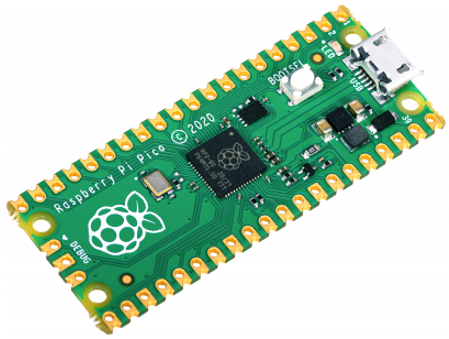
Raspberry Pi Pico for $4.
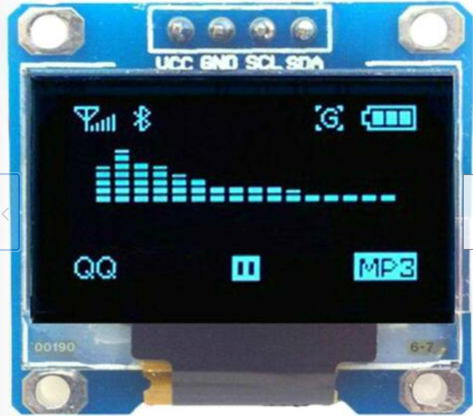
OLED with I2C Interface. Note the pins are VCC, GND, SCL (clock), SDA (data).
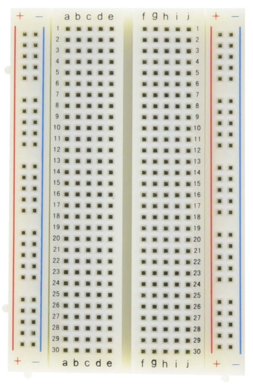
1/2 size 400 connector solderless breadboard.
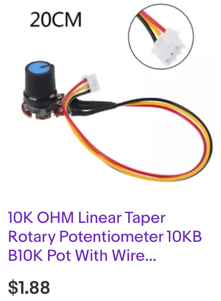
10K potentiometer (a knob that controls voltage) with pre-soldered connectors. You need two. Use a male-to-male header to connect to the breadboard.
Connections
- Connect the GND of the OLED to GND of the Pico.
- Connect the VCC of the OLED to Pico 3V3 OUT (physical pin 36).
- Connect the SDA (data) of the OLED to Pico GP0 (physical pin 1).
- Connect the SCL (clock) of the OLED to Pico GP1 (physical pin 2).
- Connect the center tap of the first potentiometer to ADC0 (GP26, pin 31).
- Connect the center tap of the second potentiometer to ADC1 (GP27, pin 32).
- Connect the outer legs of each potentiometer — one to 3.3V and one to GND.
Key Idea
 A potentiometer is a knob with three legs. The two outside legs connect to power and ground. The middle leg gives a voltage that changes as you turn the knob. The Pico reads this voltage as a number from 0 to 65535.
Getting the Right Python Libraries
This program uses a display driver for the SSD1306 chip. Your OLED might use a slightly different driver. Check the chip name printed on the back of your display.
The line you need to match to your display:
| from ssd1306 import SSD1306_I2C
|
Testing the OLED
Run this short program first. It confirms that the display is wired correctly before you run the full game.
 1
 2
 3
 4
 5
 6
 7
 8
 9
10
11
12
13
14 | from machine import Pin, I2C
from ssd1306 import SSD1306_I2C
WIDTH = 128 # display width in pixels
HEIGHT = 64 # display height in pixels
sda = machine.Pin(0) # data wire on GP0
scl = machine.Pin(1) # clock wire on GP1
i2c = machine.I2C(0, sda=sda, scl=scl)
oled = SSD1306_I2C(WIDTH, HEIGHT, i2c) # create the display object
oled.fill(0) # clear the screen to black
oled.text("CoderDojo Rocks", 0, 0) # draw a test message
oled.show() # send it to the screen
|
If you see "CoderDojo Rocks" on the display, your wiring is correct.
Drawing the Border
This helper function draws a box around the edge of the screen.
| def border(screen_width, screen_height):
oled.rect(0, 0, screen_width, screen_height, 1) # draw an outline rectangle
|
Full Program
1
2
3
4
5
6
7
8
9
10
11
12
13
14
15
16
17
18
19
20
21
22
23
24
25
26
27
28
29
30
31
32
33
34
35
36
37
38
39
40
41
42
43
44
45
46
47
48
49
50
51
52
53
54
55
56
57
58
59
60
61
62
63
64
65
66
67
68
69
70
71
72
73
74
75
76
77
78
79
80
81
82
83
84
85
86
87
88
89
90
91
92
93
94
95
96
97
98
99
100
101
102
103
104
105
106
107
108
109
110
111
112
113
114
115
116
117
118
119
120
121
122
123
124
125
126
127
128
129
130
131
132
133
134
135
136
137
138
139
140
141
142
143
144
145
146
147
148
149
150
151
152
153
154
155
156
157
158
159
160
161
162
163
164
165
166
167 | # Pong game on Raspberry Pi Pico with an OLED and two potentiometers
from machine import Pin, PWM, SPI
import machine
import ssd1306
from utime import sleep
import random # used to pick a random direction when the ball resets
# set up SPI display connection
spi_sck = machine.Pin(2) # SPI clock
spi_tx = machine.Pin(3) # SPI data
spi = machine.SPI(0, baudrate=100000, sck=spi_sck, mosi=spi_tx) # create SPI
CS = machine.Pin(1) # chip select
DC = machine.Pin(4) # data/command
RES = machine.Pin(5) # reset
oled = ssd1306.SSD1306_SPI(128, 64, spi, DC, RES, CS) # create display
# connect the center taps of the potentiometers to ADC0 and ADC1
pot_pin_1 = machine.ADC(26) # left player's knob
pot_pin_2 = machine.ADC(26) # right player's knob (use 27 for a real second knob)
# set up a speaker on GP16 for sound effects
SPEAKER_PIN = 16
speaker = PWM(Pin(SPEAKER_PIN)) # PWM = Pulse Width Modulation (used for sound)
# --- game constants (these never change during the game) ---
WIDTH = 128 # screen width in pixels
HALF_WIDTH = int(WIDTH / 2)
HEIGHT = 64 # screen height in pixels
HALF_HEIGHT = HEIGHT
BALL_SIZE = 3 # ball is a 3x3 pixel square
PAD_WIDTH = 2 # paddle is 2 pixels wide
PAD_HEIGHT = 8 # paddle is 8 pixels tall
HALF_PAD_WIDTH = int(PAD_WIDTH / 2)
HALF_PAD_HEIGHT = int(PAD_HEIGHT / 2)
POT_MIN = 3000 # minimum potentiometer reading (not quite 0)
POT_MAX = 65534 # maximum potentiometer reading (not quite 65535)
MAX_ADC_VALUE = 65534 # largest value from the Analog to Digital Converter (ADC)
# --- game variables (these change during the game) ---
l_score = 0 # left player's score
r_score = 0 # right player's score
ball_x = int(WIDTH / 2) # ball starts in the center (x)
ball_y = int(HEIGHT / 2) # ball starts in the center (y)
ball_x_dir = 1 # ball moves right (+1) or left (-1)
ball_y_dir = 1 # ball moves down (+1) or up (-1)
# play three rising tones on startup
def play_startup_sound():
speaker.duty_u16(1000) # turn the speaker on at low volume
speaker.freq(600) # low note
sleep(0.25)
speaker.freq(800) # middle note
sleep(0.25)
speaker.freq(1200) # high note
sleep(0.25)
speaker.duty_u16(0) # turn the speaker off
# play a short beep when the ball hits a paddle
def play_bounce_sound():
speaker.duty_u16(1000)
speaker.freq(900)
sleep(0.25)
speaker.duty_u16(0)
# play two tones when a player scores
def play_score_sound():
speaker.duty_u16(1000)
speaker.freq(600)
sleep(0.25)
speaker.freq(800)
sleep(0.25)
speaker.duty_u16(0)
# scale a number from one range to another (like the Arduino map() function)
def valmap(value, istart, istop, ostart, ostop):
return int(ostart + (ostop - ostart) * ((value - istart) / (istop - istart)))
# draw one paddle as a vertical filled rectangle
def draw_paddle(paddle_number, paddle_center_y):
if paddle_number == 1:
paddle_x = 0 # left paddle is at the left edge
else:
paddle_x = WIDTH - 2 # right paddle is 2 pixels from the right edge
paddle_top_y = paddle_center_y - HALF_PAD_HEIGHT
oled.fill_rect(paddle_x, paddle_top_y, PAD_WIDTH, PAD_HEIGHT, 1) # draw filled rectangle
# draw the ball as a small filled square
def draw_ball():
oled.fill_rect(ball_x, ball_y, BALL_SIZE, BALL_SIZE, 1) # 3x3 white square
# --- main game loop ---
while True:
oled.fill(0) # clear the screen each frame
oled.vline(int(WIDTH / 2), 0, HEIGHT, 1) # draw the center dividing line
# read the knob values (0–65535)
pot_val_1 = pot_pin_1.read_u16()
pot_val_2 = pot_pin_1.read_u16() # use pot_pin_2.read_u16() for a real second knob
# scale knob values to paddle center positions (keeping paddle on screen)
pot_val_1 = valmap(pot_val_1, POT_MIN, POT_MAX, HALF_PAD_HEIGHT, HEIGHT - HALF_PAD_HEIGHT - 2)
pot_val_2 = valmap(pot_val_2, POT_MIN, POT_MAX, HALF_PAD_HEIGHT, HEIGHT - HALF_PAD_HEIGHT - 2)
draw_paddle(1, pot_val_1 + HALF_PAD_HEIGHT) # draw left paddle
draw_paddle(2, pot_val_2 + HALF_PAD_HEIGHT) # draw right paddle
draw_ball() # draw the ball
# move the ball one step
ball_x = ball_x + ball_x_dir
ball_y = ball_y + ball_y_dir
# bounce off the top wall
if ball_y < 0:
ball_y_dir = 1 # reverse: now move down
# bounce off the bottom wall
if ball_y > HEIGHT - 3:
ball_y_dir = -1 # reverse: now move up
# check the left edge (left paddle zone)
if ball_x < 1:
paddle_top = pot_val_1 - HALF_PAD_HEIGHT
paddle_bottom = pot_val_1 + HALF_PAD_HEIGHT
if ball_y > paddle_top and ball_y < paddle_bottom:
# ball hit the left paddle — bounce right
ball_x_dir = 1
ball_x = 2
play_bounce_sound()
else:
# ball missed the left paddle — right player scores
play_score_sound()
r_score += 1
ball_x = int(WIDTH / 2)
ball_y = int(HEIGHT / 2)
ball_x_dir = random.randint(-1, 2)
if ball_x_dir == 0:
ball_x_dir = 1 # avoid a ball that doesn't move horizontally
ball_y_dir = random.randint(-1, 2)
sleep(0.25)
# check the right edge (right paddle zone)
if ball_x > WIDTH - 3:
ball_x = WIDTH - 4
paddle_top = pot_val_2 - HALF_PAD_HEIGHT
paddle_bottom = pot_val_2 + HALF_PAD_HEIGHT
if ball_y > paddle_top and ball_y < paddle_bottom:
# ball hit the right paddle — bounce left
ball_x_dir = -1
else:
# ball missed the right paddle — left player scores
l_score += 1
play_score_sound()
ball_x = int(WIDTH / 2)
ball_y = int(HEIGHT / 2)
ball_x_dir = random.randint(-1, 2)
if ball_x_dir == 0:
ball_x_dir = 1
ball_y_dir = random.randint(-1, 2)
play_bounce_sound()
sleep(0.25)
# display the scores on each side of the center line
oled.text(str(l_score), HALF_WIDTH - 20, 5, 1) # left score
oled.text(str(r_score), HALF_WIDTH + 5, 5, 1) # right score
oled.show() # send the finished frame to the screen
|
What each section does:
SPI setup — connects to the OLED using the SPI (Serial Peripheral Interface) bus on GP2 and GP3.valmap() — scales the potentiometer reading (0–65535) to a paddle position (0–64).draw_paddle() — draws a small vertical bar on the left or right side.draw_ball() — draws a 3x3 pixel square at the current ball position.ball_x += ball_x_dir — moves the ball one pixel each loop.- Bounce checks — when the ball reaches a wall or paddle, the direction is reversed.
- Score checks — when the ball passes a paddle, the score goes up and the ball resets to the center.
Monty's Tip
 To use a real second player, change
 pot_pin_2 = machine.ADC(26) to pot_pin_2 = machine.ADC(27) and plug the second potentiometer into GP27.
Watch Out!
 The sound functions use
 sleep(0.25) which pauses the whole game. The ball can pass through a paddle during this pause. This is a known trade-off in this simple version of the game.
YouTube Video
Great Work!
 You built a working two-player Pong game on a $4 microcontroller! Next, you will connect a potentiometer to draw a live bar chart on the OLED.