OLED Patterns
Welcome to Math Patterns
 In this lab, you will use simple math equations to create beautiful repeating patterns on your OLED screen. Let's build something amazing!
In this lesson, you will write a pattern into the display's framebuffer using a simple math equation. The oled.show() function then sends the pattern to the display.
This lesson was suggested by Parker Erickson.
Math Functions
You will use two unusual math operations to create repeating patterns:
- Modulo (%) — returns the remainder after division. For example,
7 % 3is 1, because 7 divided by 3 leaves a remainder of 1. And7 % 4is 3. - Bitwise AND (&) — compares two numbers bit by bit. A bit in the result is 1 only if both matching bits are 1.
The power function raises a number to an exponent. In Python it is written as pow(x, y). For example, pow(7, 2) is seven squared = 49.
The bitwise AND is written as x & y.
Here is an example of bitwise AND with the number 13:
1 2 | |
| Function | Returns |
|---|---|
| 13 & 0 | 0 |
| 13 & 1 | 1 |
| 13 & 2 | 0 |
| 13 & 3 | 1 |
| 13 & 4 | 4 |
| 13 & 5 | 5 |
| 13 & 6 | 4 |
| 13 & 7 | 5 |
| 13 & 8 | 8 |
| 13 & 9 | 9 |
| 13 & 10 | 8 |
| 13 & 11 | 9 |
| 13 & 12 | 12 |
Key Idea
 The modulo (%) and bitwise AND (&) operations both produce repeating patterns because their outputs cycle. This is why they make great pixel patterns — the screen looks like it tiles or repeats in interesting ways.
Some Sample Equations
Try these equations where x is the column (0–127) and y is the row (0–63):
x & yx % y(x ^ y) % 9(x ^ y) % 5(x ^ y) % 17(x ^ y) % 33(x * y) & 64(x * y) & 24(x * y) & 47(x * 2) % y(x * 64) % y(x * 31) % y((x-128) * 64) % (y-128)(x % y) % 4(y % x) % 2040 % (x % y)
Note: some equations that use pow(x, y) or ** (exponentiation) do not work reliably on MicroPython.
Sample Code
This program evaluates the equation x % (y+1) for every pixel on the screen. If the result is non-zero, the pixel turns off. If the result is zero, the pixel turns on.
File name: draw-patterns-ssd1306-spi.py
1 2 3 4 5 6 7 8 9 10 11 12 13 14 15 16 17 18 19 20 21 22 23 24 25 26 27 28 | |
What each line does:
for x in range(WIDTH)— loops through every column from 0 to 127.for y in range(HEIGHT)— loops through every row from 0 to 63.if x % (y + 1)— evaluates the math equation for pixel (x, y). We usey+1to avoid dividing by zero when y is 0.oled.pixel(x, y, 0)— turns the pixel off if the equation is non-zero.oled.pixel(x, y, 1)— turns the pixel on if the equation is zero.oled.show()— sends the complete pattern to the screen all at once.
Monty's Tip
 Drawing patterns takes a few seconds because the Pico calculates 8,192 pixel values (128 x 64). Be patient — the screen will update when all the calculations are done!
Adding a List of Patterns
The Eval Function
The eval() function takes a string and runs it as Python code. You can store math equations as strings in a list and then use eval() to run each one.
1 2 3 4 5 6 7 8 | |
Output:
1 2 3 4 | |
The Command Design Pattern
The command pattern stores a list of actions in an array and runs them one after another. Here, each action is a math equation. The program steps through the list and displays each pattern on the OLED for 5 seconds.
1 2 3 4 5 6 7 8 9 10 11 12 13 14 15 16 17 18 19 20 21 22 23 24 25 26 27 28 29 30 31 32 33 34 35 36 37 38 39 40 41 42 43 44 45 46 47 48 49 50 51 52 53 54 55 56 57 58 | |
What each section does:
equations = [...]— a list of 7 math equations stored as strings.for eqn_index in range(0, len(equations))— loops through all 7 equations.oled.text('calculating', 0, 0, 1)— shows a message so the user knows the Pico is busy.eval(equations[eqn_index])— runs the equation string as real Python code using the current x and y values.sleep(5)— shows each pattern for 5 seconds before moving to the next.print(duration, ' seconds')— shows in the Thonny console how long each pattern took to draw.
You Can Do This!
 Some patterns take many seconds to appear. That is normal — the Pico is doing thousands of math calculations! Try adding your own equation to the list and see what pattern it makes.
Sample Screen Images
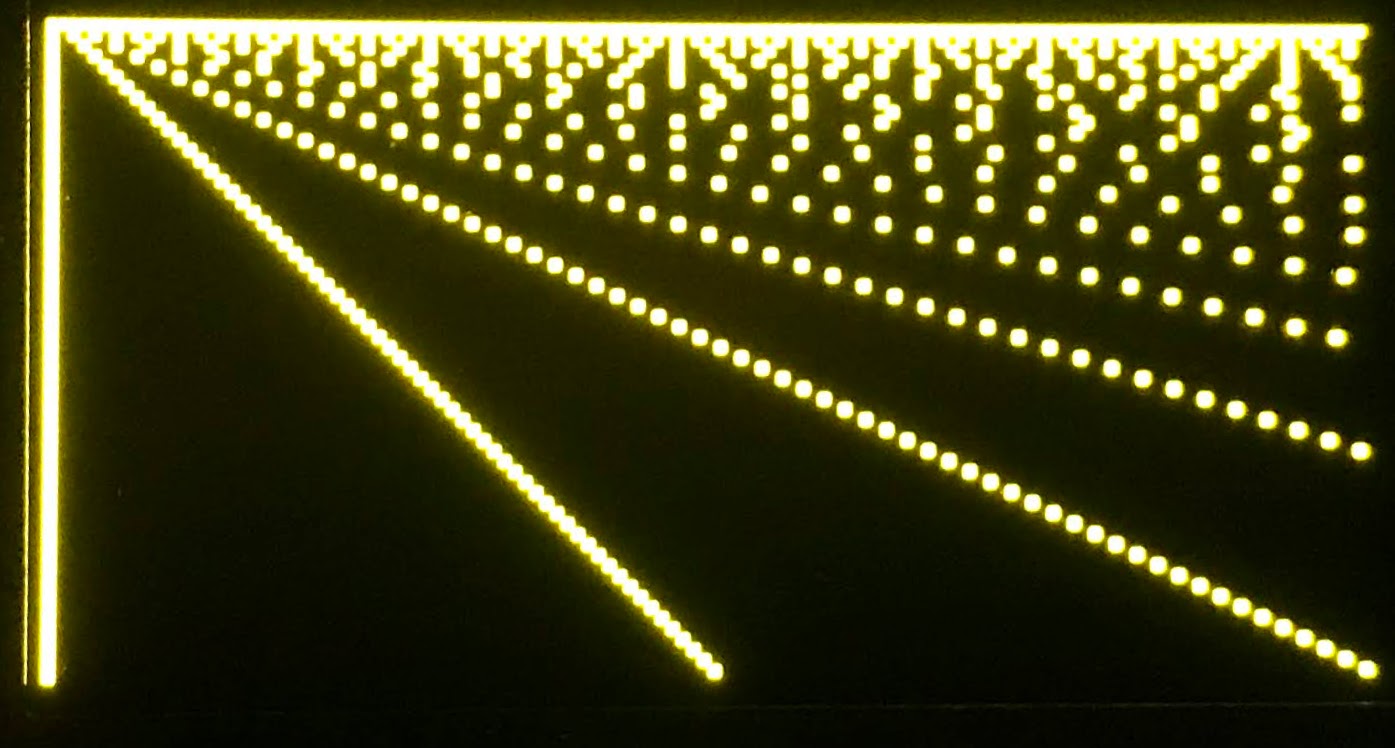
X Modulo Y
x % y
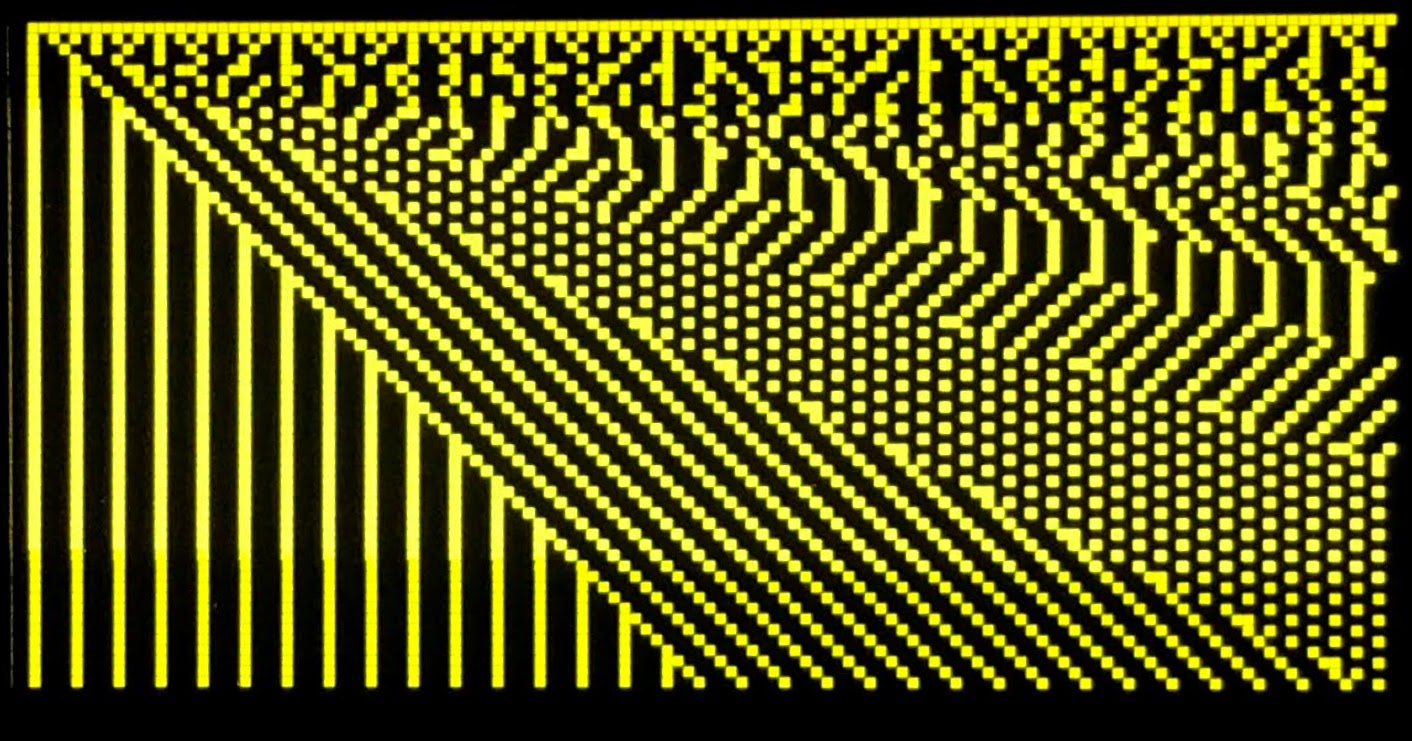
(x % y) % 4
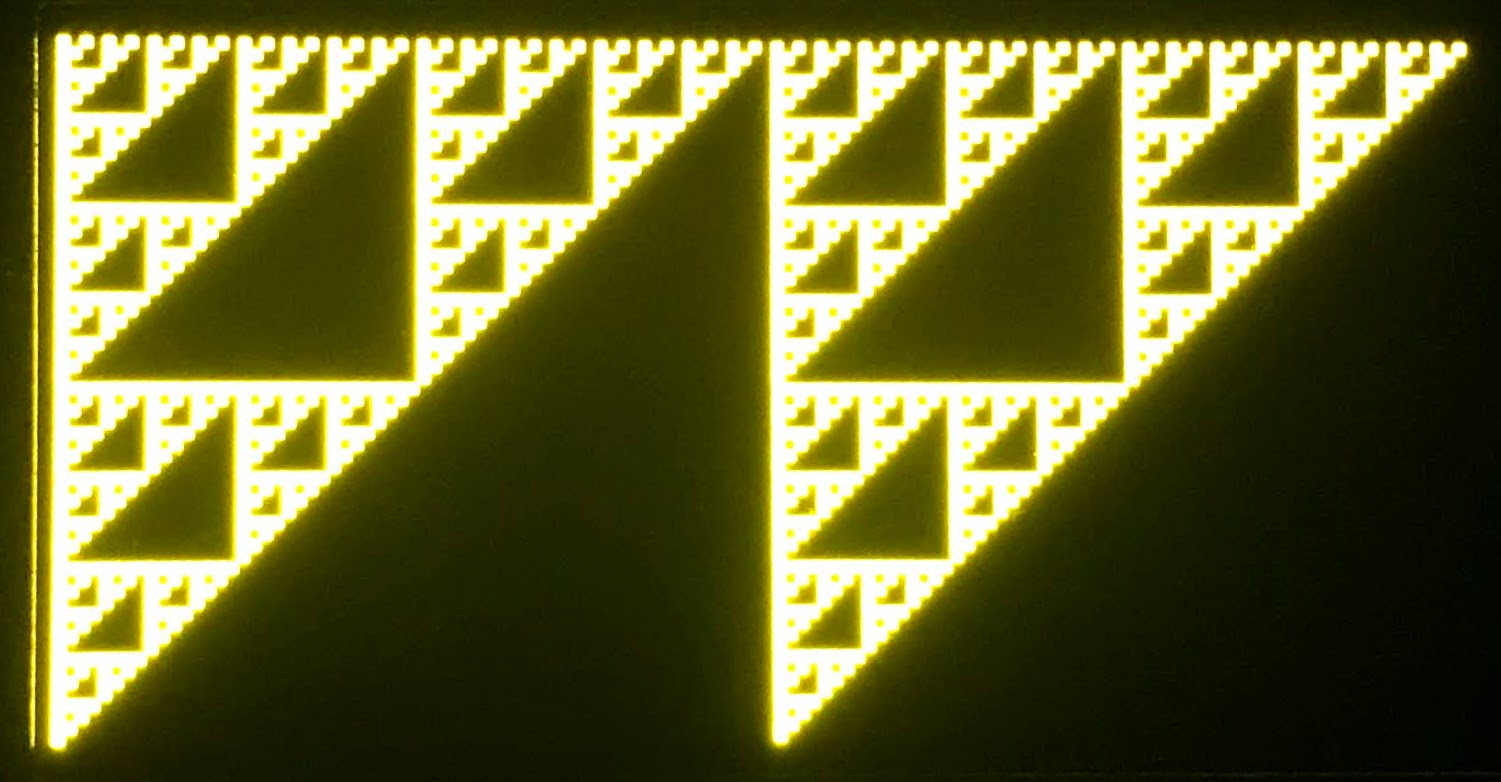
Sierpinski Triangles (x & y)
Sierpinski Triangles
Bitwise AND of x and y.
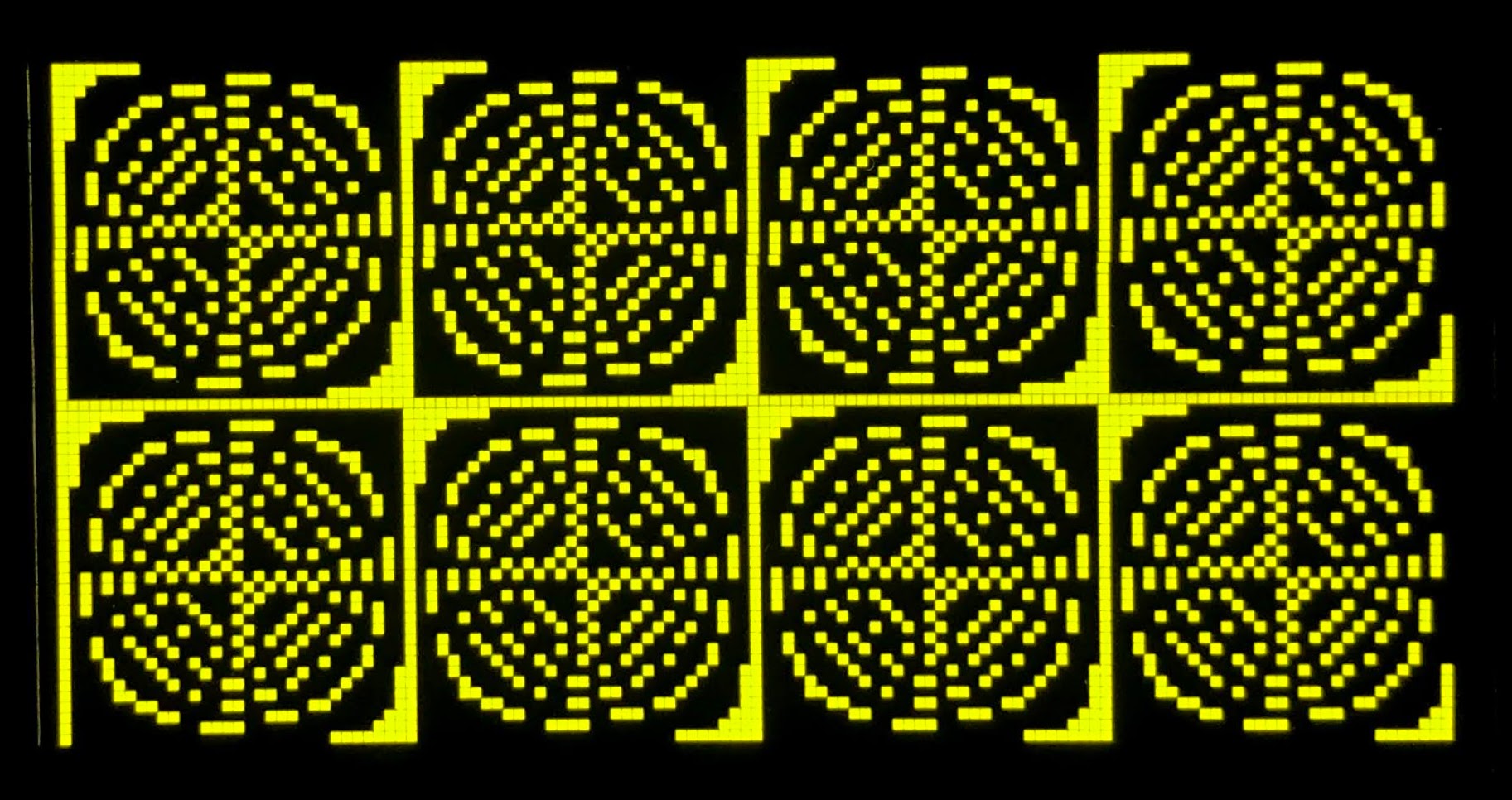
(x * y) & 24
(x * y) & 64
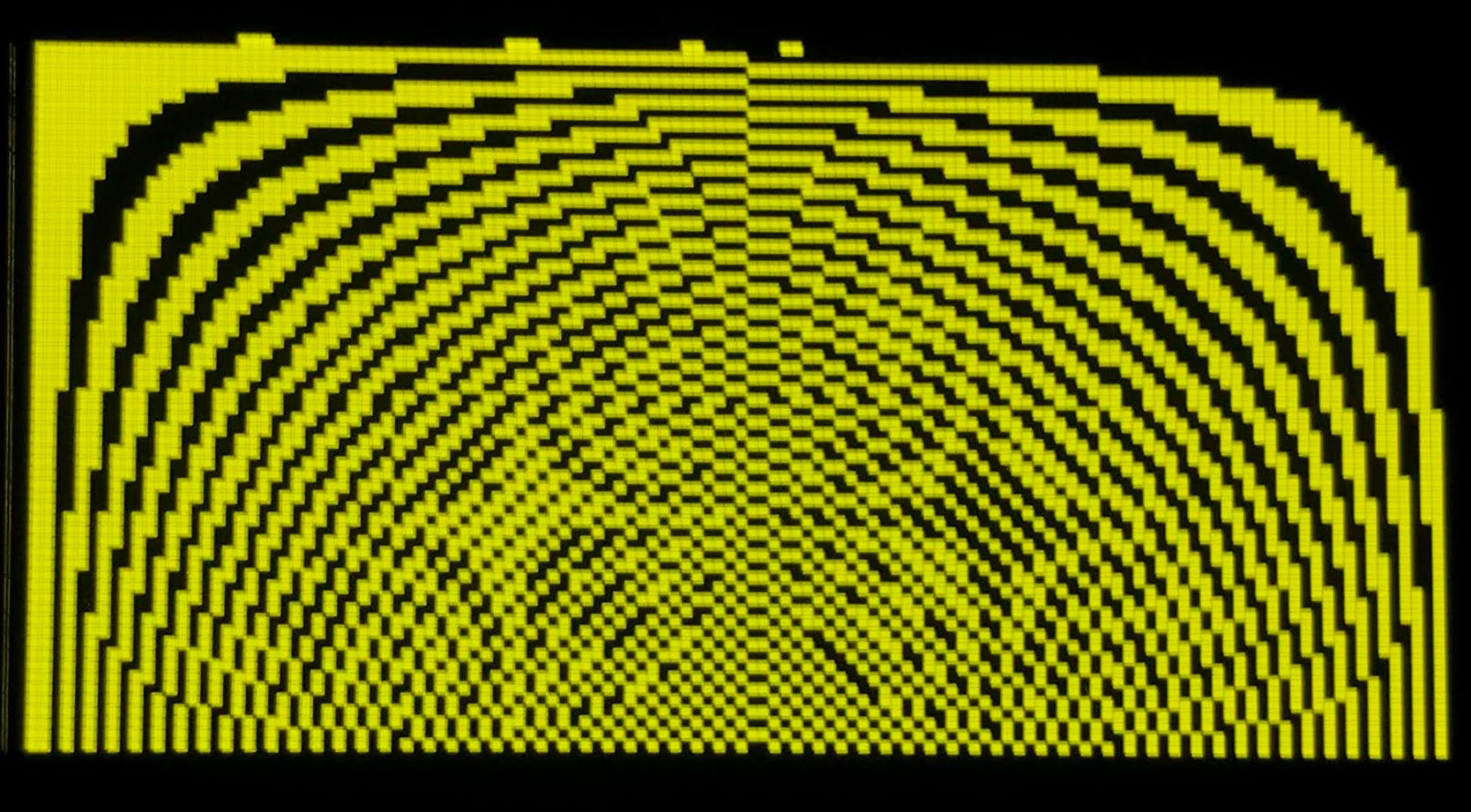
40 % x % (y+1)
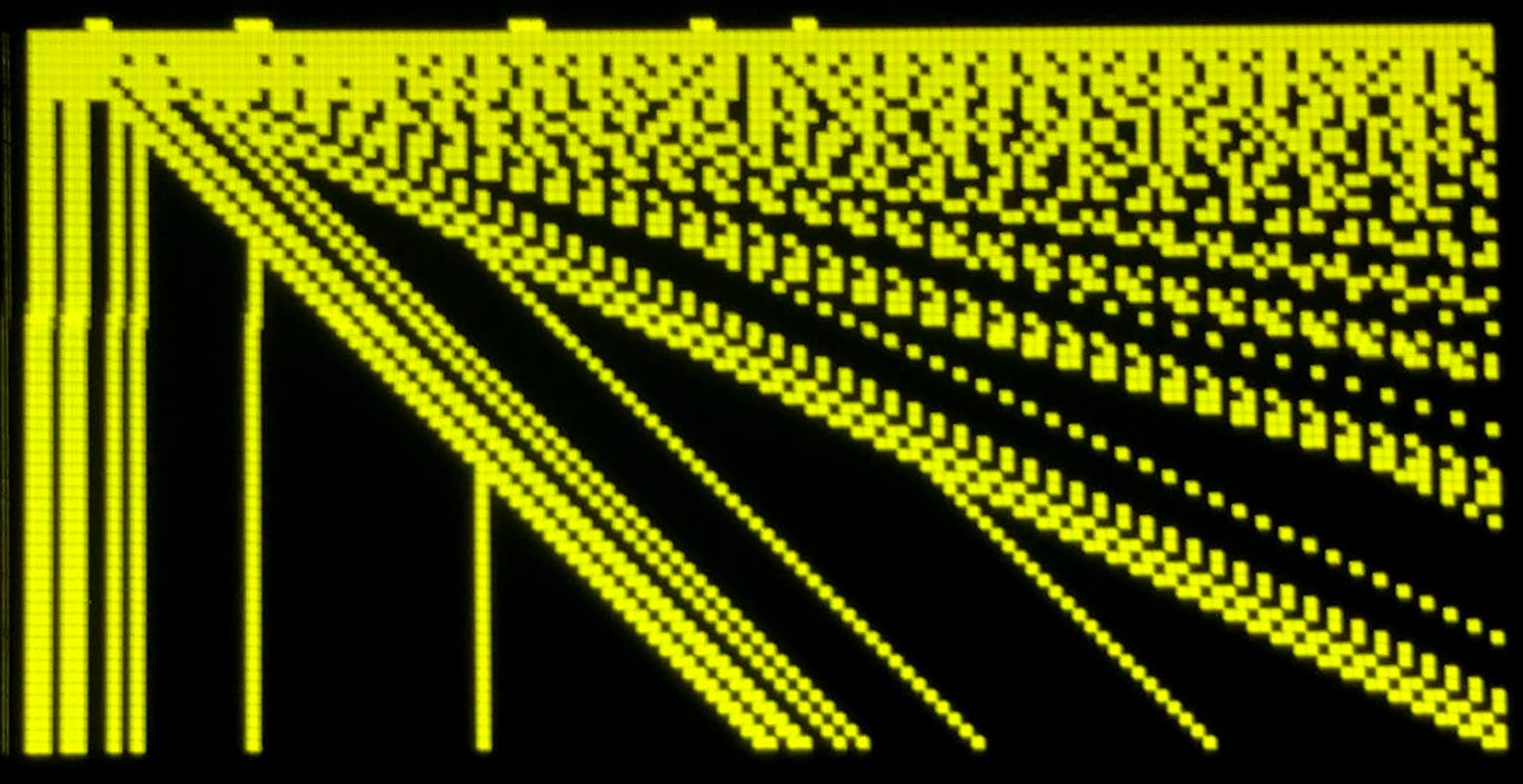
Reference
Great Work!
 You used math equations to generate beautiful geometric patterns! You have now completed the OLED drawing and animation labs. You are ready to build your own creative displays!