Lab 14: Set the Time with the Buttons
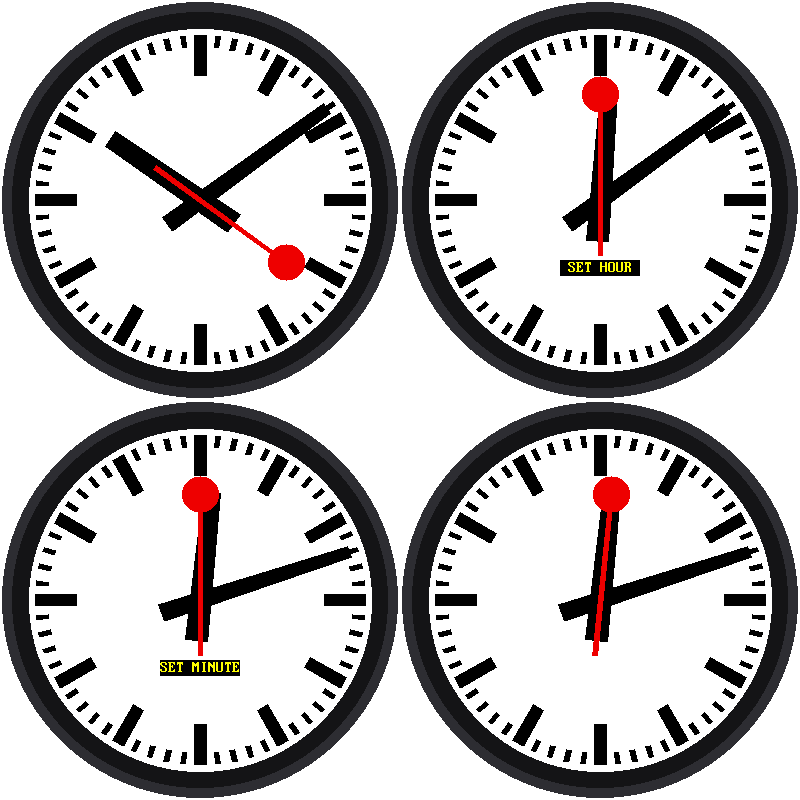
What if there's no WiFi? A real clock lets you set the time by hand. This lab does too:
| Button | What it does |
|---|---|
| MODE | Steps through: run → set hour → set minute → run |
| UP | Moves the hand being set forward one step |
| DOWN | Moves it back one step |
While you set the time, a yellow label (SET HOUR or SET MINUTE) appears below the center, and the red hand waits at 12. Hold UP or DOWN and the hand keeps moving by itself, so you don't have to press 45 times to get to 45 minutes.
Welcome to Lab 14
 After this lab, your clock can be set anywhere, even with no WiFi, just
like a store-bought clock. You'll also fix a sneaky problem hiding
inside every button. Let's make time tick!
What You Will Learn
- why a single press can count as three (and how to fix it)
- how "hold to repeat" works
- what a class is
- how to set the Pico's clock from a program
Run It
Open 14-set-time.py in Thonny and click Run. Then:
- Press MODE. The label says SET HOUR.
- Press UP or DOWN. The hour hand moves.
- Press MODE again. Now the label says SET MINUTE.
- Change the minutes, then press MODE once more to get back to the running clock.
Each time UP or DOWN changes the minutes, the seconds go back to zero. That way you can match another clock exactly. Set the minutes to what that clock shows now, one press short of its next minute. Then press UP one last time right when that clock gets there.
Problem 1: Bouncing Buttons
Inside a button, two bits of metal touch when you press it. But they don't touch just once. They bounce, like a basketball, touching and letting go several times in a few thousandths of a second. The Pico is so fast that it sees every bounce as a separate press, so one push could move the hour three places!
The fix is called debouncing: after the button changes, ignore it for the next 40 thousandths of a second (40 milliseconds, or ms). By then, the bouncing has stopped.
1 | |
Problem 2: Hold to Repeat
Pressing a button 45 times would be miserable. So if a button is held for half a second, it starts "pressing itself" about 8 times a second until you let go:
1 2 | |
A Class Keeps Each Button's Memory
Both fixes need each button to remember things: when it last changed,
whether it is held, and when to repeat next. That calls for a class,
a blueprint for a kind of object. The program makes one Button from the
blueprint for each real button, and each keeps its own notes:
1 2 | |
Later, up_button.pressed(now, repeat=True) asks that one button: "were
you just pressed?"
Objects Remember
 A plain function forgets everything when it finishes. An object made
from a class keeps its own variables between calls, so three buttons can
each remember their own story at the same time.
Setting the Pico's Clock
Once you change a number, the program writes the new time into the Pico's real-time clock:
1 | |
The red hand waits at 12 during all this: the program draws it at second 0 whenever a set mode is active. The label is drawn after the hands, so it always lies on top.
Try This
- Change
DEBOUNCE_MSto0. Can you get one press to count twice? - Change
REPEAT_MSto40. Now how fast does the hand move? - Make the label red on white by changing the two colors in the
centered_textcall.
Set It Yourself!
 You tamed bouncing buttons, made them repeat when held, and wrote a new
time into the Pico's clock. Next, you'll put every lab together into one
finished railway clock.