Lab 15: The Railway Clock
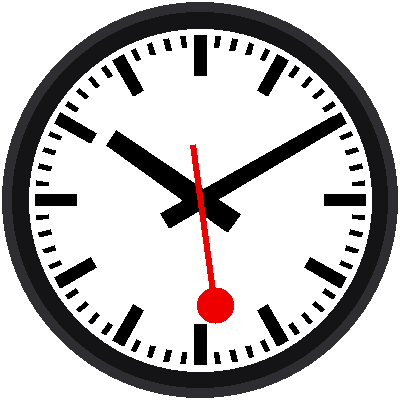
Everything you built, in one program. Your clock sets itself from the internet, glides the red hand around the dial, parks it at 12 while the minute hand hops, and sets itself again every night while you sleep. You can set it by hand, too.
Welcome to Lab 15
 This is the clock you've been building toward. Nothing in this lab is
new, because every piece is something you already tested on its own.
Let's make time tick!
What You Will Learn
- how to assemble a program from parts you tested one at a time
- how a program uses its quiet moments for housekeeping
- how to make the Pico start your program by itself
Run It
Open 15-mondaine-clock.py in Thonny and click Run. The screen says
"Setting clock" while the Pico asks the internet for the time (this needs
secrets.py, as in lab 08). Then the dial appears,
and the red hand starts to glide.
| Button | What it does |
|---|---|
| MODE (short press) | Steps through: run → set hour → set minute → run |
| MODE (hold for a second) | Sets the clock from the internet right now |
| UP | In a set mode: one step forward. Hold it to repeat. |
| DOWN | In a set mode: one step back. Hold it to repeat. |
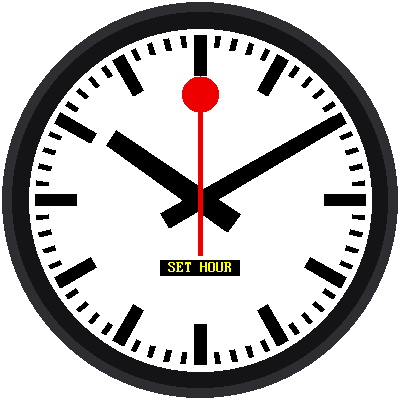
No WiFi? Change SYNC_WITH_WIFI = True to False near the top of the
program. The clock then runs on whatever time the Pico has. Use the set
modes to fix it.
Who Does What
The program itself is short, because the work is done by parts you already know:
| Part | Where it came from |
|---|---|
mondaine.Face draws the dial and moves the hands |
Labs 02 to 07 |
mondaine.SweepClock counts milliseconds |
Lab 10 |
mondaine.hand_angles() does the sweep, the pause, and the hop |
Labs 11 and 12 |
wifi_time sets the clock from the internet |
Lab 08 |
buttons.Button reads the buttons |
Labs 13 and 14 |
The main loop in this file only decides when each part should act. In run mode, one frame is just two lines:
1 2 | |
Small Parts, Big Program
 The whole clock fits on one screen of code because each lab left a
working piece behind. When you add your own feature, the same rule helps:
build it as a small part, test it alone, and then plug it in.
Housekeeping While the Hand Waits
Once a minute, for about a second, nothing on the face moves: the minute hand has landed, and the red hand is still waiting at 12. The program uses that moment for chores, when nobody can see a hiccup:
clock.sync()lines the millisecond counter up with the real-time clock again, so the red hand always sets off exactly at the top of the minute.- At 3:00 AM, once a day, it asks the internet for the right time.
1 2 3 4 5 6 7 | |
The variable at_rest makes sure the chores run once per pause instead of
on every pass through the loop.
The Clock Stands Still While It Talks to WiFi
 Connecting to WiFi can take several seconds, and nothing moves in that
time. That's why the nightly sync happens at 3 AM, and why a held MODE
button shows "Setting clock" on the screen. When it finishes, the clock
catches up to the right time at once.
Make It Start by Itself
When the Pico is powered on, it automatically runs a file named main.py
if there is one. Save a copy of this lab to the Pico as main.py, and
the clock starts on its own, even with no computer attached.
Your Own Features
Here are things to try once it runs:
- A calmer hop. Change
ADVANCE_MSinlib/mondaine.pyand compare. Is a slower hop better? (KeepADVANCE_START_MS + ADVANCE_MSunder 60,000, or the hop runs past the pause.) - A different red. Change
RAIL_REDinconfig.py. - A smaller face. The dial's size is one number,
UNIT = 3.4, inlib/mondaine.py. Make it 3.2 for a wider white margin. - A different pause. Change
SWEEP_MS. The pause is whatever is left of the minute, so a smallerSWEEP_MSmakes a longer wait. MoveADVANCE_START_MSso the hop still starts after the red hand stops.
You Built a Railway Clock!
 You drew the face from design units, timed a hand that waits while
another one hops, and put it all in one program that sets itself. That's
a lot of Python in one kit. What will you build next?
Back to: The Railway Clock Kit