Lab 02: Hello, World!
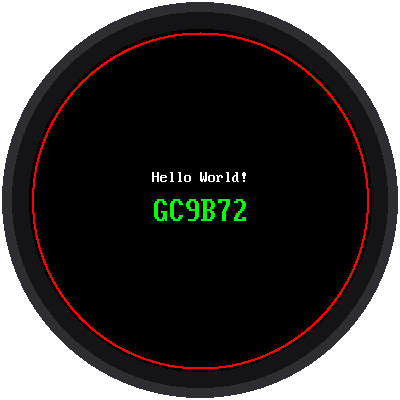
Programmers have a tradition: the first program in a new language, or on a new gadget, says "Hello, World!" This lab puts it on your round screen, along with a red ring around the edge.
Welcome to Lab 02
 This is the lab where the screen wakes up, and it's my favorite,
because that screen is my face! Once you can put words and shapes
anywhere you want, you can draw any watch face you can imagine.
Let's make time tick!
This is the lab where the screen wakes up, and it's my favorite,
because that screen is my face! Once you can put words and shapes
anywhere you want, you can draw any watch face you can imagine.
Let's make time tick!
What You Will Learn
- how to start the display
- how to write text in two sizes
- how to draw a circle
- how pixel coordinates work on a round screen
Run It
Open 02-hello.py in Thonny and click Run. You should see the screen
from the picture above.
The Code
1 2 3 4 5 6 7 8 9 10 11 12 13 14 15 | |
import configborrows the kit's settings file. It knows which pins the display uses, so your program doesn't have to.config.init_display()wakes up the display and gives it a name,display.display.fill(config.BLACK)paints every pixel black.config.centered_text(...)writes words in the middle of the screen. The number at the end (150, then 175) is how far down the screen the words go.shapes.ring(...)draws a circle 2 pixels thick.
Where Is Everything? Coordinates
Every pixel has an address made of two numbers, x and y:
- x counts across, from 0 at the left edge to 359 at the right.
- y counts down, from 0 at the top to 359 at the bottom.
That second one surprises people: on a screen, bigger y means lower,
not higher. The center of the screen is at x = 180, y = 180. That's what
config.CENTER_X and config.CENTER_Y hold.
The corners are missing!
The display chip thinks the screen is a 360 × 360 square. But the
glass is round, so the corners of that square are hidden. Anything you
draw in a corner is never seen. The red ring shows the biggest circle
you can see all of. Its size, 168 pixels from the center, is saved in
config.SAFE_RADIUS.
Two Font Sizes
There's no built-in lettering on this display, so the kit brings two fonts, sets of pictures of letters:
| Font | Each letter is | Letters across the screen |
|---|---|---|
config.SMALL_FONT |
8 × 16 pixels | 45 |
config.BIG_FONT |
16 × 32 pixels | 22 |
Try This
- Change
"Hello World!"to your own name. - Change
config.GREENtoconfig.YELLOW,config.CYAN, orconfig.MAGENTA. - Make your own color with
config.color565(255, 128, 0). The three numbers are how much red, green, and blue to mix, from 0 to 255. What color is(255, 128, 0)? - Change the 150 to 100. Where do the words move?
If It Doesn't Work
- The screen stays black. Check the display's wires against the wiring table on the kit's main page. The most common mistake is swapping the SCL and SDA wires.
ImportError: no module named 'gc9b72'. Thelibfolder with the display driver isn't on the Pico yet.
Hello, Screen!
 You can now start the display, write text in two sizes, and place
anything on the screen by its x and y coordinates. Next, you'll use
those skills to turn the kit into a real clock.
You can now start the display, write text in two sizes, and place
anything on the screen by its x and y coordinates. Next, you'll use
those skills to turn the kit into a real clock.
Next: Lab 03: A Digital Clock