Skip to content

Sample Seven Segment Display Lab

Welcome to the Seven-Segment Display Lab

Monty waving welcome A seven-segment display shows digits using seven glowing bars. You will learn how to control each bar with code and build a clock that shows minutes and seconds! Let's build something amazing!

4-Digit Seven Segment Display
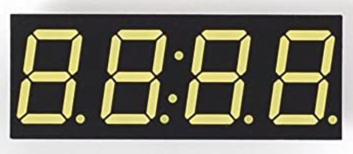
4-digit seven-segment display showing a time with a colon

A seven-segment display shows a single digit (0–9) using seven Light-Emitting Diode (LED) segments. The segments are named a through g. Different combinations of segments light up to form each number. For example, turning on all seven segments shows the digit 8. Turning on just two vertical segments on the right side shows the digit 1.

A 4-digit seven-segment display puts four of these digits side by side. It can also have a colon (:) between the middle two digits — great for showing hours and minutes.

Always put a current-limiting resistor in series with each LED segment. A 330 Ω resistor is safe for 5 V circuits. A 220 Ω resistor works for 3.3 V circuits.

This code was provided by Jaison Miller from his GitHub Repo.

Key Idea

Monty thinking Each segment is just an LED. A bitmap is a number where each bit controls one segment. The number 0b00111111 has six bits set to 1 — that turns on segments a, b, c, d, e, and f, which together show the digit 0.

Wiring Steps

  1. Connect each segment pin (a–g) of the display to the matching GPIO pin listed in the pin_segments dictionary in the code below.
  2. Place a 220 Ω resistor in series with each segment pin.
  3. Connect each digit select pin (1–4) to the matching GPIO pin listed in pin_digits.
  4. Connect the colon pin to GP6 and the dash pin to GP8.
  5. Connect the decimal point pin to GP22.
  6. Connect the colon control pin to GP27 and the dash control pin to GP7.
  7. Connect all GND pins on the display to a GND pin on the Pico.
  8. Connect all VCC pins on the display to the 3.3 V pin on the Pico.

Watch Out!

Monty warning Do not skip the current-limiting resistors! Connecting LED segments directly to GPIO pins without resistors will burn out the LEDs and may damage your Pico.

Full Program

  1
  2
  3
  4
  5
  6
  7
  8
  9
 10
 11
 12
 13
 14
 15
 16
 17
 18
 19
 20
 21
 22
 23
 24
 25
 26
 27
 28
 29
 30
 31
 32
 33
 34
 35
 36
 37
 38
 39
 40
 41
 42
 43
 44
 45
 46
 47
 48
 49
 50
 51
 52
 53
 54
 55
 56
 57
 58
 59
 60
 61
 62
 63
 64
 65
 66
 67
 68
 69
 70
 71
 72
 73
 74
 75
 76
 77
 78
 79
 80
 81
 82
 83
 84
 85
 86
 87
 88
 89
 90
 91
 92
 93
 94
 95
 96
 97
 98
 99
100
101
102
103
104
105
106
107
108
109
110
111
112
113
114
115
116
117
118
119
120
121
122
123
124
125
126
127
128
129
130
131
132
133
134
135
136
137
138
139
140
141
142
143
144
145
146
147
148
149
150
151
from machine import Pin, PWM, Timer   # import Pin for GPIO, Timer for timing
import utime                           # import utime for localtime

# --- Pin assignments ---

# Each digit (0–9) is stored as a bitmap.
# Each bit controls one segment (a=bit0, b=bit1, c=bit2, ..., g=bit6).
number_bitmaps = {
    0: 0b00111111,   # segments a,b,c,d,e,f on → shows "0"
    1: 0b00000110,   # segments b,c on → shows "1"
    2: 0b01011011,   # segments a,b,d,e,g on → shows "2"
    3: 0b01001111,   # segments a,b,c,d,g on → shows "3"
    4: 0b01100110,   # segments b,c,f,g on → shows "4"
    5: 0b01101101,   # segments a,c,d,f,g on → shows "5"
    6: 0b01111101,   # segments a,c,d,e,f,g on → shows "6"
    7: 0b00000111,   # segments a,b,c on → shows "7"
    8: 0b01111111,   # all segments on → shows "8"
    9: 0b01100111,   # segments a,b,c,d,f,g on → shows "9"
}

# Each segment letter maps to a mask that picks its bit from a bitmap
segment_masks = {
    'a': 0b00000001,   # segment a — top horizontal bar
    'b': 0b00000010,   # segment b — upper-right vertical bar
    'c': 0b00000100,   # segment c — lower-right vertical bar
    'd': 0b00001000,   # segment d — bottom horizontal bar
    'e': 0b00010000,   # segment e — lower-left vertical bar
    'f': 0b00100000,   # segment f — upper-left vertical bar
    'g': 0b01000000,   # segment g — middle horizontal bar
}

# GPIO pin numbers for each segment
pin_segments = {
    'a': 10, 'b': 11, 'c': 12,
    'd': 17, 'e': 16, 'f': 13, 'g': 14
}

# GPIO pin numbers for extra features
pin_others = {
    'decimal': 22,   # decimal point LED
    'colon':    6,   # colon LED
    'dash':     8,   # dash LED
}

# GPIO pin numbers to select which digit to display (1=leftmost, 4=rightmost)
pin_digits = {1: 18, 2: 19, 3: 20, 4: 21}

# GPIO pin numbers to control the colon and dash
pin_control_others = {'colon': 27, 'dash': 7}

# --- Set up all pins as outputs ---

segment_maps = {}
for segment, pin in pin_segments.items():
    segment_maps[segment] = Pin(pin, Pin.OUT)   # create a Pin object for each segment

other_pin_maps = {}
for feature, pin in pin_others.items():
    other_pin_maps[feature] = Pin(pin, Pin.OUT)   # create a Pin object for decimal/colon/dash

digit_maps = {}
for digit, pin in pin_digits.items():
    digit_maps[digit] = Pin(pin, Pin.OUT)   # create a Pin object for each digit select pin

other_maps = {}
for feature, pin in pin_control_others.items():
    other_maps[feature] = Pin(pin, Pin.OUT)   # create a Pin object for colon/dash control


def render_digit_display(show_digit=1, number=8, decimal=False):
    """Show one digit (number) at the position (show_digit = 1 to 4)."""

    # Turn all segment pins off first (1 = off for common-cathode displays)
    for segment, mask in segment_masks.items():
        segment_maps[segment].value(1)   # 1 = segment off

    other_pin_maps['decimal'].value(1)   # turn the decimal point off

    # Turn on only the digit position we want to display
    for digit, digit_pin in digit_maps.items():
        if show_digit == digit:
            digit_pin.value(1)   # turn on the selected digit
        else:
            digit_pin.value(0)   # turn off all other digits

    utime.sleep(0.001)   # short pause to let the display settle

    # Look up the bitmap for the number we want to show
    display_number_bitmap = number_bitmaps[number]

    # Check each segment: if its bit is set in the bitmap, turn the segment on
    for segment, mask in segment_masks.items():
        if display_number_bitmap & mask == mask:
            segment_maps[segment].value(0)   # 0 = segment on (active LOW)
        else:
            segment_maps[segment].value(1)   # 1 = segment off

    # Turn the decimal point on or off
    if decimal:
        other_pin_maps['decimal'].value(0)   # 0 = decimal point on
    else:
        other_pin_maps['decimal'].value(1)   # 1 = decimal point off

    utime.sleep(0.001)   # short pause before the next call


def render_feature_display(show_colon=False, show_dash=False):
    """Turn the colon and dash on or off."""
    if show_colon:
        other_pin_maps['colon'].value(0)   # turn the colon LED on
        other_maps['colon'].value(1)       # enable the colon control pin
    else:
        other_pin_maps['colon'].value(0)
        other_maps['colon'].value(0)       # disable the colon control pin

    if show_dash:
        other_pin_maps['dash'].value(0)    # turn the dash LED on
        other_maps['dash'].value(1)        # enable the dash control pin
    else:
        other_pin_maps['dash'].value(0)
        other_maps['dash'].value(0)        # disable the dash control pin


# --- Main loop: display minutes and seconds as a clock ---
while True:
    # Read the current time from the Pico's internal clock
    lt_year, lt_month, lt_mday, lt_hour, lt_minute, lt_second, lt_weekday, lt_yearday = utime.localtime()

    # Cycle the decimal point through each digit position each second
    digit_1_decimal = (lt_second % 4 == 0)   # decimal on digit 1 for 1/4 of each second
    digit_2_decimal = (lt_second % 4 == 1)
    digit_3_decimal = (lt_second % 4 == 2)
    digit_4_decimal = (lt_second % 4 == 3)

    # Show the tens digit of the minutes on digit 1
    render_digit_display(1, lt_minute // 10, digit_1_decimal)

    # Show the units digit of the minutes on digit 2
    render_digit_display(2, lt_minute % 10, digit_2_decimal)

    # Show the tens digit of the seconds on digit 3
    render_digit_display(3, lt_second // 10, digit_3_decimal)

    # Show the units digit of the seconds on digit 4
    render_digit_display(4, lt_second % 10, digit_4_decimal)

    # Flash the colon and dash alternately every second
    if lt_second % 2 == 0:
        render_feature_display(show_colon=True,  show_dash=False)   # colon on
    else:
        render_feature_display(show_colon=False, show_dash=True)    # dash on

What Each Line Does

Line Purpose
number_bitmaps Dictionary that maps each digit (0–9) to a 7-bit pattern
segment_masks Dictionary that maps each segment letter to a single bit
segment_maps[segment].value(0) Turns a segment on (active LOW — 0 = on)
segment_maps[segment].value(1) Turns a segment off
display_number_bitmap & mask == mask Checks if this segment's bit is set in the bitmap
lt_minute // 10 Integer division — gives the tens digit of the minute
lt_minute % 10 Modulo — gives the units digit of the minute
lt_second % 2 == 0 True on even seconds, false on odd seconds — makes the colon flash

Monty's Tip

Monty giving a tip The display uses multiplexing — it shows only one digit at a time, but switches between digits so fast that your eyes see all four at once. The two utime.sleep(0.001) calls control how long each digit is shown.

Great Work!

Monty celebrating You can now control every segment of a 4-digit display using bitmaps and dictionaries. That is some serious maker skill! Next, try the 4-Digit LED Display lab using the TM1637 library for an easier approach.
