MicroPython Package Installer (UPIP)
Welcome to UPIP!
 In this lab you will install extra Python libraries directly onto your Pico W — straight from the internet!
Python has a package manager called pip that lets you download and install extra libraries. MicroPython has its own version called upip. Once your Pico W is connected to WiFi, you can use upip to download libraries directly to the device.
This is very useful in a classroom. Each time you get a new Pico W, you can run one program to install all the libraries you need. You do not need to copy files from your PC.
Installing UPIP From Thonny
You need to install upip itself before you can use it. Use Thonny's package manager to do this.
- Open Thonny.
- Go to the Tools menu and click Manage Packages....
- Type
upipin the search box. - Click the Search on PyPI button.

- Click on the first result: micropython-upip.
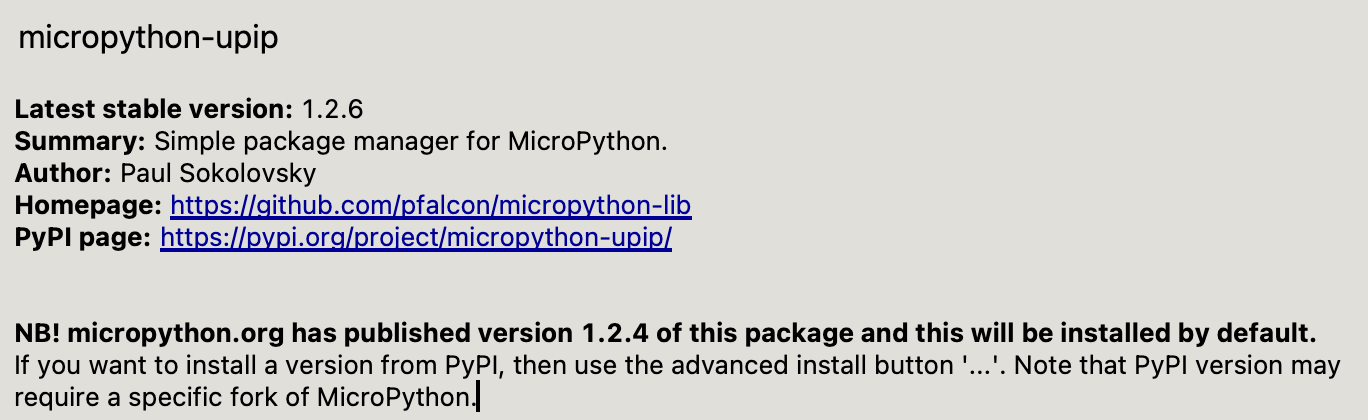
- Click Install to add it to your Pico W.
Key Idea
 PyPI (the Python Package Index) is a huge library of free Python packages.
 upip connects your Pico W to PyPI and downloads exactly what you need — just like an app store for your microcontroller!
Installing a Package with UPIP
This program connects to WiFi and then uses upip to install a test library. The library installed here is micropython-pystone_lowmem, a simple CPU speed test. You can replace it with any MicroPython-compatible package.
Make sure you have a secrets.py file set up from the Connecting to WiFi lab first.
1 2 3 4 5 6 7 8 9 10 11 12 13 14 15 16 17 18 19 20 21 22 23 24 25 26 27 28 29 | |
What each line does:
import upip— loads the package installerupip.install("micropython-pystone_lowmem")— downloads and installs the named package to/lib/on your Pico Wticks_ms()before and after — measures how many milliseconds the download takes
Expected output:
1 2 3 4 5 6 7 | |
The library is now saved on your Pico W. You can use it every time you restart without downloading it again.
Monty's Tip
 To install a different library, just change the package name in the
 upip.install() line. Search for micropython- packages on PyPI to find what is available.
Testing Your Newly Installed Library
After installing, test the new library to make sure it works.
1 2 | |
Expected output:
1 2 | |
This confirms the library installed correctly. The numbers measure how fast your Pico W's processor runs.
Getting UPIP Help
You can ask upip to explain itself:
1 2 | |
Output:
1 2 3 4 5 6 7 8 9 10 11 | |
Great Work!
 Your Pico W can now download and install new libraries from the internet! This makes it easy to add new features to any project.