Skip to content

Wireless With Display

Welcome to Wireless Display Status!

Monty waving welcome In this lab you will connect a display to your Pico W and show network information on the screen. You will see your IP address and Media Access Control (MAC) address without needing a computer!
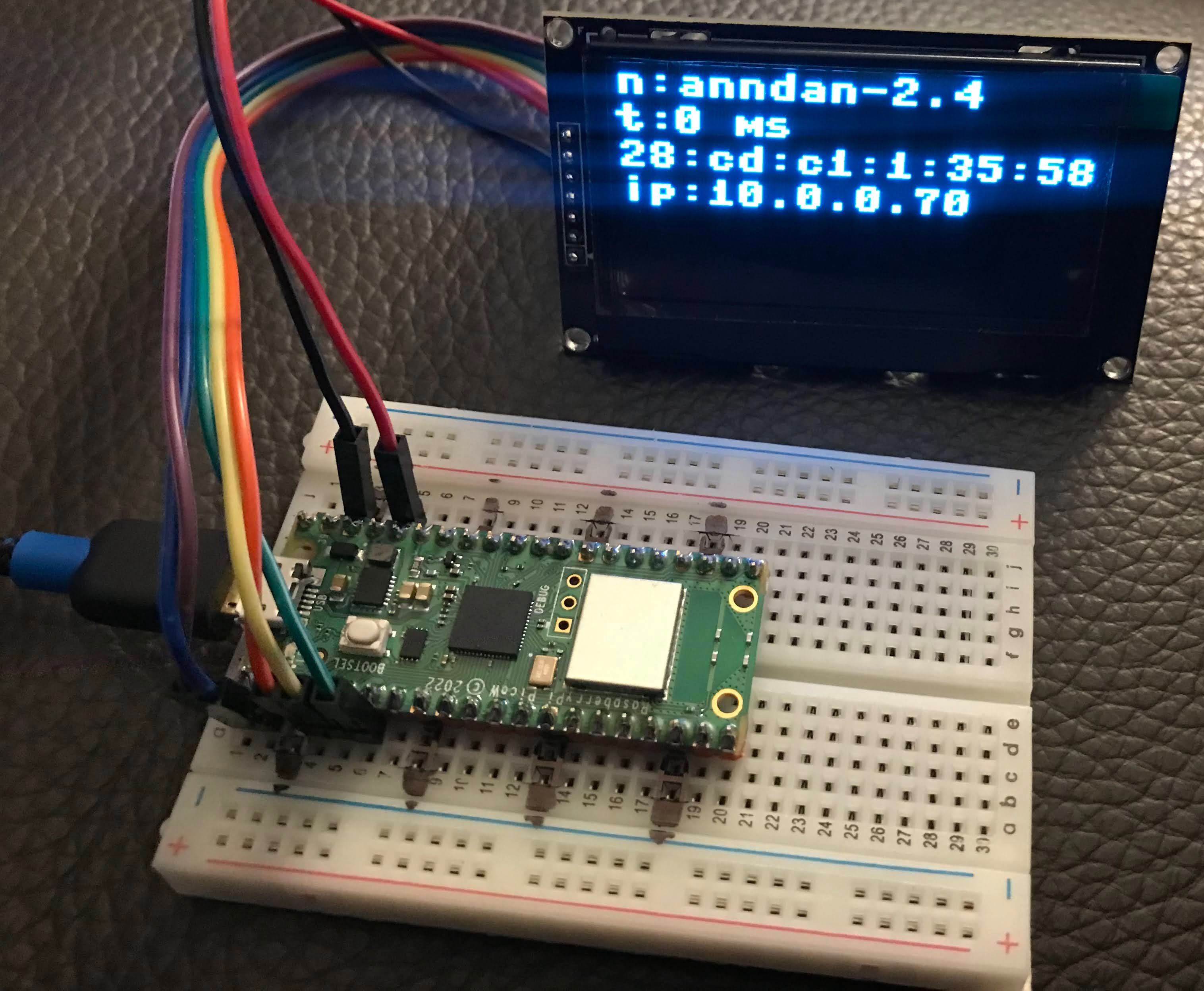
Wireless Display

In this lab you will add a 128x64 Organic Light-Emitting Diode (OLED) display to your Pico W. The display will show:

  • The WiFi network name you are connected to
  • How long it took to connect (in milliseconds)
  • Your Pico W's MAC address
  • Your Pico W's IP address
  • A counter showing how many seconds the device has been running

The display we use is a 2.42" Diymore OLED display. You can learn how to set it up in the Display Graphics section.

The Full Program

 1
 2
 3
 4
 5
 6
 7
 8
 9
10
11
12
13
14
15
16
17
18
19
20
21
22
23
24
25
26
27
28
29
30
31
32
33
34
35
36
37
38
39
40
41
42
43
44
45
46
47
48
49
50
51
52
53
54
55
56
57
58
59
60
61
62
63
64
65
66
67
68
69
70
71
72
73
74
75
76
77
78
79
80
81
82
from machine import Pin
import machine
import network
import ssd1306            # OLED display driver library
import secrets            # your WiFi network name and password
from utime import sleep, ticks_ms, ticks_diff

# set up the OLED display over SPI
WIDTH = 128
HEIGHT = 64
SCK = machine.Pin(2)     # SPI clock pin
SDL = machine.Pin(3)     # SPI data pin (MOSI)
spi = machine.SPI(0, baudrate=100000, sck=SCK, mosi=SDL)
CS  = machine.Pin(0)     # chip select pin
DC  = machine.Pin(1)     # data/command pin
RES = machine.Pin(4)     # reset pin
oled = ssd1306.SSD1306_SPI(WIDTH, HEIGHT, spi, DC, RES, CS)
oled.poweron()            # turn on the OLED screen

def mac_address_fmt():
    # read the MAC address and return it as a formatted string like "28:cd:c1:01:35:54"
    mac_bytes = wlan.config('mac')    # returns the MAC address as 6 raw bytes
    mac_string = ""
    for digit in range(0, 5):
        mac_string += str(hex(mac_bytes[digit]))[2:4] + ':'  # convert each byte to hex and add a colon
    mac_string += hex(mac_bytes[5])[2:4]  # add the last byte without a trailing colon
    return mac_string

def display_startup(counter):
    # show a startup message while waiting for WiFi to connect
    oled.fill(0)                               # clear the screen
    oled.text('Running startup', 0, 10, 1)     # row 1: startup message
    oled.text('Connecting to', 0, 20, 1)       # row 2: connecting label
    oled.text(secrets.SSID, 0, 30, 1)          # row 3: the network name
    oled.text(str(counter), 0, 40, 1)          # row 4: seconds elapsed
    oled.show()                                # send the pixel data to the screen

def display_status(counter):
    # show network status after a successful connection
    oled.fill(0)                                               # clear the screen
    oled.text('n:' + secrets.SSID, 0, 0, 1)                   # row 0: network name
    oled.text('t:', 0, 10, 1)                                  # row 1 label: connection time
    oled.text(str(connection_time) + ' ms', 15, 10, 1)        # row 1 value: time in milliseconds
    oled.text(mac_address_fmt(), 0, 20, 1)                     # row 2: MAC address
    oled.text('ip:' + wlan.ifconfig()[0], 0, 30, 1)           # row 3: IP address
    oled.text('c:' + str(counter), 0, 40, 1)                  # row 4: uptime counter
    oled.show()                                                # send the pixel data to the screen

# turn on the onboard LED to show the program is starting
led = Pin("LED", Pin.OUT)
led.on()

start = ticks_ms()        # start a timer to measure connection time

print('Connecting to WiFi Network Name:', secrets.SSID)
wlan = network.WLAN(network.STA_IF)   # create WiFi object in station mode
wlan.active(True)                     # power on the WiFi chip

if not wlan.isconnected():
    wlan.connect(secrets.SSID, secrets.PASSWORD)  # start connecting to WiFi
    print("Waiting for connection...")
    counter = 0
    display_startup(counter)           # show the startup screen immediately
    while not wlan.isconnected():      # keep looping until connected
        sleep(1)                       # wait one second
        counter += 1
        led.toggle()                   # blink the LED to show progress
        display_startup(counter)       # update the counter on the screen
        print(counter, '.', sep='', end='')

connection_time = ticks_diff(ticks_ms(), start)  # calculate how long the connection took
mac_bytes = wlan.config('mac')
print('Connected to', secrets.SSID)
print('Total connect milliseconds:', connection_time)

counter = 0
while True:
    led.toggle()               # blink the LED every second
    counter += 1               # increment the uptime counter
    display_status(counter)    # update the status screen
    sleep(1)                   # wait one second
    print(counter, 'listening on', wlan.ifconfig()[0])  # print status to the console

What each line does:

  1. ssd1306.SSD1306_SPI(...) — creates the OLED display object using SPI communication
  2. oled.poweron() — turns on the OLED backlight and display
  3. wlan.config('mac') — reads the MAC address as 6 raw bytes
  4. hex(mac_bytes[digit])[2:4] — converts one byte to a hexadecimal string and removes the 0x prefix
  5. oled.fill(0) — clears the screen to black (0 = off)
  6. oled.text(text, x, y, color) — draws text at position (x, y); color 1 = white
  7. oled.show() — sends all the pixel data from memory to the physical display
  8. ticks_diff(ticks_ms(), start) — calculates elapsed milliseconds since start
  9. led.toggle() — switches the LED from on to off, or off to on
  10. wlan.ifconfig()[0] — returns the Internet Protocol (IP) address assigned to your Pico W

Monty's Tip

Monty giving a tip The uptime counter helps you know how long your Pico W has been running without a restart. If the counter resets unexpectedly, it means the device crashed or was unplugged.

Key Idea

Monty thinking The display_startup function runs while you are waiting for WiFi. The display_status function runs after you connect. Showing progress on the screen is much more helpful than just watching a blinking LED!

Congratulations!

Monty celebrating You have built a self-contained wireless display! Your Pico W now shows its own network status without needing a computer. You have completed the wireless and IoT section — amazing work!