Web Server with NeoPixel RGB Controls
Welcome to RGB Web Control!
 In this lab you will control a NeoPixel LED strip from any web browser on your network. One click changes the color of all your LEDs!
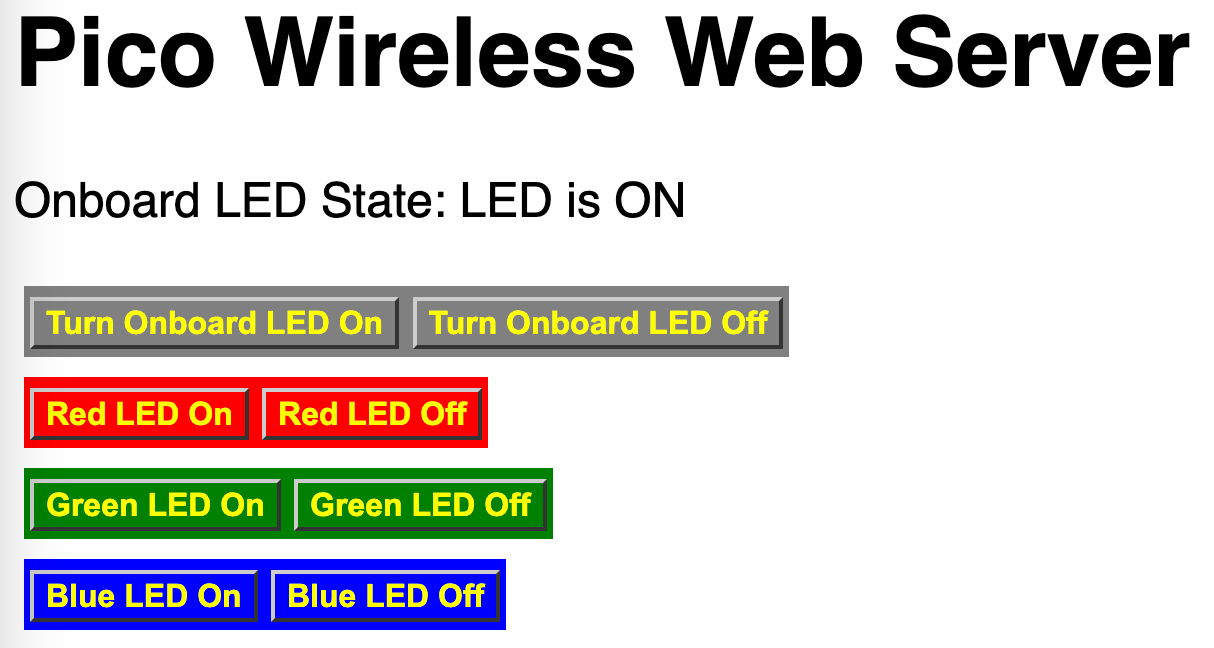
In the web server lab you controlled an LED with a web page. Now you will do the same thing with a NeoPixel LED strip. You will add buttons to turn on red, green, and blue colors — all from a web browser on your phone or laptop.
NeoPixels are smart LED lights. Each one can be any color in the rainbow. You send them color data from MicroPython using just one wire.
Sample Code with CSS Styling
This program builds a styled web page with colored button rows. Each row controls one color on your NeoPixel strip.
  1
  2
  3
  4
  5
  6
  7
  8
  9
 10
 11
 12
 13
 14
 15
 16
 17
 18
 19
 20
 21
 22
 23
 24
 25
 26
 27
 28
 29
 30
 31
 32
 33
 34
 35
 36
 37
 38
 39
 40
 41
 42
 43
 44
 45
 46
 47
 48
 49
 50
 51
 52
 53
 54
 55
 56
 57
 58
 59
 60
 61
 62
 63
 64
 65
 66
 67
 68
 69
 70
 71
 72
 73
 74
 75
 76
 77
 78
 79
 80
 81
 82
 83
 84
 85
 86
 87
 88
 89
 90
 91
 92
 93
 94
 95
 96
 97
 98
 99
100
101
102
103
104
105
106
107
108
109
110
111
112
113
114
115
116
117
118
119
120
121
122
123
124
125
126
127
128
129
130
131
132
133
134
135
136
137
138
139
140
141
142
143
144
145
146
147
148
149
150
151
152
153
154
155
156
157
158
159
160
161
162
163
164
165
166
167
168
169
170
171
172
173
174
175
176
177
178
179
180
181 | from machine import Pin
from neopixel import NeoPixel # NeoPixel LED library
import network
import socket
from time import sleep
import secrets
NEOPIXEL_PIN = 0 # the GPIO pin connected to your NeoPixel data line
NUMBER_PIXELS = 30 # how many LEDs are in your strip
# set up the NeoPixel strip
strip = NeoPixel(Pin(NEOPIXEL_PIN), NUMBER_PIXELS)
# define common colors as tuples: (red, green, blue) — each value 0–255
red = (255, 0, 0) # full red, no green, no blue
green = (0, 255, 0) # no red, full green, no blue
blue = (0, 0, 255) # no red, no green, full blue
off = (0, 0, 0) # all zeros = LED off
def set_color(color):
for i in range(0, NUMBER_PIXELS): # loop through every LED in the strip
strip[i] = color # set each LED to the chosen color
strip.write() # send the color data to the physical LEDs
# set up the onboard LED as an output
led = Pin("LED", Pin.OUT)
wlan = network.WLAN(network.STA_IF) # create WiFi object in station mode
wlan.active(True) # power on the WiFi chip
wlan.connect(secrets.SSID, secrets.PASSWORD) # connect to WiFi
led_state = "LED is OFF" # track the onboard LED state
# the HTML page with CSS styling — %s is replaced with the current LED state
html = """<!DOCTYPE html>
<html>
<head>
<title>Web Server On Pico W </title>
<style>
body {
font-size:24px;
font-family:'Helvetica'
}
.button-row {
display: inline-block;
padding: 2px 3px 6px 3px;
margin: 5px;
}
a:visited {
color: yellow;
background-color: transparent;
text-decoration: none;
}
a:hover {
color: orange;
background-color: transparent;
text-decoration: none;
}
.button {
font: bold 16px Arial;
text-decoration: none;
padding: 2px 6px 2px 6px;
border-top: 2px solid #CCCCCC;
border-right: 2px solid #333333;
border-bottom: 2px solid #333333;
border-left: 2px solid #CCCCCC;
}
</style>
</head>
<body>
<h1>Pico Wireless Web Server</h1>
<p>Onboard LED State: %s</p>
<div class="buttons">
<span class="button-row" style="background-color:gray">
<a href="/light/on" class="button">Turn Onboard LED On</a>
<a href="/light/off" class="button">Turn Onboard LED Off</a>
</span><br/>
<span class="button-row" style="background-color:red">
<a href="/led/red/on" class="button">Red LED On</a>
<a href="/led/red/off" class="button">Red LED Off</a>
</span><br/>
<span class="button-row" style="background-color:green">
<a href="/led/green/on" class="button">Green LED On</a>
<a href="/led/green/off" class="button">Green LED Off</a>
</span><br/>
<span class="button-row" style="background-color:blue">
<a href="/led/blue/on" class="button">Blue LED On</a>
<a href="/led/blue/off" class="button">Blue LED Off</a>
</span>
</div>
</body>
</html>
"""
# wait up to 10 seconds for WiFi to connect
max_wait = 10
while max_wait > 0:
if wlan.status() < 0 or wlan.status() >= 3:
break # connected or failed — stop waiting
max_wait -= 1
print('waiting for connection...')
sleep(1)
led.toggle() # blink the LED while waiting
# stop if we did not connect
if wlan.status() != 3:
raise RuntimeError('network connection failed')
else:
print('We are connected to WiFi access point:', secrets.SSID)
status = wlan.ifconfig()
print('The IP address of the Pico W is:', status[0])
# set up the server socket on port 80 (standard web port)
addr = socket.getaddrinfo('0.0.0.0', 80)[0][-1]
server_socket = socket.socket()
# prevent "address already in use" error when restarting
server_socket.setsockopt(socket.SOL_SOCKET, socket.SO_REUSEADDR, 1)
server_socket.bind(addr) # attach the socket to the address
server_socket.listen(1) # listen for one connection at a time
# listen for browser requests forever
while True:
try:
client, addr = server_socket.accept() # wait for a browser to connect
request = client.recv(1024) # read the browser's request
request = str(request) # convert bytes to a string
# check which button the user clicked by reading the URL path
led_on = request.find('/light/on')
led_off = request.find('/light/off')
red_on = request.find('/led/red/on')
red_off = request.find('/led/red/off')
green_on = request.find('/led/green/on')
green_off = request.find('/led/green/off')
blue_on = request.find('/led/blue/on')
blue_off = request.find('/led/blue/off')
if led_on == 6: # position 6 means valid request
led.on()
led_state = "LED is ON"
if led_off == 6:
led.off()
led_state = "LED is OFF"
if red_on == 6:
set_color(red) # turn all NeoPixels red
if red_off == 6:
set_color(off) # turn all NeoPixels off
if green_on == 6:
set_color(green) # turn all NeoPixels green
if green_off == 6:
set_color(off)
if blue_on == 6:
set_color(blue) # turn all NeoPixels blue
if blue_off == 6:
set_color(off)
# send the updated HTML page back to the browser
response = html % led_state
client.send('HTTP/1.0 200 OK\r\nContent-type: text/html\r\n\r\n') # HTTP headers
client.send(response) # send the web page
client.close() # close this connection
except OSError as e:
client.close()
server_socket.close()
print('connection closed')
|
What each line does:
NeoPixel(Pin(NEOPIXEL_PIN), NUMBER_PIXELS) — creates a NeoPixel strip object connected to the specified pinstrip[i] = color — sets the color of LED number i to a (red, green, blue) tuplestrip.write() — sends the color data over the wire to the physical LEDssetsockopt(socket.SOL_SOCKET, socket.SO_REUSEADDR, 1) — prevents an error if you restart the program quicklyrequest.find('/led/red/on') — searches for the URL path in the browser's request
Monty's Tip
 The
The SO_REUSEADDR option prevents a common error. Without it, restarting the program too quickly causes "address already in use." Always include this line in server programs!
References
Clear Fix Floating Boxes Example
https://www.w3schools.com/css/tryit.asp?filename=trycss_float_boxes
 1
 2
 3
 4
 5
 6
 7
 8
 9
10
11
12
13
14
15
16
17
18
19
20
21
22
23
24
25
26
27
28
29
30
31 | <style>
* {
box-sizing: border-box;
}
.box {
float: left;
width: 33.33%;
padding: 30px 20px;
}
.clearfix::after {
content: "";
clear: both;
display: table;
}
</style>
</head>
<body>
<h2>Grid of Boxes</h2>
<p>Float boxes side by side:</p>
<div class="clearfix">
<div class="box" style="background-color:silver">
<p>Some text inside the box.</p>
</div>
<div class="box" style="background-color:gray">
<p>Some text inside the box.</p>
</div>
</div>
|
Awesome Job!
 You can now control real-world lights from any web browser! This is exactly how smart home devices work. In the next lab you will fetch live weather data from the internet.