Five Broken Faces
Every lesson so far has handed you code that works. This one hands you code that does not, on purpose, five times over — and asks you to fix it.
That is not a punishment. Debugging is a skill you can get genuinely good at, and nobody gets good at it by only ever reading working programs. Every bug below is one that real people make on this exact hardware, over and over, including people who have been doing this for years.
Something's wrong with my face
 Five of my expressions are broken and I can't tell you why. Finding out is the whole lesson — and by the end you'll recognize these five on sight forever.
Debugging Has a Method
Editing random lines until something changes is not debugging. It sometimes works, it teaches you nothing, and it stops working the moment a problem gets hard. Use this loop instead, on every one of the five faces:
- Read the docstring. It says what the face is supposed to look like.
- Predict what you think will happen, before you press the button.
- Observe what actually happens, and describe the difference out loud in one sentence: "it should smile but it frowns."
- Locate the smallest piece of code that could cause that difference.
- Fix one thing, then run it again.
Step 5 is the one people skip. If you change three lines and the program starts working, you have not learned which of the three mattered — and you may have introduced a new bug that the fix is hiding.
Predicting Is Not Optional
 Writing down your prediction first turns every run into an experiment. When the screen surprises you, that surprise is information — it tells you exactly which part of your mental model is wrong.
How the Program Works
Button A steps to the next broken face, button B goes back. Each face is a function whose docstring states its intent, so you always know what you are aiming for.
1 2 3 4 5 6 7 8 9 10 | |
The bug number also prints to the Thonny shell every time you switch. That matters enormously for the first face, because when the screen shows nothing at all, the shell is the only thing telling you the program is alive and doing what you asked.
1 2 3 4 5 6 7 | |
That comment describes a real debugging principle: start from a known state. If leftovers from the previous face were still on screen, you would waste time investigating a symptom that belongs to a different bug.
The Five Faces
Try each one before reading any further. The list below only tells you what each face is supposed to do — working out what it actually does is the exercise.
| Face | What it should show |
|---|---|
| Bug 1 | A plain happy face: two eyes, two flat brows, a wide smile |
| Bug 2 | One bright dot sliding smoothly across the screen, leaving clean black behind it |
| Bug 3 | A wide-awake surprised face, eyes high on the screen above an open mouth |
| Bug 4 | A cheerful face whose mouth curves up, matching the word in the corner |
| Bug 5 | A face that blinks slowly and still answers the buttons |
Bug 5 is different from the other four, and worth extra attention. Press button A while it is blinking. Every other face in this kit switches away the instant you press. This one does not.
The Bug You Cannot Photograph
 Take a picture of bug 5 and nothing looks wrong. It is a bug about time, not about pixels, and those are the hardest kind to see — which is exactly why the next lesson builds a tool for watching them.
The Symptom Table
Read this only after you have tried all five. Learning to go from a symptom to a cause is the part of debugging that transfers to every program you will ever write, and reading the answers early skips it.
| What you see | What causes it |
|---|---|
| A blank screen, but the shell keeps printing | Something was drawn into the frame buffer and never pushed to the glass. The buffer lives in RAM; the screen only catches up when you say so. |
| Old pixels stay behind and pile up into a smear | The frame buffer was never wiped between frames. Drawing adds to what is already there; it does not replace it. |
| A shape is cut off at the top or the bottom | A y value went off the screen. y grows downward here, so "higher up" means a smaller y — but never a negative one, and never past 63. |
| A curve bends the wrong way | The quadrant mask is inverted. TOP_HALF (3) frowns and BOTTOM_HALF (12) smiles: two characters apart in the code, opposite feelings on the robot's face. |
| Button presses get ignored some of the time | Something in the loop is blocking. While sleep() runs, nothing else does — including the button check. Pace it with ticks_ms() instead and the loop keeps spinning. |
Keep this table. It is not just a lesson answer key — it covers most of what goes wrong on this hardware, so it works as a troubleshooting reference for every program you write with this kit.
What the Symptoms Look Like
Here are the four faces whose problems show up in a picture, captured after the bug had done its damage. Bug 5 is missing on purpose: it is a bug about time, and a still picture cannot show it.
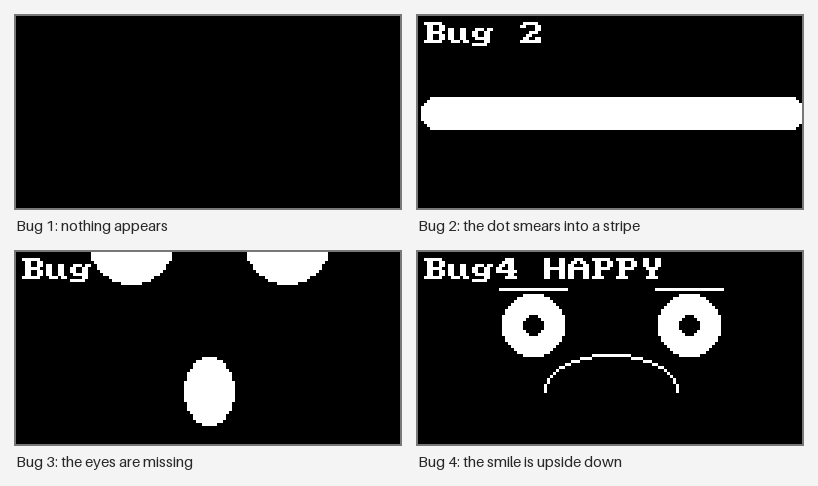
If your screen looks like one of these, go back to the symptom table and find the cause.
Why These Five
Each bug was chosen because it teaches something specific about how the display actually works, and because the fix is a habit rather than a memorized line.
| Bug | The idea underneath it |
|---|---|
Missing show() |
Drawing and displaying are two separate steps, and the screen is the slow one |
Missing clear() |
The frame buffer keeps its contents until you erase them |
Off-screen y |
The coordinate system has hard edges, and MicroPython will not warn you |
| Flipped mask | A tiny numeric constant can carry a huge amount of meaning |
Blocking sleep() |
Responsiveness is a property of the whole loop, not of any one line |
Things to Try
- Write the symptom in your own words for each bug, before checking the table. Naming a symptom precisely is most of the work of finding its cause.
- Break one on purpose in a new way and hand the file to a partner. Writing a bug that produces a specific symptom proves you understand the cause, not just the cure.
- Fix bug 5 properly using the timer technique from the non-blocking lesson, then press the button mid-blink and feel the difference.
- Go hunting in your own code. Open the last program you wrote and look for any of these five. At least one of them is probably in there.
Five bugs, five habits
 You just fixed the five most common ways a robot face goes wrong — and more importantly, you now have a method that works on bugs nobody has written a table for yet.
References
- Basic Drawing Commands — why
show()is a separate step from drawing - Screen Coordinates — the coordinate limits that bug 3 runs past
- Ellipse — the quadrant fill codes that bug 4 inverts
- Blinking — the debounced button loop that bug 5 starves
- Trace and Watch — the measurement tools that make bug 5 visible