Drawing Pixels
Every shape in this book — every eye, eyebrow, and mouth — is built from one thing: a single lit dot called a pixel. The pixel() method is the smallest drawing tool the framebuffer gives you, and it turns exactly one dot on or off.
You will not draw a whole face one pixel at a time. But pixel() is worth learning first, because it shows you what every other command is really doing underneath.
1 | |
The x and y values pick the dot, and color sets it to 0 for off or 1 for on. Leave the color off entirely and pixel() does the opposite job — it reads the dot and tells you whether it is currently lit:
1 2 | |
One Pixel Is the Whole Unit of Measure
 My screen is 128 dots across and 64 down — that's 8,192 pixels total, and I control every one of them. Every pixel tells a story!
Sample Program Code
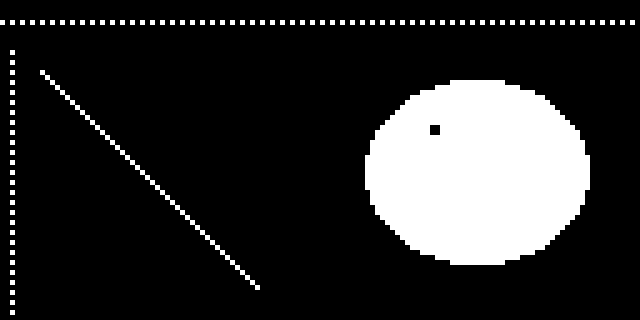
This program uses pixel() three ways: to build dotted rulers along the top and left edges, to draw a diagonal one dot at a time, and to punch a tiny highlight out of a finished eye.
1 2 3 4 5 6 7 8 9 10 11 12 13 14 15 16 17 18 19 20 21 22 23 24 25 26 27 28 29 30 31 32 33 34 35 36 37 38 39 40 41 42 43 44 | |
Here's what that program draws on the display:
The Catchlight Trick
Look closely at the eye on the right. Those four black pixels in the upper-left of the white shape are a catchlight — the small bright reflection you see in a real eye. Four dots is all it takes to make a flat white blob start reading as something alive and looking at you.
This is also your first look at drawing in layers. The ellipse() call ran first and filled the whole shape white. The four pixel() calls ran second, so they overwrote what was already there. Later commands always win.
| Goal | Approach |
|---|---|
| Turn one dot on | display.pixel(x, y, 1) |
| Turn one dot off | display.pixel(x, y, 0) |
| Ask if a dot is lit | display.pixel(x, y) returns 0 or 1 |
| Erase a detail from a filled shape | Draw the shape, then set pixels back to 0 |
Off-Screen Pixels Just Disappear
 Ask for
 pixel(200, 90, 1) and nothing happens — no dot, no error message. When a detail goes missing, check your coordinates against the 128 by 64 limit first.
Speed Matters
Setting one pixel is fast. Setting thousands of them in a Python loop is slow, because every trip through the loop costs interpreter time. Drawing a filled circle with ellipse() is far quicker than drawing the same circle with a loop of pixel() calls, since ellipse() does its work in compiled C code.
So the rule is simple: reach for pixel() for small details and single dots, and reach for the shape commands for everything bigger.
Challenge
- Draw a dotted border all the way around the screen using only
pixel(). - Add a second catchlight to the eye and see how it changes where the eye seems to be looking.
- Write a loop that reads every pixel in a small region with
pixel(x, y)and counts how many are lit. - Time a filled circle drawn with
ellipse()against the same circle drawn with apixel()loop. Which is faster, and by how much?