Drawing Rectangles
Rectangles are the workhorses of a robot face. They give you blocky retro eyes, status bars along the bottom of the screen, and — most usefully of all — a fast way to erase just one part of the display without redrawing everything else.
Two Commands, One Shape
There are two ways to draw a rectangle, and the difference is whether the inside gets painted:
1 2 | |
The x and y values set the top-left corner — not the center, which is where ellipse() measures from. From that corner the rectangle extends width pixels to the right and height pixels down.
The optional fill_flag on rect() is 0 for a one-pixel outline and 1 for a solid block. That means rect(x, y, w, h, c, 1) and fill_rect(x, y, w, h, c) do exactly the same thing; fill_rect() is just the shorter way to say it.
Corner, Not Center
 Switching between
 ellipse() and rect() trips up everyone at first, because ellipse() measures from the middle and rect() measures from the top-left. If a shape lands up and to the left of where you wanted it, this is why.
Sample Program Code
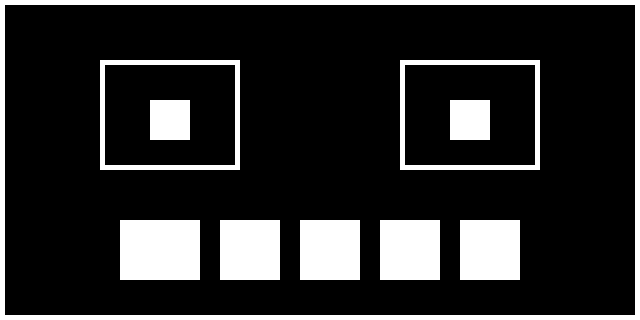
This program draws a border around the whole display, then a blocky retro face: square eye sockets with filled pupils inside, and a wide mouth bar with black gaps erased out of it to look like teeth.
1 2 3 4 5 6 7 8 9 10 11 12 13 14 15 16 17 18 19 20 21 22 23 24 25 26 27 28 29 30 31 32 33 34 35 36 37 38 39 40 41 42 43 44 45 | |
Here's what that program draws on the display:
Erasing with a Black Rectangle
Those teeth are the most useful trick on this page. There is no "erase" command in the framebuffer — but drawing in black is erasing, because black is simply the color of an unlit pixel.
That gives you a much faster way to animate. Instead of clearing the whole screen with fill(0) and rebuilding the entire face every frame, you can erase just the rectangle around one feature and redraw only that:
1 2 3 4 | |
The rest of the face never gets touched, so it never flickers.
| Goal | Command |
|---|---|
| Outline only | rect(x, y, w, h, 1, 0) |
| Solid block | fill_rect(x, y, w, h, 1) |
| Erase a region | fill_rect(x, y, w, h, 0) |
| Clear the whole screen | fill(0) |
fill() Is Just a Rectangle the Size of the Screen

fill(0) and fill_rect(0, 0, 128, 64, 0) do the same job. Once you see that, "clear the screen" stops being a special command and becomes one more rectangle.
Sizing a Border Correctly
The border in the sample is rect(0, 0, 128, 64, 1, 0) — the full width and height, not 127 and 63. That is because rect() takes a size, not an end point. Starting at column 0 and running 128 pixels wide covers columns 0 through 127, which is exactly the screen.
This is the opposite of line(), which takes end points and needs 127. Getting these two mixed up produces a border with one edge missing, and it is worth checking first whenever that happens.
Challenge
- Change the number of teeth in the mouth by adding or removing black
fill_rect()calls. - Make the eyes blink by erasing each socket with a black rectangle and drawing a horizontal line in its place.
- Build a battery indicator: an outlined rectangle with a filled rectangle inside whose width tracks a charge level from 0 to 100.
- Draw a rectangle that is deliberately too big for the screen. What happens to the parts that fall off the edge?