Phishing Email Anatomy
Run the Phishing Email Anatomy MicroSim Fullscreen
You can include this MicroSim on your own website with the following iframe:
<iframe src="https://dmccreary.github.io/cybersecurity/sims/phishing-email-anatomy/main.html" height="622" width="100%" scrolling="no"></iframe>
About this MicroSim
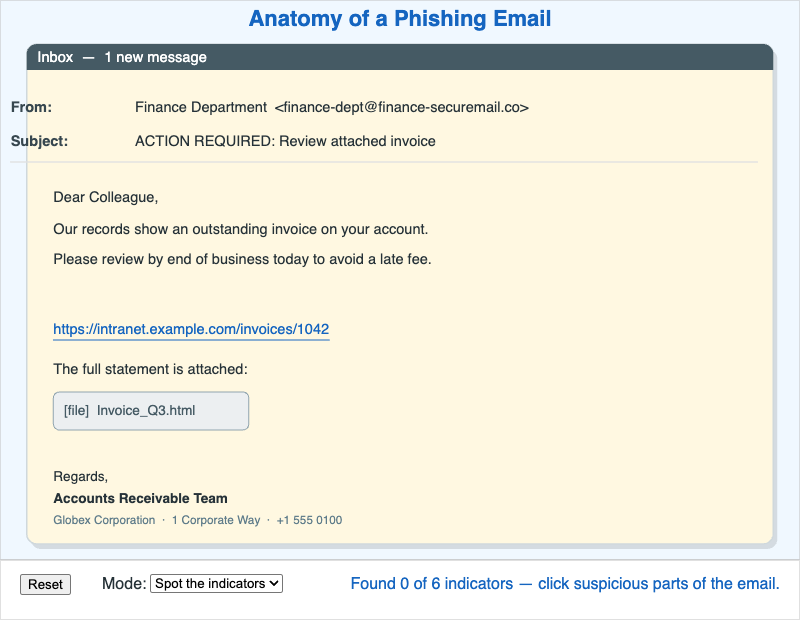
This MicroSim renders a realistic spear-phishing email in a stylized email-client
window — a fake finance-team request to review an invoice — and invites you to take
it apart. Six hotspots mark distinct manipulation techniques: a spoofed sender
("Finance Department" hiding the address finance-dept@finance-securemail.co), a
generic greeting ("Dear Colleague"), a manufactured-urgency line, a
lookalike hyperlink whose visible text and real destination disagree, a
credential-harvesting HTML attachment, and a forged footer copied from a real
company.
Use the Mode dropdown to switch between two ways of working. In Spot the indicators, the hotspots are hidden and you click the parts of the email you find suspicious; a running score ("Found N of 6") tracks your progress without giving the answers away. Switch to Annotated to reveal every indicator with its label, then hover any one for an explanation of why it is a red flag. Working in that order — find first, then check — turns passive reading into the active decomposition the learning objective asks for.
Lesson Plan
Learning objective (Bloom — Analyze): Students decompose a realistic spear-phishing message into its component manipulation techniques and identify the specific signals that should trigger suspicion.
Suggested classroom use: Have students work in Spot mode first and record how many of the six indicators they find unaided. Then switch to Annotated and discuss the ones they missed. Ask which single indicator they would teach a non-technical colleague to check first.
Discussion questions:
- The display name reads "Finance Department." Why is the actual email address — not the display name — the part that matters?
- The visible link text and the real destination disagree. What habit defeats this technique before you ever click?
- Why is an HTML attachment a credential-harvesting vector in a way that a plain PDF usually is not?
References
Specification
The full specification below is extracted from Chapter 12: "Human Security: Identity, Authentication, and Social Engineering".
Type: interactive-infographic
**sim-id:** phishing-email-anatomy<br/>
**Library:** p5.js<br/>
**Status:** Specified

A rendered mock-up of a phishing email shown in a stylized email-client window. The email impersonates a finance team request to review an invoice. Several hotspots are highlighted with subtle red glow:

1. **Sender display name** — "Finance Department" but the actual address is `finance-dept@finance-securemail.co`. Tooltip explains display-name spoofing.
2. **Greeting** — generic "Dear Colleague" instead of the recipient's name. Tooltip notes that bulk phishing skips personalization while spear phishing nails it.
3. **Urgency trigger** — "Please review by end of business today to avoid late fee." Tooltip explains how urgency suppresses careful thinking.
4. **Hyperlink** — visible text reads `https://intranet.example.com/invoices/1042` but on hover the actual URL is `https://intranet-example.invoice-portal.ru/login`. Tooltip explains the lookalike-domain pattern.
5. **Attachment** — `Invoice_Q3.html` (an HTML file that opens a credential prompt). Tooltip explains why HTML attachments are a common credential-harvesting vector.
6. **Footer** — corporate-looking signature copied from a real company website. Tooltip explains how attackers source these.

A toggle at the top switches between "Spot the indicators" mode (hotspots invisible, user must click to find them; score shown) and "Annotated" mode (all hotspots and explanations visible).

Learning objective (Bloom level: Analyzing): Students decompose a realistic spear-phishing message into its component manipulation techniques and identify the specific signals that should trigger suspicion.

Canvas: 900×600 default, responsive. Soft drop-shadow window styling; cream background for the email body.

Implementation: p5.js with rectangular hit-region detection and a small data file mapping hotspot coordinates to explanation text.